


🎉 Spring Season Tech Care Offer 31d : 0h : 0m : 0s | Get 20% Off ➡️
Call Louder Logo

calllouder

icloud backups

How to Speed Up Slow iCloud Back Ups

If your iCloud backup is taking longer than normal to complete, you are not the only one experiencing this problem. Many people search for things like icloud backup slow, icloud backup taking too long, icloud backup stuck, or why is iCloud backup slow. It can be extremely frustrating especially when you just want your phone backed up and safe. The good news is that most iCloud backup problems are simple to fix. You do not need to be a tech expert. Why Is iCloud Backup Slow? Before we fix the problem, let us understand why it happens. iCloud backup works by uploading your data to Apple’s servers through the internet. It saves your photos, videos, messages, app data, settings, and more. Because it uploads data, your internet upload speed is very important. If your upload speed is slow, your backup process will take longer. If your data is large, it will take longer to back up. If you have not backed up your phone in quite a while, then your first backup will most likely take hours to complete. So when people ask, “why is iCloud backup slow,” the answer is usually one of these reasons: Now let us look at how to fix these problems and speed up iCloud backup. 1. Check Your Wi-Fi Connection The most common reason for icloud backup slow issues is poor Wi-Fi. iCloud uses your upload speed, not your download speed. Many people have fast download speeds but very slow upload speeds. Because of this, the backup takes a long time. To fix this: If your internet is slow, your backup will be slow. Thus, improving your connection is the first and most important step. 2. Plug Your Phone Into Power iCloud backups usually run when your phone is: If your phone is not charging, the backup may slow down. This happens because the system tries to save battery power. So if your iCloud backup is taking too long, plug your phone into a charger and leave it alone for a while. Many times, this simple step fixes the problem. 3. Check How Big Your Backup Is Sometimes the problem is not your internet. Sometimes the backup file itself is very large. You can check your backup size by going to: Settings → Your Name → iCloud → Manage Storage → Backups → Your Device If your backup is 20GB, 40GB, or even bigger, it will take time. Photos and videos take up a lot of space. Because of this, they slow down the process. If your backup is huge, you may need to reduce its size. 4. Remove Apps You Do Not Need Many people back up every app on their phone. However, not all apps need to be backed up. For example, streaming apps, shopping apps, and many games store your information online already. Backing them up again is not always necessary. To remove apps from backup: Settings → Your Name → iCloud → Manage Storage → Backups → Your Device Then turn off the apps you do not need. This will reduce the backup size. Since the file becomes smaller, it will speed up iCloud backup. 5. Make Sure You Have Enough iCloud Storage Apple gives only 5GB of free iCloud storage. That is not much. Because of this, many users run out of space. If your storage is full, your backup may appear stuck. This is when people search for icloud backup stuck or icloud backup problems. You can check your storage in: Settings → Your Name → iCloud If you do not have enough space, you can: If there is no space, the backup cannot finish. Thus, freeing up storage is very important. 6. Restart Your Phone Although it sounds simple, restarting your phone can fix many problems. If your iCloud backup is stuck, try this: Sometimes small software glitches cause iCloud backup troubleshooting issues. Restarting clears temporary errors. 7. Update Your iPhone Old software can cause bugs. These bugs can affect backups. Go to: Settings → General → Software Update If an update is available, install it. Updates fix known problems and improve performance. Because of this, updating your device can solve many iCloud backup problems. 8. Turn Off Low Power Mode Low Power Mode limits background activity to save battery. Since iCloud backup runs in the background, it may slow down when this mode is on. You can turn it off in: Settings → Battery → Low Power Mode Turn it off and try the backup again. 9. Be Patient With the First Backup If this is your first backup, it will take longer. This is how the backup system works.  The first backup uploads everything. After that, future iCloud backups only upload new or changed data. Because of this, they are much faster. While backing up your data, you may feel impatient at times, but it is important that you allow your backup system to complete the entire process. 10. When to Contact Apple Support If you have strong Wi-Fi, enough storage, updated software, and your backup still does not move for many hours, you may need help. In rare cases, there could be account issues or deeper system problems. At that point, contacting Apple Support is a good idea. Final Thoughts If you are dealing with icloud backup slow issues, remember that most problems are simple. Usually, the cause is slow internet, large backup size, or not enough storage. If your icloud backup is taking too long, start by checking your Wi-Fi and plugging your phone into power. Then reduce your backup size and make sure you have enough iCloud space. Most of the time, these steps will solve your problem. However, if you are still facing issues or feel unsure about the technical steps, you can connect with a professional expert for proper guidance and quick resolution. iCloud backups are important because they protect your photos, messages, and personal data. Thus, fixing the issue is worth the effort. Now that you understand why

How to Speed Up Slow iCloud Back Ups Read More »

external hard drive fix

Can Firmware Corruption Block an External Drive Fix?

Yes, firmware corruption can block an external drive fix. Although many people think an external hard drive stops working because of simple file errors, sometimes the real problem is actually deeper. The issue may not be with your files at all, but with the drive’s internal system called firmware. What Is Firmware in an External Drive? Firmware is a small built-in program inside your external hard drive. It tells the drive how to work. It controls how the drive starts, how it connects to your computer, and how it reads and writes data. The firmware acts like the brain behind the drive, and even though you cannot see it at all, the drive depends on it to function properly. Since firmware manages important tasks, it could result in your drive failing to operate normally. What Does Firmware Corruption Mean? Firmware corruption means that this internal program has become damaged or broken. Because of this damage, the drive may not work the way it should. This can happen for several reasons, such as: Although the drive may still turn on and show a light, it may not connect properly to your computer. Since the firmware controls communication, corruption can completely block access to your files. How Firmware Corruption Can Block an External Drive Fix When firmware is damaged, normal fixing methods usually do not work. Here’s how it can create problems: 1. The Drive Is Not Detected You plug in the drive, but your computer does not see it. Although the USB port and cable are fine, the system shows nothing. This happens because the firmware is not allowing the drive to introduce itself correctly to the computer. Since the computer cannot recognize the drive, you cannot access your files or run repair tools. 2. Wrong Storage Size Is Shown Sometimes the drive appears, but it shows the wrong capacity. For example, a 1TB drive may show as 0GB or a very small size. This happens because firmware is responsible for reporting the drive’s details. Although your data may still be there, the system cannot read the correct information. Thus, the drive becomes unusable. 3. Drive Keeps Connecting and Disconnecting In some cases, the drive connects for a few seconds and then disconnects again. Although you may think the cable is loose, the real issue may be firmware instability. Since firmware manages communication, corruption can cause unstable connections. 4. Recovery Software Fails You can use the data recovery software, but it will not be able to scan the drive. This is so since majority of the recovery tools require the drive to be properly detected first. When access is blocked because of firmware corruption, the software can do nothing. Even though the files are still physically stored on the drive, the system is unable to access them. Can You Fix Firmware Corruption at Home? In most cases, firmware problems are not easy to fix at home. Unlike deleted files or simple formatting issues, firmware is stored in a special hidden area of the drive. Due to this, regular repair tools will not be effective. Although there are many videos available online that demonstrate how to do a basic update/ quick tricks, you will have problems when they fail. If done incorrectly, they may cause permanent data loss. Others attempt to open the drive in the hope that it will come to their rescue. This is however, not advisable. External hard drives are very sensitive. Dust or small particles can damage internal parts easily.  Therefore, firmware repair usually requires special tools and technical knowledge. If you want a safe and reliable solution, it is best to connect with a professional data recovery specialist instead of trying to fix it at home. Is the Data Lost Forever? Not always. In most instances the actual data stored on the drive is still safe. The thing about this is that the corrupted firmware is blocking access to it. Since firmware acts like a gatekeeper, fixing it can sometimes regain 100% access to your files. However, this must be done carefully. Repeated failed attempts can make the situation worse. If the data is very important, professional help is often the safest option. Signs That Firmware Might Be the Problem Some symptoms of firmware corruption include: While other signs can also point to other problems, firmware corruption is a common cause for many of these problems. What Should You Do If You Suspect Firmware Corruption? If you think firmware corruption is blocking your external drive fix, here are some simple steps you can try: Because the more you experiment, the higher the risk of making things worse. Final Thoughts So, can firmware corruption block an external drive fix? Yes, it absolutely can. Since firmware controls how the drive works and communicates, any corruption in it can stop normal repair methods from working. Even if the external drive appears to be in good condition, the internal damage can prevent access to your data. On the plus side, however, your files may still be safe. However, accessing them requires careful handling. If the data is valuable, it is best to avoid risky DIY methods. While simple problems can sometimes be fixed at home, firmware corruption is usually much more serious. So taking the right steps early on can increase the chances of recovery as well as prevent permanent loss. FAQs

Can Firmware Corruption Block an External Drive Fix? Read More »

windows file recovery

Does BitLocker Block Windows File Recovery?

Many people use BitLocker to protect their files because it adds strong security to a drive. However, when data gets deleted or lost, a common question comes up: does BitLocker block Windows File Recovery? The short answer is: it depends. Although BitLocker protects your data from unauthorized access, it can also make recovery much more complicated. Read on to know more! What Is BitLocker and How Does It Work? BitLocker is a built-in Windows feature that encrypts your drive. This means your data is locked and cannot be accessed without the correct password and/or recovery key. So because of this, even if someone removes your drive and connects it to another computer, they cannot read your files. This is great for security. However, since the data is encrypted, recovering deleted files becomes more complex. Can Windows File Recovery Work on a BitLocker Drive? Yes, Windows File Recovery can work on a BitLocker-protected drive but only if the drive is unlocked first. If the drive is still encrypted and locked, the recovery tool cannot scan it properly. Because BitLocker encrypts everything on the drive, the recovery software sees unreadable data unless you provide the correct password or recovery key. Therefore, you must unlock the drive before attempting recovery. So, Windows file recovery BitLocker situations is possible, but there are conditions that must be met first. When BitLocker Makes Recovery Difficult Although BitLocker does not completely block recovery, it adds extra steps and makes it even more difficult. Here’s why: 1. You Need the Recovery Key If you forgot your BitLocker password and do not have the recovery key, it becomes almost impossible to access the data. Since the drive is encrypted, even professional tools cannot simply bypass it. 2. Encryption Changes How Data Is Stored Because the files are encrypted, recovering raw data without unlocking the drive will only show scrambled content. Thus, you cannot recover files from an encrypted drive unless it is properly decrypted or unlocked. 3. Windows Recovery Tool Limitations There are certain Windows recovery tool limitations when dealing with encrypted drives. The built-in Windows File Recovery tool is basic and works mainly through command lines. Although it can recover deleted files, it does not fix serious corruption or hardware damage. If the drive has additional problems, such as file system errors or physical damage, recovery becomes more complicated. Can You Recover Files from an Encrypted Drive? You can restore files from an encrypted drive system if:  Since encryption protects the entire drive, it does not delete your data. It only locks it. Therefore, if you unlock the drive successfully, recovery tools can scan it like a normal drive. Also note that if you have lost your BitLocker Recovery Key, it will be very difficult to recover data from the drive. What If Windows File Recovery Does Not Work? Sometimes, even after unlocking the drive, Windows File Recovery may not find your files. This can happen because: In such cases, you may need a professional BitLocker encrypted drive recovery solution. When to Consider a BitLocker Data Recovery Service If your data is very important and the built-in tool fails, you may consider a BitLocker data recovery service. These services use advanced software and hardware tools to handle encrypted drives carefully. Consider a BitLocker data recovery service if your data is highly valuable but cannot be recovered using BitLocker’s built-in recovery tools. These high-end and high-tech software and hardware tools can assist you in recovering your encrypted drive in an appropriate way. FAQs

Does BitLocker Block Windows File Recovery? Read More »

hdd data recovery

What Are the Risks of Attempting DIY HDD Data Recovery?

Losing important files can feel a lot scary and stressful. Be it family photos, office documents, or personal records, no one wants to lose their data. Because of this, many people quickly search for HDD Data Recovery solutions online. Also at first, trying to fix the problem yourself may seem easy and affordable. However, although DIY methods look simple, they can lead to serious problems if not handled carefully. What Is DIY HDD Data Recovery? DIY HDD Data Recovery means trying to recover lost, deleted, or corrupted files from your hard drive without taking help from a professional. People usually download recovery software, watch online videos, or follow step-by-step guides. Sometimes, they even open the hard drive at home to fix it. Although this may sound brave and smart, but let me tell you that hard drives are very delicate devices. Since they have tiny moving parts inside, even a small mistake can cause permanent damage. Therefore, it’s important to know what can go wrong. 1. Risk of Hard Drive Recovery Failure One of the biggest problems with DIY recovery is hard drive recovery failure. You may try different tools and methods, but they might not work well. Because every data loss case is different, not all software can fix every problem. If the drive has physical damage, software alone will not help. Thus, you may waste time running scans again and again, hoping for better results. Meanwhile, the drive’s condition can get worse. When recovery fails, it also becomes harder for professionals to fix the issue later. Since the drive has already been stressed or misused, the chances of full recovery may be reduced. 2. Making the Damage Worse A very serious risk of DIY HDD Data Recovery is causing more damage. If you continue using the same hard drive after data loss, new data may overwrite the old lost files. Once data is overwritten, it becomes almost impossible to get it back. Also, if you try to open the drive at home for damaged hard drive recovery, dust or tiny particles can enter inside. Hard drives need a clean room environment to be opened safely. Although it may look simple in videos, doing it at home can permanently destroy the disk. Because of this, a small issue can turn into a complete hard drive recovery failure. 3. Hard Drive Clicking Noise Recovery Is Not Simple If your hard drive is making a strange clicking sound, this is usually a sign of physical damage. Many people search online for hard drive clicking noise recovery solutions and try to fix it themselves. However, a clicking noise often means the internal parts are failing. Since the read/write head may be damaged, using the drive further can scratch the disk surface. Thus, every second the drive runs, more data can be lost. Although some people believe freezing the drive or tapping it might help, these methods are risky and outdated. In reality, they can make the situation worse. Therefore, clicking noise problems usually need professional tools and clean room service. 4. Incomplete or Broken File Recovery Even if your DIY attempt seems successful, the recovered files may not open properly. You might see file names, but the content could be missing or corrupted. This happens because software tools may only recover parts of the data. Although it looks like recovery worked, the files may be incomplete. As many people do not realize that there is a way to check file integrity, it is possible for them to think that their files are intact until they try to open an important file later. Thus, a failed data recovery attempt may not always look like a total failure at first. Sometimes, the problem shows up later. 5. Security and Malware Risks Another important point in understanding DIY HDD data recovery risks is security. Most free hard drive recovery tools are not secure and may expose you to common security risks, such as viruses and malware, because they originate from “unknown sources.” When you install such software, your personal information will be vulnerable to exposure; in fact, whilst attempting to save it, you may accidentally create a new security problem. Hence, it is important to be very careful about what you download. 6. Warranty May Be Voided If you open your hard drive or try hardware repairs yourself, the warranty may become invalid. While you may believe that you are saving money by performing the repairs yourself, you may be forfeiting all opportunity for a free service or replacement. Therefore, before attempting any physical repair, it is important to check your warranty terms. 7. Lack of Professional Knowledge Data recovery experts use special tools, advanced software, and clean room environments. They also understand how different types of failures work and since most home users do not have this knowledge base as well as training, it can be difficult to choose the correct method. Although online guides are helpful, they cannot replace the hands-on experience that professionals provide. Because every hard drive problem is different, a general solution may not work in favour of your specific case. Final Thoughts Although DIY HDD recovery might appear to be a cheap and quick way of recovering your data, the potential risks associated with DIY HDD recovery significantly outweigh any potential savings! If you do not successfully recover your data on your HDD then you may end up with a hard drive recovery failure or permanent damage.  If you hear strange noises from your drive, especially in cases of hard drive clicking noise recovery, the safest thing to do is to stop using it immediately. Since physical damage can get worse quickly, professional help is often the better option. Even though professional services may cost more at first, they reduce the risk of further damage and increase the chances of successful damaged hard drive recovery. Therefore, before trying anything yourself, think carefully about how valuable your data is. In the end, saving money is important but saving your

What Are the Risks of Attempting DIY HDD Data Recovery? Read More »

printer not printing

Printer Not Printing Documents Properly: Common Causes and Solutions

Few things lead to frustration quicker than when you need to print something in a pinch, and your printer doesn’t want to cooperate (and it won’t tell you why either!). You’re in a hurry, you click print, and nothing happens. Or maybe the page comes out with streaky lines, faded text, or strange marks.  Whether you’re getting an error message that doesn’t match what’s actually happening, or your printer is giving you the silent treatment, knowing where to start when your printer not printing can save you time and stress. The exact fix depends on your printer model, but once you understand the common causes, you can quickly search for model-specific steps. Most manufacturers also offer online support guides, which can help a lot. Let’s go through the most common problems and simple solutions. 1. Paper Jams A paper jam is one of the most common reasons behind printer problems. It can bring everything to a stop, especially in a busy office. Paper jams usually happen because the paper was not loaded correctly or the wrong paper size was used. Since the printer pulls paper through using rollers, even small misalignment can cause it to get stuck. The Fix First, gently remove the jammed paper. Make sure you pull it out slowly to avoid tearing it. Then reload the correct paper size and align it properly in the tray. If paper jams happen often, paper dust could be the reason. Over time, dust builds up inside the machine and affects how it feeds paper. In that case, wipe the rollers carefully and clean around the tray area. Using better-quality paper also helps because cheap paper produces more dust. 2. Lines or Streaks on Paper If your printed pages have streaks, lines, or strange marks, something inside the printer needs attention. This issue can make documents look unprofessional and hard to read. Common causes include: Since printers have several internal parts working together, even one small problem can affect print quality. The Fix Start simple. Clean the scanner glass and inside areas carefully according to your printer’s manual. If the problem continues, the drum unit or another internal part may need replacement. At that point, you might need a technician to check it properly. 3. Wrinkled or Crumpled Pages When pages print with wrinkles, it can look messy and unprofessional. This often happens because of worn-out rollers, damaged paper trays, or even humidity in the room. As moisture affects paper, very high or very low humidity can make the page curl or wrinkle after printing. The Fix If it is damaged (for example, if it feels wet or damaged), do not use it; replace it with fresh, good-quality paper before proceeding. If this problem persists, there may be a problem with the feed rollers or fuser assembly. In that case, you may need professional support. 4. Copies Are Too Light or Too Dark Sometimes your prints look too faded, while other times they come out too dark. Although low ink or toner can cause faded pages, that’s not always the main reason. Often, the printer’s density settings were accidentally changed. Since those settings control how light or dark the print appears, even a small adjustment can make a big difference. The Fix First, check your ink or toner levels. Replace them if they’re low. Next, reset the printer’s density settings to default. If that still doesn’t solve the problem, the drum unit might be near the end of its life. Also, if you’re using aftermarket toner, it may not match manufacturer standards, which can affect print quality. Trying original supplies can sometimes fix the issue. 5. Printer Says It’s Offline This is one of the most confusing problems. Your printer says “offline,” even though it’s clearly sitting right there. This can happen because of: Since printers rely on both hardware as well as software, even a small connection issue can stop communication. The Fix Start by checking all cables and making sure everything is plugged in properly. Restart your router and printer. Next, check your computer’s printer settings and ensure that the printer you want to use is selected and it is not paused. Updating/reinstalling the printer driver may work as well. If these steps don’t help, check your computers’ security software settings. Firewall settings can sometimes block communication between your computer and printer. 6. Print Queue Is Stuck If you send multiple documents to print at the same time, your queue can freeze. When this happens, nothing prints, even though the jobs are listed. The Fix Open the print queue on your computer and cancel all pending jobs. Then restart both your printer and computer. If the queue keeps getting stuck, reinstalling the printer driver may fix the issue. When to do When Your Printer Won’t Print at All Sometimes the problem is bigger. When there’s no sound, no lights, no paper moving. It just sits there and does nothing, which can be very frustrating. Before you think it’s broken, you should check a few simple things. Make sure the printer is turned on. Check if the paper is loaded properly in the tray, if there is enough ink or toner. Also, confirm it’s connected to Wi-Fi or plugged in securely. These checks should be done first before deciding to take your printer in for repair. If it still doesn’t work, you may need remote printer support. A technician can connect to your computer online, find the issue, and fix settings or driver problems without you going anywhere. It’s quick, simple, and saves time. Final Thoughts It can be stressful trying to get your printer working when you’re in a rush. Whether it’s paper jams, streaky pages, faded prints, or offline errors, most problems have simple solutions once you know where to look. Since every printer model is slightly different, checking your manual or the manufacturer’s website can guide you through specific steps. But understanding these common issues helps you stay calm and fix things faster. FAQs

Printer Not Printing Documents Properly: Common Causes and Solutions Read More »

bluescreen pc

Blue Screen Errors on Windows PCs: What Triggers Them and How to Resolve

If you’ve ever turned on your computer and suddenly seen a bright blue screen with an error message, you’re certainly not alone. It’s one of the most frustrating things that can happen. One minute everything is working fine, and the very next moment your system crashes and restarts. Many people call it the bluescreen pc problem, and it can feel scary at first. But here’s the good news: although it looks serious, it’s often fixable. Read on to know more about what causes it and what you can do if your pc keeps blue screening. What Is the Blue Screen of Death? The Blue Screen of Death, also called BSOD, appears when Windows runs into a serious problem it cannot fix on its own. As part of its basic computer support routines, the system is designed to stop critical failures from causing further damage. Because Windows doesn’t know how to safely continue, it shuts everything down and restarts your computer. It does this to protect your files and hardware. On Windows 10 and Windows 11, you’ll usually see a message that says: “Your PC ran into a problem and needs to restart.” You might also notice a strange code on the screen. That code helps identify what went wrong. When you see a blue screen on computer monitor, it doesn’t always mean your computer is ruined. It simply means something went wrong and Windows had to stop. What Is a STOP Code? A STOP code is a short error code made up of numbers and letters. It shows up on the blue screen and gives a clue about what caused the crash. For example, you might see codes related to memory, drivers, or hardware. Although these codes look technical, they are helpful because they point toward the real issue. So if your pc keeps blue screening, paying attention to that code can make troubleshooting easier. Why Does a PC Keep Blue Screening? There are several common reasons this happens. Such as: 1. Hardware Problems Sometimes the issue is physical. The computer has parts like RAM (memory), a hard drive, a graphics card, and a processor. Crashes can happen in case one of these parts is broken or malfunctioning. For example, faulty RAM can cause random restarts because the system cannot properly store or access information. A damaged hard drive can also trigger errors since Windows depends on it to load files. Overheating is another common reason. If your computer gets too hot, it may shut down suddenly to protect itself. 2. Outdated or Broken Drivers Drivers help your hardware communicate with Windows. However, when the drivers are outdated, missing or corrupt, issues can occur. For example, in case you just updated Windows but didn’t update your graphics driver, the system might crash because of a conflict. This is a very common reason behind the bluescreen pc issue. 3. Corrupted System Files Windows needs important system files to run properly. If those files become damaged, the system may not work correctly. This can happen because of sudden power loss, forced shutdowns, malware, or failed updates. Since Windows depends on these files, corruption can lead to crashes. 4. Software Conflicts Sometimes new software doesn’t get along with your system. Although this is not always common, installing certain programs can cause conflicts. For example, antivirus programs, system tools, or performance boosters can sometimes interfere with Windows processes. 5. Viruses or Malware Malware can damage system files, overload processes, or create hidden problems. Because of this, your computer may crash repeatedly. If your pc keeps blue screening and you haven’t checked for viruses, it’s a good idea to run a full scan. Blue Screen on Computer: How to Fix It Now let’s look at blue screen on computer how to fix in easy steps. Step 1: Disconnect External Devices Sometimes the problem isn’t inside your computer at all. Unplug USB drives, printers, webcams, and external hard drives. Leave only your keyboard and mouse connected. Then restart your PC. If it starts normally, one of those devices may be the problem. Plug them back in one at a time to find out which one is causing the issue. Step 2: Restart and Perform a Hard Reset If your computer won’t start properly, try this simple method: This clears leftover electricity and can fix small startup problems. Step 3: Update Drivers Since drivers often cause blue screen errors, updating them can solve the problem. You can update drivers through Device Manager in Windows. Focus especially on: Updated drivers can fix conflicts and improve stability. Step 4: Run Windows Startup Repair If Windows won’t boot: This tool checks for startup issues and tries to fix them automatically. Step 5: Check for Windows Updates Sometimes bugs in the system can cause crashes. Microsoft often releases updates to fix these problems. Go to Settings → Windows Update → Check for updates. Installing updates can improve stability and reduce errors. Step 6: Scan for Viruses Run a full system scan using Windows Security or another trusted antivirus program. If malware is found, remove it and restart your computer. Step 7: Check Hardware Health If the problem continues, hardware may be failing. You can run built-in diagnostics (if your PC has them) or use memory testing tools. If RAM or the hard drive is damaged, replacing the faulty part may solve the issue. Final Thoughts It can be stressful to see a blue screen on computer monitor, particularly when it occurs frequently. However, it may seem impossible to fix, but it’s usually Windows trying to protect your system. The majority of blue screen errors occur due to drivers, hardware issues or corrupt files. Because these problems can be readily fixed with updates, repairs or even trying simple troubleshooting steps, there’s generally no reason to panic over them when they occur. You just need to stay calm, follow the steps carefully, and you’ll likely get your system working smoothly again. FAQs

Blue Screen Errors on Windows PCs: What Triggers Them and How to Resolve Read More »

Computer Repair and Maintenance Tips to Avoid Future Issues

Computers are part of everyday life. We use them for work, school, shopping, and entertainment. But although computers are useful, they can cause stress when they stop working. Many people only think about computer repair after a problem appears, but regular care can prevent most issues before they happen. Because small problems often turn into big ones, routine computer maintenance is the best way to keep your computer running well. This blog explains simple computer maintenance tips that anyone can follow, even if you are not good with technology. Why Computer Maintenance Matters Many computer problems occur due to a lack of regular maintenance causing dust accumulation, software becoming old, and a lack of storage. Although these things happen slowly, they affect performance over time. Since computer repair can be expensive as well as time-consuming, prevention is always better. Regular care keeps your computer fast, safe, and reliable. Thus, following PC maintenance best practices helps avoid breakdowns and extends the life of your computer. Keep Your Computer Clean Keeping your computer clean is one of the easiest computer maintenance tips. Dust can block air vents and cause overheating. Although you may not see the dust, it builds up inside the system. Clean your keyboard, screen, and mouse with a soft cloth. Also, gently clean air vents because good airflow keeps the computer cool. Thereby, you reduce the risk of damage and avoid future computer repair problems. Update Your Software on Time Software updates are important, but many people ignore them. Updates fix errors, improve performance, and protect your computer from security threats. Although updates may interrupt your work for a few minutes, they are necessary. Since outdated software can cause crashes and security risks, keeping everything updated is one of the best computer repair tips. Turn on automatic updates so your system stays protected without extra effort. Protect Your Computer from Viruses The most frequent causes of computer repair are viruses and malware since they can slow down your computer, corrupt files, or steal personal data. Therefore, one should install good antivirus software. Periodically, run virus scans and do not click on unauthorized links. Although free downloads may look safe, they can hide harmful software. Thus, safe browsing habits are a key part of routine computer maintenance. Manage Storage Space Regularly A full hard drive makes your computer slow. Old files, unused apps, and temporary data take up space over time. Although your computer may still work, it will not perform well. Delete files you no longer need and uninstall programs you do not use. Since storage affects speed, cleaning it regularly is one of the most effective PC maintenance best practices. Prevent Overheating Overheating is also a major cause of hardware damage. Keeping your computer on soft surfaces, blocking vents, and running heavy programs for prolonged periods all can increase the computer’s temperature. And while overheating does not directly cause damage immediately, it does affect parts slowly. So, it’s best to use your computer on a hard, flat surface and take breaks during long sessions.  Back Up Your Data Often Data loss can happen due to system failure, viruses, or accidental deletion. Although many people skip backups, they are extremely important. Back up your files to cloud storage or an external drive. Because of regular backups, you can recover your data easily even if your computer stops working. Thus, data backup is a vital part of routine computer maintenance. Restart Your Computer Regularly A lot of individuals leave their computers unattended for days. Even though this appears to be harmless, restarting helps clear memory and apply updates. Restarting your system improves performance and reduces errors. Thus, this simple habit supports PC maintenance best practices. Know When to Get Professional Help There are some problems that cannot be fixed at home. Strange noises, frequent crashes, or failure to turn on are some of the warning signs. Although online videos may help with small issues, trying to fix complex issues will only complicate the situation and make it even more difficult.In such cases, professional computer repair services can diagnose and fix problems safely. And because experts have the right tools and experience, they can definitely prevent further damage. FAQs

Computer Repair and Maintenance Tips to Avoid Future Issues Read More »

hard drive recovery

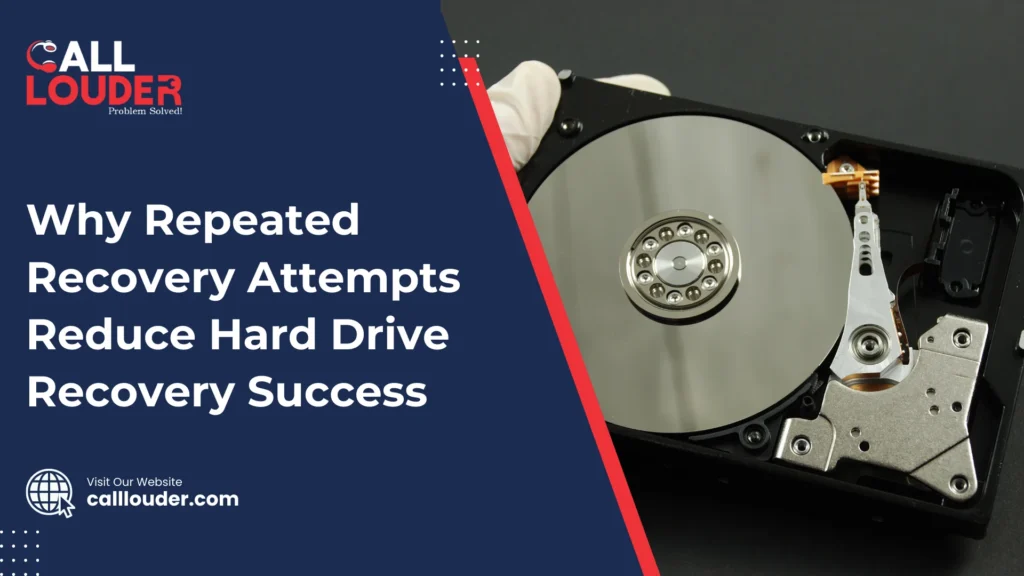
Why Repeated Recovery Attempts Reduce Hard Drive Recovery Success

A hard drive failure can feel really frustrating if you’ve lost something valuable, such as family photos, important work documents, or a school-related project. When this happens, it’s natural to panic, but most people also feel the urge to fix the problem on their own. Because of this, they often try recovery software, connect the drive to different computers, or make repeated attempts to access the files. Though these actions seem helpful at first, they can sometimes make the situation worse, thus reducing the chances of a successful recovery. Even though it makes sense to want to keep trying to recover data, the truth is that repeated recovery attempts can actually reduce your chances of a successful hard drive recovery.   Hard Drives Are Fragile Machines A hard drive is not just a storage box; it’s a complex mechanical device. Inside, there are spinning platters, read/write heads, and sensitive electronics. When a drive starts failing, these parts become delicate. Each time you power it on or try to recover files, you put extra stress on these components. Repeated attempts mean repeated stress. Even small movements or vibrations can worsen the damage. Each time you power it, you increase the risk that the read/write heads might scratch the platters, or the electronics may fail completely. If either of these things happens, files that could have been recovered may be lost forever. Data Overwriting Is a Hidden Danger Many people don’t realize that recovery tools can accidentally overwrite data. Some recovery programs create temporary files or try to reconstruct the file system. Although they are designed to help, they can sometimes write on parts of the drive where lost files are stored. Even if you are careful, running multiple recovery attempts increases the risk of overwriting. Once overwritten, your files are gone for good. Because of this, professional hard drive recovery services always try to make a clone or image of the drive first, so the original data remains untouched. Repeated DIY attempts make this cloning harder or sometimes impossible, thereby reducing recovery success. Heat and Wear Add Up Every time you power on a failing hard drive, it generates heat. Heat alone can cause damage to the delicate components inside. Each spin of the platters and movement of the read/write heads creates tiny vibrations. These vibrations would normally be negligible in a healthy drive but could adversely affect a failing drive. Repeated attempts increase wear on the drive, sometimes irreversibly. So even if the drive worked a little in the first attempt, by the third or fourth try, it may not spin up at all. Hence, repeated attempts can turn a recoverable drive into one that professionals cannot save. Why DIY Tools Aren’t Always Enough There are plenty of recovery tools available online, and many are free. Although they seem convenient, they have limits. Most consumer tools cannot handle severe physical failures or complex file system damage. Each failed attempt by a DIY tool can reduce the chance that a professional can recover your data later. Professionals have special tools, clean rooms, and techniques that can handle sensitive drives without making the problem worse. This is why stopping further attempts is so important once your first DIY try fails. The Importance of Acting Fast but Carefully It’s important to keep in mind that time is important. A hard drive that is failing can deteriorate quickly, so while repeated recovery attempts are harmful, ignoring the drive completely can also make things even worse. The best yet simple approach is to stop using the drive immediately. Don’t plug it into multiple computers, don’t run multiple recovery tools, and don’t try to copy files endlessly. Each of these actions can make recovery harder. Instead of trying to recover data from your hard drive yourself, you should reach out to a Data Recovery professional immediately. Professionals are better able to determine whether the drive has physical damage, whether data is recoverable as well as how to proceed safely. Signs You Should Stop and Seek Professional Help Here are some signs that repeated attempts could do more harm than good: If you notice any of these signs, it’s best to pause and call in an expert.  Key Takeaways Final Thoughts Recovering lost data can be very stressful at times and repeating recovery attempts often does more harm than good. If your hard drive is not functioning properly, you should immediately stop using the drive and call a data recovery professional to save your files and reduce long-term damage. The goal is not just to recover the files, but also to do so safely. Therefore, avoiding repeated attempts is one of the simplest and most important steps in hard drive recovery. FAQs

Why Repeated Recovery Attempts Reduce Hard Drive Recovery Success Read More »

Mac Overheating

Mac Overheating and Fan Noise What Should You Be Worried About

If you have a Mac, then at some point, you have noticed it starts getting warm. Then warmer. and then eventually the fan turns on and sounds very loud and it’s at this time you pause and think, “Is this normal or is something wrong?” The answer to that is: Sometimes yes, sometimes no, Macs do get hot, and fans do make noise. That does not always mean danger. But there are moments when you should pay attention, because heat can cause problems over time. Read on to learn about what’s normal, what’s not, and what you can do about it. Why Macs Get Hot First things first, heat is normal. Every computer gets hot. When your Mac works, it uses power. When it uses power, it creates heat. That’s just how electronics work. Your Mac may heat up because: Since Macs are thin and compact, heat builds up faster. They look nice and slim, but there is less space for air to move inside. Thus, heat has fewer places to go. Also, if you use your Mac on a bed, couch, or pillow, airflow gets blocked. Because of that, heat stays trapped inside. What Fan Noise Really Means Fan noise usually means your Mac is trying to cool itself. That’s a good thing. The fans turn on when the system feels too warm. Hence, noise alone is not bad. For example: Your Mac is protecting itself. It is designed to do this. However, if fans are loud all the time, even when you are doing very simple things, then that’s something to think about. When Overheating Is Normal There are many situations where overheating is expected, although it may feel scary. Overheating is usually normal when: In these cases, your Mac will get warm, fans will spin faster, and performance may slow down a bit. This is called “throttling.” The Mac slows itself to reduce heat. Though it can feel annoying, it is actually a safety feature. When You Should Be Worried Let’s discuss the warning signs. Here are some signs that are cause for concern: – Your Mac gets warm even when it’s not being used (when idle). – Fans are loud all day, every day – Your Mac freezes often – Apps are closing unexpectedly (crashing) for no apparent reason. – The operating system has slowed down significantly. – Your Mac shuts down suddenly If you experience one or more of these warning signs regularly, then it may point to deeper problems. These could include dust inside the machine, software bugs, or hardware issues. While Macs are built well, they can still have problems, especially after years of use. Can Heat Damage Your Mac? Yes, but usually over time, not all at once. A little heat now and then will not destroy your Mac. Apple designs Macs to handle high temperatures. But long-term overheating can slowly damage parts inside. The battery suffers the most from heat. Since batteries do not like high temperatures, constant heat can reduce battery life faster. Hence, your Mac may start losing charge quickly or show battery health warnings. Other parts like the processor and internal chips can also wear out faster because of heat, although this usually takes years. Intel Macs vs Apple Silicon Macs If you have an older Intel Mac, overheating and fan noise are very common. Intel chips run hot, and many users complain about loud fans. Newer Macs with Apple Silicon chips like M1, M2, or M3 are much better. They use less power, create less heat, and often stay quiet. Some models barely turn the fans on at all. So if you use an Intel Mac and hear fans often, you are not alone. It does not mean your Mac is broken, though it does mean heat management is weaker. Simple Things You Can Do to Reduce Heat You don’t need to be a tech expert to help your Mac stay cooler. Small habits make a big difference. Here are some easy steps: Also, check Activity Monitor. It shows which apps are using too much power. Sometimes one app goes crazy in the background, causing heat for no reason. Keeping macOS updated also helps, since updates fix bugs and improve performance. What About Fan Control Apps? Some people use apps that control fan speed. These apps can help in some cases, but they should be used carefully. Running fans at full speed all the time can wear them out faster. It’s better to fix the cause of overheating rather than forcing fans to work harder. Use fan apps only if you understand what they do, and don’t rely on them forever. Final Thoughts Mac overheating and fan noise can be a big annoyance, but they are not always dangerous. In most cases, it either means that your Mac is working hard or protecting itself from heat damage. However, constant heat, loud fans during light use, slow performance, and sudden shutdowns should not be ignored. These signs indicate that your Mac is under an excessive workload. Make sure to take care of your Mac. Give it airflow. Close unused apps. Restart it now and then. Simple maintenance and regular use are all it takes to keep your Mac running for a long time. Your Mac doesn’t need to be ice cold. It just needs balance. Keep it cool enough, and it will keep working smoothly for years to come. FAQs

Mac Overheating and Fan Noise What Should You Be Worried About Read More »

1000+

Happy Clients

4.9+

Average Rating

12Hr

Support

100%

Success Rate

Fill the Form & Unlock Your Benefits!

Buttons Popup

Fill the Form & Unlock Your Benefits!

Buttons Popup