

🎉 Spring Season Tech Care Offer 31d : 0h : 0m : 0s | Get 20% Off ➡️
Call Louder Logo

Blog

Your blog category

remote tech support help in computer

How does remote tech support help in computer repair?

Computer problems can happen at any time. Maybe your computer is running slow, you got a virus, or a program suddenly crashes. These issues can interrupt your work or your personal tasks and fixing them quickly is important. In the past, the only option was to take your computer to a repair shop. This often meant waiting for hours or even days, and it could get expensive. But now, there’s a much easier way: remote computer support. With remote support, experts from companies like CallLouder can fix your computer problems online. You don’t have to leave your home or office.  What Is Remote Computer Repair? Remote computer repair means a technician fixes your computer over the internet. You give them permission to connect to your computer using special software. They can then see your screen, control your mouse and keyboard (with your permission), and fix the issue while you watch. This is all done securely, and you stay in control the whole time. Remote repair is fast, safe, and very convenient. Services like that provided by CallLouder make the whole process easy and stress-free. Benefits of Remote Tech Support 1. Very ConvenientYou don’t have to unplug your computer or travel to a store. You can get help right where you are whether at home or at work. 2. Cost-Effective Remote repair is typically less expensive since you won’t need to incur any travel or in-person costs, plus, your computer will be repaired faster, which minimizes your downtime. 3. Fast HelpTechnicians can connect to your computer quickly and start working on the issue right away. Most problems can be fixed in just a few minutes. 4. Help From AnywhereIf you live in a small town or a place without nearby tech experts, remote repair still works. You get the same professional help no matter where you are. 5. Secure and SafeTrusted companies like CallLouder use encrypted software. That means your private information is protected during the whole session. What Problems Can Be Fixed Remotely? You may be surprised at how many problems can usually be resolved without someone physically assessing your computer. Here are some examples: How Does Remote Tech Support Work? Here’s a simple step-by-step look at what usually happens during a remote repair session: 1. Contact the Support TeamYou contact a company like CallLouder through phone, email, or online chat and explain your problem. 2. Connect RemotelyThey will guide you to download a safe remote access program. This allows them to see and control your computer with your permission. 3. Find the ProblemOnce connected, the technician looks at your screen to understand what’s wrong. 4. Fix the IssueThey fix the problem directly or show you how to do it. You can watch everything as it happens. 5. Finish UpWhen the problem is solved, they close the remote connection. They may also give you tips to avoid future problems. Common Issues Remote Support Can Fix Here are some common problems that techs at CallLouder and other support services can solve remotely: Tips for Staying Safe While Getting Remote Repairs  While remote support tends to be very safe, there are a few steps you can take to protect yourself:  How to Choose the Right Remote Tech Support All tech support service options are not the same. Here’s what to look for: Final Thoughts One of the easiest and fastest ways to fix computer problems today is remote tech support. You don’t have to take your computer anywhere or wait for days to get it back. You can get professional, quick help while sitting comfortably at home or in your office. With trusted service providers like CallLouder, you can be sure you’re getting expert help in a safe and secure way. From removing viruses to fixing system errors, remote computer support is a smart and cost effective method for almost everyone.  So the next time your computer starts acting up, don’t stress. Just call or chat with a remote tech expert and get back to work in no time. FAQs

How does remote tech support help in computer repair? Read More »

how to repair a slow computer

How to Repair a Slow Computer Without Replacing Hardware

Is your computer not running as quickly as it normally does?  Does it take a long time to start, or do you notice delays when opening files or browsing the internet? Don’t worry, you don’t have to buy new parts for your computer or a new computer. Most of the time, you can fix these problems just by making a few simple changes. Here is a step-by-step guide on how to repair your computer and speed it up without replacing any hardware. 1. Restart Your Computer It might sound too simple, but restarting your computer can fix many small problems. As you open and close programs, your computer’s memory fills up. Restarting your computer clears out all the temporary data and gives your computer a fresh start. If you haven’t shut down or restarted your computer in a while, now’s a good time to do it. You may be surprised at how much faster it runs afterward. 2. Close Unneeded Programs Running too many programs at the same time may slow your computer down; even programs that you are not actively using can run in the background and take up memory and processing power. If you want to see what’s running: Find programs that use a lot of resources but are not currently important. Click on them and press End Task to close them. Be careful not to close anything that’s part of your system. 3. Turn Off Startup Programs Some programs automatically start when you turn on your computer. These programs run in the background and slow down your startup time. To stop them: Right click on the ones you don’t need, and choose Disable. That will stop them from running automatically in the future. Start up will be faster, and you’ll have more available memory. 4. Check Your Web Browser If your computer is only really slow when using the internet, your browser might be the problem. Outdated browsers or too many add-ons could be causing issues.  Here is what to do when you encounter this problem:  You usually find these under settings in your browser under “extensions” or “add-ons.” The browser will run more smoothly as you uninstall the ones you do not need. 5. Manage Software Updates Some programs check for updates in the background when you’re not using them, and even when there aren’t any updates needed, updates can slow your computer down. So if there is a program that you don’t use often, consider turning the automatic update option off and instead, just do it when its convenient for you. This helps your system stay faster and reduces background activity. 6. Be Careful When Installing New Programs So many new programs ask for permission to run when you start your computer. Over time, this adds up, and slows everything down. When you download and install any new software keep an eye out for a checkbox that says something like, “Run at startup”, unless you really need it, uncheck it.  If you have already granted permission for programs to run at startup, you can disable them in Task Manager too, like we explained before.  7. Scan for Viruses and Malware Sometimes a virus or other harmful software can cause a slow computer, even if you aren’t aware that these programs are running in the background. These programs can use your computer’s resources. To be safe: If your antivirus finds something, follow its instructions to remove it; it can free up memory and speed up your computer. 8. Check Your Power Settings If you’re on a laptop, check to see if it is in power saver mode. Power saver mode is useful for saving battery, but it also limits your computer’s performance.  To do this:  This change can help your computer run faster, especially when you’re plugged into a power outlet. 9. Uninstall Programs You Don’t Use We all have programs that we stop using after some time. These take up space and can slow down your computer. To remove them: Be careful not to remove anything important or that you don’t recognize. If you’re unsure about a program, a computer support specialist can help you decide what’s safe to remove. 10. Keep Things Clean and Organized Just like your bedroom or your desk, our computer needs regular cleaning from the inside. Deleting old files, clearing out temporary folders, and keeping things organized can help speed up your computer.  Cleaning the computer with the built-in disk cleanup tool in windows:   This simple step can free up space and improve your system’s speed. Final Thoughts Fixing a slow computer doesn’t have to be difficult or expensive. In many cases, you can actually speed up your computer by simply managing the software you have and making a few small changes. You’ve learned how to repair your computer without making any hardware changes, so take time to test these ideas. Restart more often, close programs you’re not using, and keep everything updated and organized; with just a little maintenance, your computer can run faster and more smoothly, no upgrades needed. For more simple tech solutions and expert advice, Call Louder is here to help you stay in control of your digital life. FAQs

How to Repair a Slow Computer Without Replacing Hardware Read More »

How to Fix Slow WiFi on PS5

How to Fix Slow WiFi on PS5: Boost Your Gaming Speed Instantly

There’s nothing more annoying than lagging behind in your favorite game or waiting for hours for a download to finish on your PS5. If you’ve ever missed a match because of high ping or waited hours for a game to install, you’ll know what we mean.   If this sounds like you, do not worry. You are not alone. Many PS5 users have slow WiFi and simply do not know that there are simple fixes. In this guide, we’ve listed some steps for you to know how to fix slow WiFi on PS5.  Why Is Your PS5 WiFi So Slow? There are a few things that can cause slow WiFi on your PS5: Before you panic or call your internet provider, try the tips below. These simple fixes often improve your speed right away. What Internet Speed Do You Need for PS5? To have a smooth and fun gaming experience, your internet needs to meet these minimum requirements. If your speeds are lower than this, you’ll probably experience lag, slow downloads, and connection problems that may require basic Wi-Fi & Internet Support to resolve. How to Fix Slow WiFi on PS5 Here’s what you can do to make your PS5 run faster on WiFi: 1. Reboot  If your internet was working fine, but now it is suddenly slow, the first thing to try is a full restart. Turn off your PS5 (not just Rest Mode), wait a few seconds, and then turn it back on. Sometimes that’s all you need! 2. Restart Your Router and Modem If you are experiencing slow WiFi on other devices also in your home, the issue is probably with your Router or Modem. Unplug both your router and modem, wait for 30 seconds, then plug them back in. Wait about a minute for the devices to connect, then try your PS5 again. 3. Bring the PS5 closer to the router The further away your PS5 is from your WiFi router, the weaker the signal will be – especially if there are walls or furniture between them. Try to move the PS5 closer, but ideally keep it in the same room; if that’s not possible, getting a WIFi extender could help boost the signal. 4. Use the PlayStation Fix and Connect Tool As a service to their customers, Sony provides an online tool called Fix and Connect, which is available through the PlayStation website.  Just click on “Internet Connection” and follow the instructions. It will guide you through checking your connection and may suggest specific fixes tailored to your setup. 5. Optimize Your WiFi Setup Simply paying for fast internet is not enough; you should also consider your equipment. Just because you are paying for fast internet service, that doesn’t mean your speeds will be fast. Even if you’re paying for fast internet, an old or low-quality router can slow everything down. Reach out to your Internet provider and ask what type of internet router or modem works best with your internet plan. Depending on your current setup, you might need to upgrade to a newer model. 6. Upgrade Your Internet Plan If any of the previous steps do not help, and your speeds are still too low, simply put, you may not have an internet plan that is fast enough for gaming. Check with your provider to see if you can upgrade to a faster plan that supports streaming, gaming, and multiple devices. 7. Use Your PS5 During Off-Peak Hours If you live with other people or in an apartment building, your connection might slow down when everyone is online. Try playing games or downloading updates early in the morning or late at night when fewer people are using the internet. 8. Change the DNS Settings on Your PS5 DNS settings allow your console to connect to game servers. Sometimes using a custom DNS can resolve connection issues for you. Here is how to do it: This can often improve download speeds and overall stability. Factors That Affect PS5 Internet Speed You might be wondering what else could be slowing things down? Here are a few extra things to think about: Final Thoughts Dealing with slow WiFi on your PS5 can be frustrating; however, the good news is that, in most cases, slow WiFi is easy to fix. There are lots of simple ways to boost your connection and get back to gaming without interruptions, from rebooting your console to adjusting your network settings. If you’re still having trouble after trying all of the tips above, it might be time to seek professional help. For Wi-Fi & Internet support, give Calllouder a call. Our team can help you figure out what’s wrong and get you back online fast. Calllouder Wi-Fi & Internet Support is just a phone call away. Let us fix the problem so you can get back to smooth, lag-free gaming. FAQs

How to Fix Slow WiFi on PS5: Boost Your Gaming Speed Instantly Read More »

how to fix slow WiFi

How to Fix Slow WiFi When Multiple Devices Are Connected

Did you know that the more devices connected to your WiFi, the slower your internet can get? Whether it’s phones, tablets, laptops, smart TVs, or gaming consoles, if they are all connected to the same WiFi, it could lead to lagging, buffering, or dropped video calls. WiFi is used for almost everything, whether working from home, streaming video, playing games, or browsing the internet. When WiFi slows down, it can interrupt important tasks or even disrupt everyday activities.  This guide explains how to fix slow WiFi when many devices are connected, as well as explains why that happens, and what can usually speed up a connection and improve speed. Why WiFi Gets Slow with Many Devices Let’s start by understanding the basics. What is Bandwidth? Bandwidth is the amount of data your internet connection can handle at one time. You can think of it like a water pipe – the wider the pipe (more bandwidth), the more water (data) it can carry. When all your devices, phones, laptops, tablets, smart TVs, game consoles, etc, are using the same WiFi network at the same time, they all share the same bandwidth. If too many people are playing games, watching videos, or downloading content all at the same time, the internet slows down for everyone. That’s when you really start noticing slow WiFi, buffering videos, or websites taking forever to load. How to Fix Slow WiFi When Too Many Devices Are Connected Here are some simple steps you can follow to speed up your internet and enjoy a smoother online experience: 1. Reduce the Number of Connected Devices When a lot of devices are using the same WiFi the internet can slow down. Turning WiFi off on any unused phones, tablets or smart devices can help. Smart speakers and smart cameras or smart doorbells may also be running on internet in the background (even without you knowing). Disconnecting a few of these would free up bandwidth for the devices that need more bandwidth. 2. Put the Router in a Good Spot Where you place the router will also make a difference. For best results, put it in the center of your home and away from thick walls, mirrors, or metal objects. Don’t put it behind any furniture or in the corner of a room. Having it higher up (like on a shelf)  can help spread the signal more evenly through the space. 3. Restart the Router Restarting the router can sometimes fix any small problems that have built up over time. It basically resets the network and often gives a speed boost. Usually, all you need to do is turn it off for about 10-20 seconds and then turn it back on. 4. Check Your Internet Plan Internet plans can have different speed limits. If multiple users are streaming, gaming, or in video calls/meetings on the internet at the same time, the plan might not be fast enough. Therefore, contacting the internet provider to check the speed, and upgrade if needed can help support more devices. 5. Use a WiFi Extender or Mesh System If parts of the home have poor signal, a WiFi extender or mesh system can help. A WiFi extender or mesh systems extend and amplify the signal. This way rooms far away from the router get good internet. WiFi extenders and mesh systems are very helpful in large homes, and in places that also have thick walls and ceilings. 6. Monitor the Internet Usage Some apps and tools are able to show all of the devices that are connected and their internet usage. If there is one device that is using too much internet, it could be slowing everything else down. Putting a pause on that device or limiting its use can free up space for other things, like streaming or video calls. 7. Use Wired Connections When Possible Devices like desktop computers or game consoles that stay in one place can be connected directly to the router with a cable. This makes the connection faster and more stable, and it also reduces the load on the WiFi network. 8. Use a Router That Supports Many Devices Some routers are better at handling lots of connections. If the current router is old or basic, upgrading to a model designed for multiple devices can help. Dual-band or tri-band routers are often better at managing traffic and avoiding signal drops. Wi-Fi & Internet Support Tips Recap If your internet slows down when several devices are linked to it is generally a bandwidth problem. Quick tips on what you can do: Conclusion Understanding how to fix slow WiFi when there are multiple devices connected can make a big difference in your day-to-day online experience. Making a few minor changes can really help improve your connection and reduce frustration, regardless of whether you are on a video call, streaming a movie, or browsing the web. If you’ve tried these tips and still have WiFi or internet issues, it’s time to seek professional help. For prompt and reliable Wi-Fi & internet support, reach out to CallLouder. FAQs

How to Fix Slow WiFi When Multiple Devices Are Connected Read More »

difference between WiFi and internet

Top 7 Myths About the Difference Between WiFi and Internet

Most of us rely on Wi-Fi every single day whether at home, at work, in coffee shops, airports, and just about everywhere else. But here’s a common question: Is Wi-Fi the same as the internet? The short answer to this is no! And knowing the difference between WiFi and internet can save you a lot of frustration. If your connection is slow, your video keeps buffering, or your Zoom call freezes, it’s easy to blame “the internet.” But sometimes, the problem isn’t your internet at all it’s your Wi-Fi. These two terms are often used interchangeably, but they’re not the same thing. Knowing the difference between WiFi and internet can help you fix problems faster and make better decisions about your home or business setup. What’s the Difference Between Internet and Wi?Fi? The internet is a huge global system that connects people, websites, apps, and services all over the world. It’s made up of big data centers, servers, and even underwater cables. Everything you do online like sending emails, watching videos, or browsing websites, goes through this system. Wi?Fi is not the internet itself. It’s just one way your devices (like phones, laptops, or smart TVs) connect to the internet without using wires. Wi?Fi works by sending signals through the air from your device to a router, which then connects to a modem. The modem talks to your internet provider, and that’s how you get online. Here’s an easy way to picture it: So, even if your Wi?Fi signal is strong, you can still have slow internet if there’s a problem on the “highway.” Why This Difference is Important Knowing the difference between WiFi and internet will ultimately help you troubleshoot issues, choose the right equipment, and get faster, more reliable connections especially in offices, schools, or large homes. Anyone who has ever had slow Wi?Fi might blame their internet plan as the reason, but maybe the router is outdated and needs a replacement or simply that the wifi coverage is poor. Understanding the root cause can help save time and money. If you’re unsure where to start, professional Wi-Fi & Internet Support can help identify and resolve the issue efficiently. Common Myths About the Difference Between WiFi and Internet Here are the biggest myths people believe when it comes to Wi?Fi vs. internet and what’s actually true: 1. “If Wi?Fi signal shows full bars, internet is fast.” That is not true. Full Wi?Fi bars mean your device is close to the router and receiving a strong signal. But your real internet speed depends on: So even with full signal bars, you can still get slow internet if your plan is limited or too many people are online. 2. “If my Wi?Fi goes down, my internet is gone too.” Not really, because Wi?Fi is just the local connection to your router. If the router fails, but the ISP connection is good, you can get online again via an Ethernet cable. This is part of the reason many businesses use wired connections for important equipment; it entirely bypasses Wi?Fi. 3. “Getting a better router will make my internet faster.” A superior router can help extend your Wi-Fi range and enhance local connectivity. However, it cannot boost the speed provided by your ISP. If your plan is capped at 100 Mbps, no router upgrade will enhance that speed. 4. “Wi?Fi is always slower than wired connections.” Often yes, but newer standards like Wi?Fi 6 and Wi?Fi 7 have closed the gap. Under ideal conditions, Wi?Fi can deliver gigabit speeds. Still, wired connections (ethernet) usually offer more stable speeds and lower latency, making them better for gaming or critical equipment. 5. “Upgrading my internet plan will fix all slowdowns.” This is not always the case and even though a faster plan can help in improving the situation, it cannot correct such problems as: In case the issue is your local Wi-Fi network and not the plan just increasing the bandwidth will not do any good. 6. “One router is enough for any space.” Perhaps for a small apartment but in commercial buildings, schools, or big houses, you will probably require multiple access points or a mesh network or business-level Wi-Fi systems so you do not get dead zones and slow areas. 7. “Wi?Fi extenders always boost speed.” Extenders expand Wi?Fi coverage, and may reduce actual speed, and introduce latency. Since they re-transmit the signals, loses are experienced at every hop. A mesh system or properly placed business-grade access points usually work better in large spaces. How Devices Actually Connect Here’s an easy understanding of how things link together: At each stage, you can have issues: weak Wi?Fi signal, slow router, modem trouble, ISP throttling, or overloaded servers. Knowing exactly where the problem lives helps you fix it faster. Tips for a Faster, More Reliable Connection Here are clear tips to improve your setup whether at home or in a business environment. If you need help diagnosing network issues or choosing the right gear, our Wi-Fi & Internet Support can guide you through. 1. Choose the Right Internet Plan Match your plan to your needs. A basic browsing or email plan cannot compare to features such as 4K streaming, video meeting, or high numbers of users. 2. Upgrade Old Hardware Your Wi-Fi router older than 5-7 years, may not support current speeds. Upgrade to a new model! Choose a modern Wi?Fi 6 or 7 model. 3. Utilize Wired Connections If Possible For gaming PCs, conference rooms or especially heavy-use equipment, an ethernet cable gives the most reliable performance. 4. Use a Mesh or Multi-Router System If your space of use is large or has thick walls, use multiple routers or a mesh Wi-Fi system to cover the entire area. 5. Reduce Interference Place your routers away from microwave ovens or thick walls. You can also try to use less congested Wi?Fi bands (like 5 GHz over 2.4 GHz) when possible. 6. Monitor Device Load Restrict the number of active applications, downloads, or huge uploads during your work time. Bandwidth

Top 7 Myths About the Difference Between WiFi and Internet Read More »

sd card data recovery on mac

Top 5 SD Card Data Recovery Tools for Mac

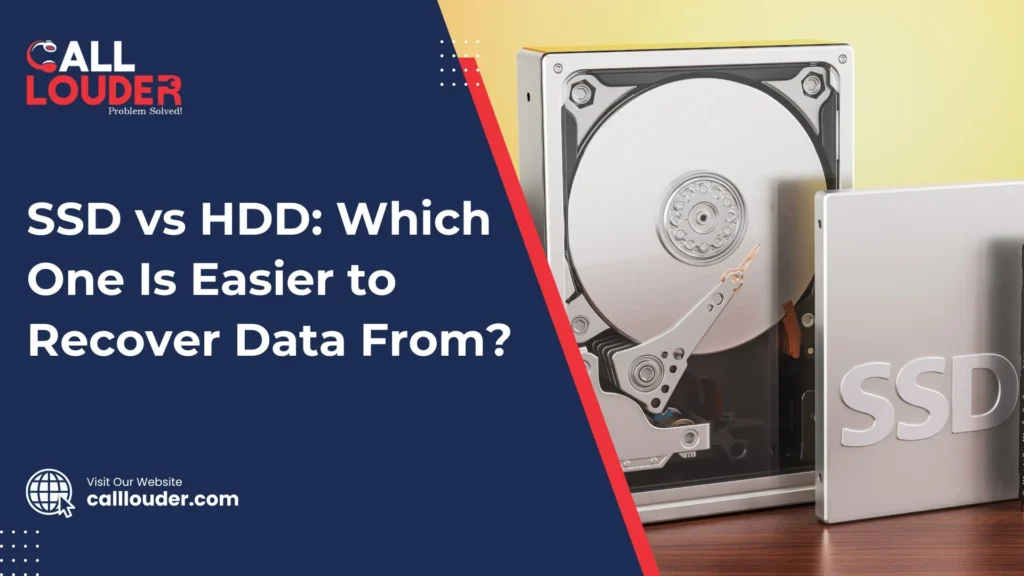
Losing important data from an SD card can be an extremely annoying experience especially when it happens abruptly or without warning. Regardless of whether you’ve deleted the files by accident, have inadvertently formatted the SD card, or are facing a corrupted card that is now unreadable, it’s easy to think that the information is gone forever.  However, because of modern recovery tools, there is a good chance that you can get those lost files back especially if you act quickly and use the right software. If you are using a Mac and want to get data back from an SD card, you are in luck because there are several trusted tools available designed specifically for SD card data recovery on Mac. These tools, along with data recovery services, can scan your SD card, find lost or deleted files and help recover them to your computer. To help you out, we have highlighted the 5 best SD card recovery tools to use in 2025 based on a combination of performance, ease of use, and value. Why You Might Need SD Card Recovery Software There are various scenarios of why files can go missing from an SD Card, and usually these scenarios happen very suddenly without any real warning. You might accidentally delete a folder with vacation pictures,  format the card while trying to fix a different issue, or you might remove the card from your camera or computer while it’s still writing data. In some cases, the SD card itself becomes unreadable. Bad file systems, physical damage, or corrupted sectors can make your SD card unreadable. Whatever the situation is, there are usually specialized recovery tools available that may be able to restore the files you thought were lost. One of the key benefits of using SD card recovery software on a Mac is that these tools are designed to work with macOS file systems and interfaces. They often include features like file previews, scanning filters, and step-by-step recovery processes that make it easier for non-technical users to recover their files without needing advanced knowledge. 1. Disk Drill for Mac  Disk Drill has long been one of the most trusted tools for data recovery on Mac, and it continues to impress in 2025 with its user-friendly design and powerful scanning features. This software is ideal for recovering files from SD cards, whether they were accidentally deleted, lost due to formatting, or hidden because of file corruption. Disk Drill stands out because it combines an intuitive interface with a deep, thorough scanning process that can locate almost any type of file. It supports all major SD card formats and file types, including documents, videos, photos, and audio files. One of the most helpful features is the ability to preview files before recovering them, so you can see what’s actually recoverable before committing to the process. If you’re looking for a solid, reliable tool that works well for beginners and tech-savvy users alike, Disk Drill is a great choice for sd card data recovery mac. 2. PhotoRec  If you’re looking for a completely free tool and don’t mind a slightly old-school experience, PhotoRec is worth considering. As an open-source program, PhotoRec doesn’t limit the amount of data you can recover, which makes it perfect for users who need to retrieve large amounts of files without spending any money. Originally designed for photo recovery, PhotoRec actually supports a wide range of file types and works well with SD cards, USB drives, and even hard disks. However, the main thing to keep in mind is that PhotoRec uses a command-line interface, which means you’ll need to be comfortable typing in commands instead of clicking buttons in a visual interface. For some users, this might feel overwhelming at first, but if you’re willing to follow some simple instructions, you can still recover files effectively without needing to pay for software. While it doesn’t have the sleek design or file preview features of other tools, PhotoRec is still a powerful and completely free solution for SD card data recovery on Mac. 3. R-Studio for Mac  R-Studio is a more advanced data recovery tool that was originally created for professionals in the IT field. While it’s not quite as beginner-friendly as some of the other options on this list, it offers an impressive level of control and customization for users who know what they’re doing. The software supports all common Mac file systems and works well with SD cards that have been formatted, corrupted, or damaged in some way. R-Studio includes detailed file recovery logs, smart scan features, and an interface that’s modeled after the classic Windows file explorer layout. It also provides recovery support across local and network drives, making it especially useful for business and enterprise users. If you’re comfortable with more technical software and want a powerful solution with professional-level tools, R-Studio is one of the best options available for Mac SD card recovery. 4. EaseUS Data Recovery Wizard for Mac EaseUS has built a strong reputation over the years for providing recovery tools that are both powerful and easy to use. Its Mac version, known as the EaseUS Data Recovery Wizard, lives up to that standard by offering a clean interface and a straightforward recovery process that anyone can follow. This tool is especially good for people who are new to data recovery. It guides you through a three-step process: first you choose the SD card, then you scan it, and finally you preview and recover your files. The software can perform both quick scans and deep scans, depending on how badly the files were damaged or deleted. The free version of EaseUS lets you recover up to 2 GB of data, which is usually enough for recovering a handful of important files like photos or documents. If you need to recover more than that, you’ll need to upgrade to the paid version. Overall, EaseUS is a solid pick for users looking for easy SD card data recovery on Mac without a steep learning

Top 5 SD Card Data Recovery Tools for Mac Read More »

recover files from sd card mac

3 Ways to Recover Files from SD Card on Mac Without Data Loss

Losing files from your SD card on a Mac can feel like you are living your worst nightmare especially if those files are important photos, work documents, or personal videos. File loss can occur for a number of reasons that can include, accidental deletion, formatting by mistake, file system issues, improper ejection, physical damage, or even hidden files. Luckily, you have some good options of recovering files from SD card Mac. In this article, we have listed three easy and safe ways to recover files from SD card Mac. Why SD Card Data Disappears Before we get into the recovery methods, let’s discuss why you might lose data in the first place. Knowing the cause helps you pick the right recovery plan. The same issues that cause SD card data loss can also affect USB drives, so it’s helpful to understand how to recover files from USB drives and SD cards using reliable tools or services. Common reasons include: 1. Check the Trash and Finder If you deleted files recently, they’re often still in the Trash. Here’s how to see if they’re recoverable: If they’re not in the Trash, they might still be on the card but hidden. To check: If you find what you’re looking for, copy the files to your Mac immediately. If not, don’t worry just go to step 2. 2. Use Terminal to Reveal Hidden Files Sometimes macOS hides files that are still there. If your card seems mostly empty but space is still used, these steps can help: Type: defaults write com.apple.Finder AppleShowAllFiles true If you see your files, copy them right away. After that, you can turn hidden files off with: defaults write com.apple.Finder AppleShowAllFiles false and then: killall Finder If you still don’t see your files, move on to the next step. 3. Restore from a Time Machine Backup If you regularly back up your Mac with Time Machine, your files might be safely tucked away there even if you deleted them on the SD card. Here’s how to check: But if you don’t have a backup, or the lost files weren’t saved in your backup, this method won’t work. In that case, you’ll need to try a different way to get your files back. Bonus: Use Disk Utility to Repair Minor Problems If your SD card doesn’t show up on your Mac or it asks you to “initialize” the card, you can try using Disk Utility to fix the problem. Follow these steps: Disk Utility is great for fixing small errors. But if it fails or your card has bigger issues, check out the last step. When to Ask a Professional If you tried all the steps above and still can’t access your files, or if your SD card is physically damaged, a professional may help! Physical damage includes: Even if the card looks fine but software recovery hasn’t worked, professionals have special tools which can search and recover lost files even deeper. They can also help reduce the risk of accidentally overwriting your data. If this sounds like your situation, Calllouder can help as it specializes in Mac SD card data recovery.  Calllouder provides experienced, reliable services and will handle these kind of situations like physical damage or severe corruption. If you’re dealing with a serious issue or want the highest chance of recovery, check out our Professional Data Recovery Services at Calllouder. Our team uses advanced tools and cleanroom technology to recover data from even the most damaged or corrupted SD cards. Tips to Improve Your Recovery Success Final Thoughts It can be stressful to lose files from an SD card on your Mac, but it’s not always the end of the world. Checking Trash, revealing hidden files, restoring from Time Machine, and using Disk Utility are all easy first steps.  But if these steps don’t work, or if your SD card is physically damaged or beyond repair, there’s no point taking any risks. If you have already tried several methods on your own, you may have made the situation worse or even unintentionally overwritten your files. In this case, professional data recovery is the best option. Calllouder specializes in these tough situations and uses advanced tools to recover lost files safely. It doesn’t matter whether your card is unreadable, formatted or water-damaged, they give you the best chance of getting your important data back without further damage. FAQs

3 Ways to Recover Files from SD Card on Mac Without Data Loss Read More »

What is a server maintenance services company?

If your business uses computers (which most do), you are likely using servers. Servers are special-purpose computers that generally do all the data management, run all of the applications, and support the entire network. They are like the “brain” of your company. However, like other machines, the servers require regular maintenance to ensure they are in good working condition. That’s where a server maintenance services company comes in. These companies help in maintaining your servers, thus ensuring that things are running smoothly, safely, and without interruptions. Let’s understand! What Does Server Maintenance Mean? Server maintenance is all about keeping your server’s hardware and software in good shape. It’s the process of checking that your server is working correctly, making updates, fixing issues, and preventing problems before they happen. Regular maintenance helps you avoid: In other words, it keeps your business running smoothly. What Do Server Maintenance Services Include? A server maintenance services company usually does things like: They’ll also make sure your software support tools are working properly. This includes the programs your business depends on every day. Why Is Server Maintenance Important? Imagine trying to run your business with a broken phone or slow internet—it would be frustrating, right? Now imagine your whole network crashing. No emails, no access to files, no customer data. That’s what can happen if your server goes down. Here’s why regular server maintenance matters: How Do Servers Actually Work? A server is a powerful computer that “serves” data or services to other computers in your office (or even outside it). For example, your email, files, and software may all be stored on a server that your team connects to. Servers are built for tough jobs. They often run 24/7 and have extra components (like extra hard drives or power supplies) to make sure they keep going even if one part fails. But even the strongest servers need regular attention. Types of Server Maintenance Services There are two main types of server maintenance: 1. Managed Services This is done through Managed Service Providers (MSPs). If you choose this option, the company will be completely responsible for keeping your servers operational. They will proactively monitor your system, install updates, run backups and so much more. You will have to do nothing at all. This is a great choice if you don’t have your own IT team or if you want experts to handle everything. 2. Break/Fix Services This is where Third Party Maintenance (TPM) providers come in. If something fails, such as a hard drive or a server, they come in and fix it. Generally, you would only call them when there is an issue. TPM services work well if you already have an IT team that does the daily maintenance but needs extra help with repairs or bigger issues. TPM providers even have contracts with some companies. That means they are already familiar with your setup and have parts ready, so they can fix things quickly when something goes wrong. Why Outsource Server Maintenance? Managing servers takes a lot of time and skill. If you’re not an IT expert, it’s easy to miss something important. By outsourcing to a server maintenance services company, you get a team of professionals who know exactly what to do. Here’s what outsourcing can offer: Final Thoughts You may not think about your servers on a daily basis, but if your servers stop functioning, your business could come to a halt. This is why regular server maintenance is so important. A server maintenance services company helps ensure that your systems are updated, safe, and performing well. Whether you need full-time support or just someone to step in when things go sideways, there is an option that suits your needs.

What is a server maintenance services company? Read More »

IT services

What is an IT Service?

It’s quite impossible to run a business today without technology. Whether you are managing customer information, sending customers emails, processing payments, or simply keeping track of projects, you rely on your computer systems much more than you think. That’s where IT services come in. If you’ve ever heard someone talk about IT support, software assistance, software support, or system maintenance and wondered what it all means, you’re in the right place. In this article, we will explain it simply – what IT services are, why they’re important, and how they can help make your work life way easier. So, What Are IT Services? IT services are a type of support service and tools that businesses use to make their technology work well. IT services help you create, manage, and develop all of the ways you use your computers, software, and networks. In other words, IT services are all that goes behind the scenes to keep your business running smoothly and safely. They could be as basic as repairing a faulty laptop or as complicated as introducing a whole network or transferring all to the cloud. There are different types of IT services too: Sometimes, businesses choose to do this work in-house. But many prefer to outsource it to experts, so they can focus on running the business, while someone else handles the tech stuff. That’s where companies like Callouder come in. Why Are IT Services Important? If you’ve ever had your system crash in the middle of the day, or your email stop working when you needed it most, you already know how important IT support is. But IT services go way beyond just fixing problems. Here’s how they really help your business: Cybersecurity is an important part of life; every day, businesses are faced with issues of hacking, phishing and viruses. IT services protect your systems by implementing firewalls, antivirus programs, secure networks and updates, and ensuring that only specific people have access to sensitive information. Conclusion Nowadays, any business needs tech to operate smoothly. IT services keep everything operational, secure, and up to date. Most importantly, they fix software issues, secure your data, and provide many other ways to help you so you can develop your organization. The choice is either you’re going to do it or hire someone like Calllouder to do it for you. In either case, IT support is a clear choice. FAQs

What is an IT Service? Read More »

it vendor support

How important is IT vendor support?

Technology plays a vital role in how businesses function. From managing customer data, to operating internal systems to supporting day-to-day activities, most companies now utilize a range of IT tools and services. Thus, it is normal and often necessary for businesses to use external IT vendors – businesses that provide software, hardware, and other tech services. IT vendor management includes developing and sustaining strong and effective relationships with the vendors that will provide the services and products a business needs. If a company manages IT vendors properly, it can lead to better performance, lower costs, and a more secure and efficient operation. Cost Savings Through Vendor Support One of the most obvious advantages of working with IT vendors is the potential to save money. Rather than hiring an entire in-house IT team or investing heavily in infrastructure, many businesses turn to vendors who can deliver the same services more efficiently. Because vendors typically serve multiple clients and have a larger and more robust toolset and expertise, they can give better pricing. As an example, a software support vendor can update and troubleshoot problems and support systems without having to hire a full-time in-house specialist. They are scalable and thus businesses do not have to deal with the costs of keeping unnecessary resources, as they only pay for the services that they utilize. Allowing Businesses to Focus on Their Main Goals When businesses rely on vendors for IT support, it allows internal teams to concentrate on their core work instead of spending time on technical problems. A company that focuses on product development or customer service, for instance, may not have the time or resources to manage complex IT systems. By outsourcing software maintenance services, the company can remain focused on growth and innovation while ensuring that its technology is properly maintained. Delegating technical responsibilities to a trusted vendor also reduces the pressure on internal staff. Instead of juggling multiple roles or learning new systems, employees can work more efficiently in their own areas of expertise. Access to Skilled Professionals and Reliable Tools IT vendors usually employ trained professionals who have deep experience in their areas. These experts stay updated on the latest tools, industry standards, and security practices, which means their clients benefit from advanced knowledge without needing to invest in constant training. For example, if a business needs help upgrading its software or ensuring that its data systems are secure, an experienced vendor can handle those tasks quickly and correctly. This level of service is often difficult to match in-house, especially for smaller businesses with limited IT resources. Improving Service Quality Through Support and Maintenance Another reason why companies choose to work with IT vendors is due to the quality of service offered. IT vendors offer software support 24/7 and scheduled maintenance services to keep systems up and running. When problems do arise, businesses can rely on their vendor to respond quickly and minimize any disruption. This level of support leads to fewer delays, less downtime, and better performance overall. Employees can continue working without interruptions, and customers receive better service because the systems behind the scenes are stable and reliable. Helping Businesses Manage Risks and Stay Compliant Security and compliance are two areas where IT vendors play a particularly important role. As technology becomes more complex, so do the risks related to data breaches, system failures, and legal requirements. Many vendors are required to follow strict security protocols and are familiar with industry regulations. By working with trusted vendors, businesses can better protect their data and ensure they are following all necessary rules. This reduces the chance of costly mistakes, legal issues, or damage to their reputation. Supporting Growth and Keeping Up with Technology Technology evolves and grows over time, which can sometimes require businesses to keep pace with its evolution and growth on their own. IT vendors help their clients stay current by providing access to the latest available software, tools, and systems. This support makes it easier for businesses to adapt, improve, and grow without falling behind. A well-managed relationship with a vendor allows a business to take new opportunities, respond quickly to changes in the market, and to make informed, smarter decisions regarding their technology. Final Thoughts IT vendor support is critical to ensuring businesses run more productively, safely, and cost-effectively. From handling routine maintenance services to offering expert-level software support, vendors provide the tools and knowledge that many companies rely on each day Having a deliberate approach to managing these relationships can help businesses reduce risks, improve service quality, save money, and devote more attention to their main goals. As technology continues to change, the value in IT vendor partnerships will only continue to increase. FAQs

How important is IT vendor support? Read More »

1000+

Happy Clients

4.9+

Average Rating

12Hr

Support

100%

Success Rate

Fill the Form & Unlock Your Benefits!

Buttons Popup

Fill the Form & Unlock Your Benefits!

Buttons Popup