


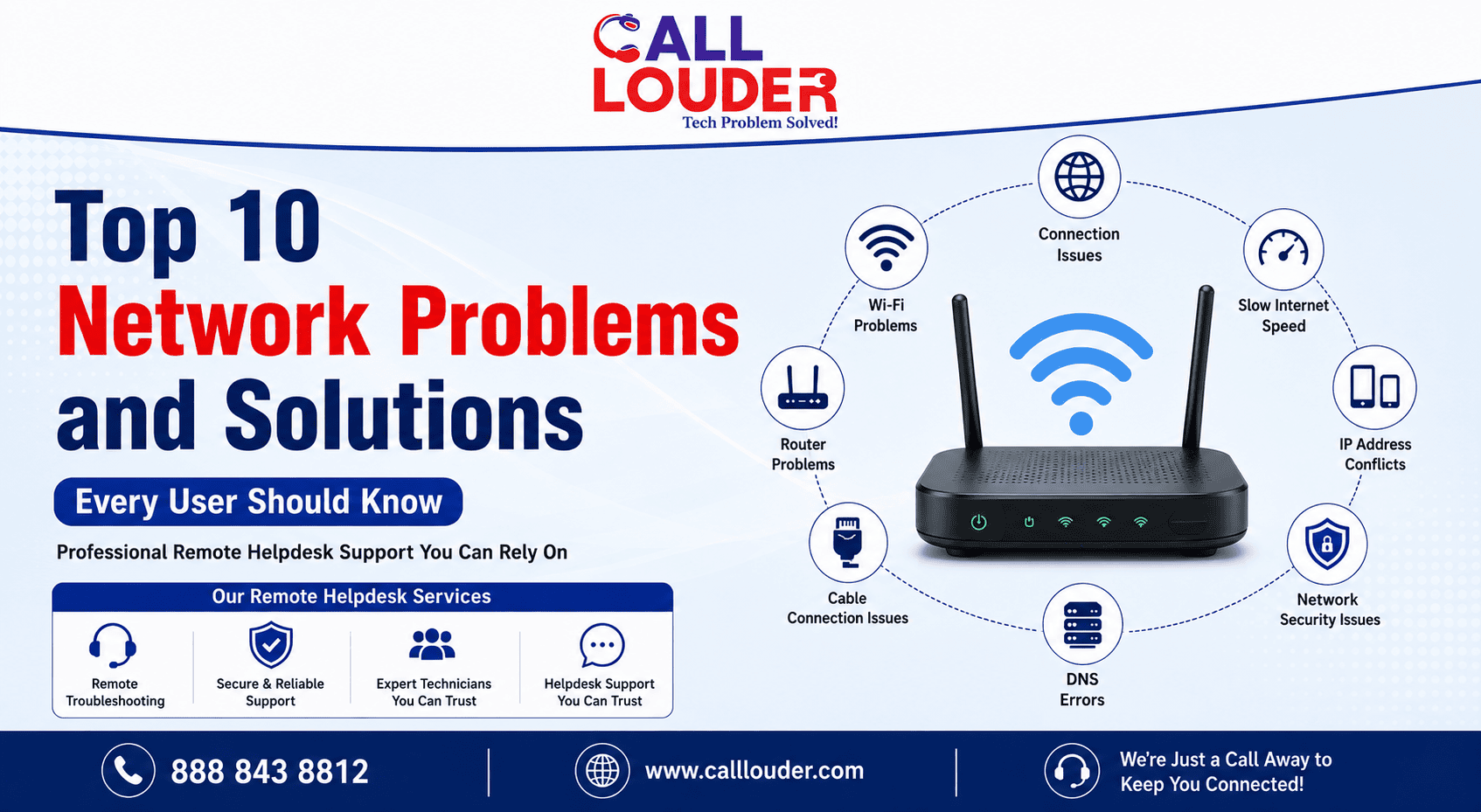
A network problem can turn a five-minute task into an hour of frustration. The annoying part is not knowing where to start- is the router failing, is one device misconfigured, or has the internet connection itself gone down?
You don’t need to be a networking expert to handle the most common problems. Recognizing the symptoms is usually enough to narrow down the cause and find the right network problems and solutions.
Why Do Common Network Problems Keep Happening?
Networks have several moving parts- Computer, router, cables, Wi-Fi connection, network settings, internet provider- all of them play a role.
That means a problem with one part can look like a problem somewhere else entirely. A device can show it’s connected to Wi-Fi while still being unable to reach the internet. That kind of mismatch is where troubleshooting tends to get confusing.
Before touching any settings, check whether other devices have the same problem. Everything affected points toward the router or internet service. One device affected means start there.
What Are the 10 Most Common Network Problems and Solutions?
1. Internet Not Working: Connected but No Internet
The device connects to the router fine but can’t reach websites or online services.
Restart the router and test on another device. If only one computer is affected, reconnect to the network or restart its network adapter.
2. Slow Internet Speed
Too many devices connected, heavy downloads, weak Wi-Fi, an aging router – any of these can slow speeds down.
Run a speed test and compare it against the internet plan. If you have multiple devices all showing consistently low speeds, then it’s likely the provider and not the device.
3. Wi-Fi Keeps Disconnecting
Interference, weak signal, outdated drivers, router problems- frequent drops can come from several directions.
Try moving closer to the router and reconnecting. If the problem keeps happening across several devices, look at the router rather than each device individually.
4. Weak Wi-Fi Signal
A router tucked behind furniture or sitting at the far end of the house isn’t going to serve the whole property well.
Move it somewhere more open and central. For larger homes, a mesh Wi-Fi system or a properly positioned extender usually does a better job than a single router trying to cover too much ground.
5. Network Can’t Find the Device
You have been trying to establish a connection to a printer, computer, or any other network device; however, you fail to discover it.
Make sure that both devices are connected to the same network and that the network discovery or file sharing option is enabled.
6. DNS Errors & Sites Not Loading
Internet connection seems fine, but some websites won’t load (usually DNS).
Restart the connection first. On Windows, flushing the DNS cache can sort out temporary lookup problems. Microsoft includes ipconfig /flushdns as part of its standard network troubleshooting process for exactly this reason.
7. Ethernet Connection not working
A damaged cable, faulty router port, network adapter issue, or incorrect settings can all result in a loss of wired connectivity.
Check both ends of the cable and try swapping it for another. Microsoft recommends testing a different device where possible to figure out whether the fault is with the computer or the network itself.
8. IP Address Conflict
Two devices end up assigned the same address, and one or both can’t communicate properly as a result.
Usually, a reboot of the affected device, or reconnecting to the network, will get it a new address. If conflicts keep happening, then you probably need to do a more detailed analysis of the network configuration.
9. Router Constantly Reboots
Repeated router crashes should never be taken lightly. The router could be overheating, power issues, outdated firmware, faulty hardware components, etc.
Take care of proper ventilation and update the firmware of the router. If it keeps restarting after that, the hardware itself may be on its way out.
10. New router Doesn’t connect properly
Just because you plug in a new router doesn’t mean it will work right away. Some internet services require you to first set the connection settings, Wi-Fi information, or other requirements from the service provider.
Check that the modem, router, and cables are in the right ports. If the setup isn’t straightforward, professional help saves a lot of trial and error.
Which Network Problems Can You Fix Yourself?
Most problems can be sorted out without calling in the professionals. DIY troubleshooting ends when the fix gets more complicated than the problem.
| Usually DIY | Better Left to a Professional |
| Restarting the router | Repeated network failures |
| Checking cables | Complex network configuration |
| Reconnecting devices | Business network outages |
| Updating network drivers | Hardware or infrastructure faults |
| Moving the router | Persistent security problems |
If a basic fix works and the problem doesn’t come back, there’s no reason to take it further.
When Should You Consider Professional Network Support Services?
There are some network connection issues that can be too persistent and complex to allow simple troubleshooting.
Think about getting professional help in case:
- There are many devices that are losing connection
- Problems are coming back after temporary fixes were performed
- How network downtime affects business performance
- Need to install a new router or office network
- Network security is becoming a problem
- Is not clear whether the problem is caused by software or hardware
Professional network support service from Call Louder will help determine the cause of the problem and won’t waste time exchanging the equipment. For business owners, it will save time on network downtime and problems.
How Can You Prevent Future Network Problems?
A few basic habits go a long way:
- Keep router firmware updated
- Replace damaged Ethernet cables before they cause problems
- Use strong Wi-Fi security
- Keep computers and network drivers current
- Position the router where it actually covers the space
- Remove devices that are no longer in use
- Restart networking equipment when things start feeling sluggish
After a recent equipment upgrade, getting help with router setup services near me makes sure the network is configured properly from the start rather than discovering gaps later.
For businesses that depend heavily on connectivity, working with Call Louder, an experienced IT support services provider, means ongoing monitoring and maintenance rather than waiting for a failure to force the issue.
FAQs
What are the most common problems with a network?
Internet slow-downs, disconnecting Wi-Fi, lack of internet while being connected, DNS errors, poor signals, Ethernet problems, IP conflicts, and problems with the router are the major ones.
Why isn't my internet working even though Wi-Fi is connected?
The device is connected to the router but does not have access to the Internet. You can try restarting the router and check other devices to see if the service provider is having any problems.
How can I solve network problems that happen regularly?
Test if the issue is with one device or with the network itself. If these basic steps don’t fix your problem, a pro can find the real reason.
When do I need to contact the network support?
Call Louder's network support services can help when there are issues with more than one device or when there is an interruption to normal business processes.