
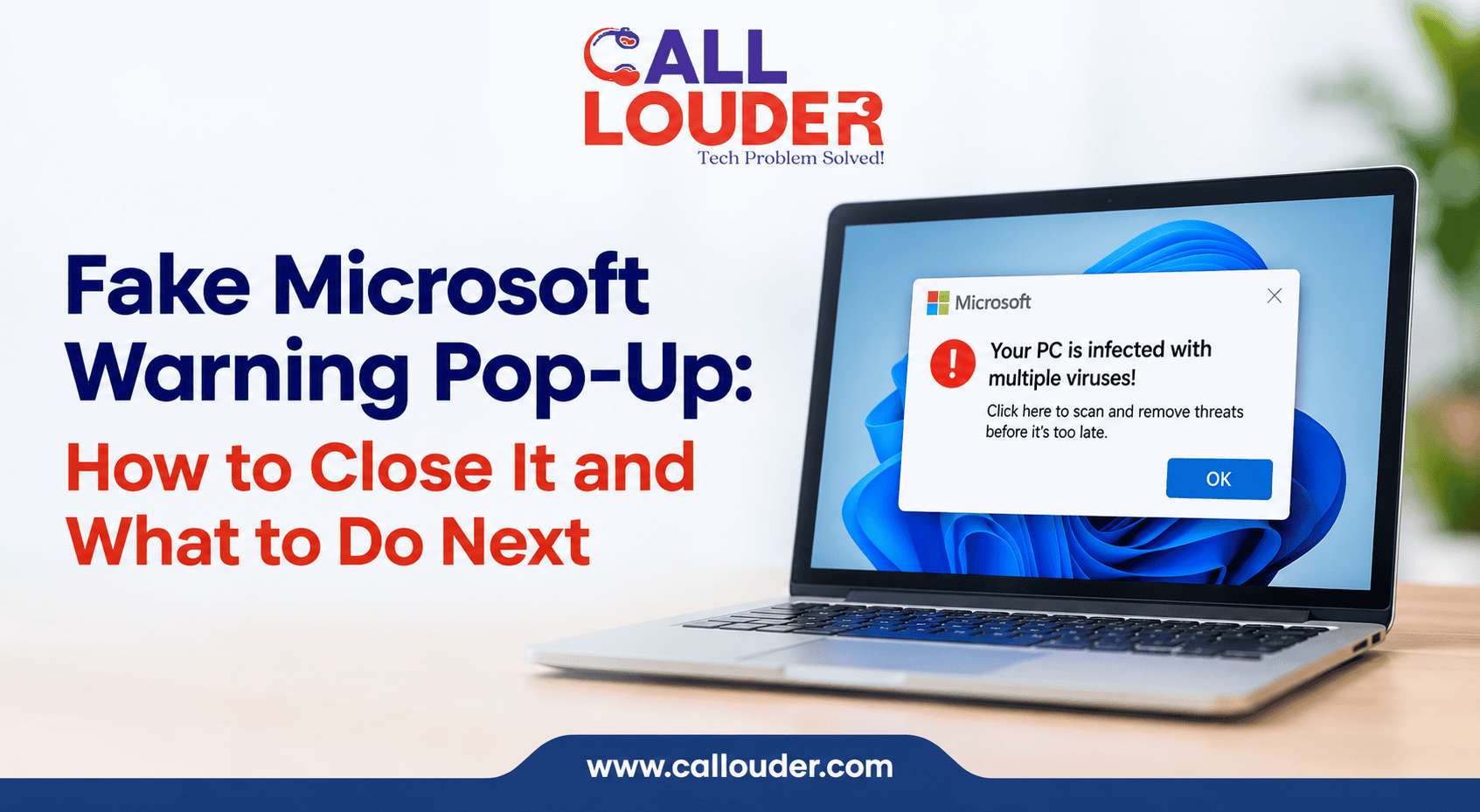
“Your computer is infected. Call Microsoft support immediately.” If a message like this suddenly fills your browser, don’t assume your PC has a virus. Scammers use scary warnings, flashing screens, and fake support numbers to push people into acting fast.
Knowing how to close fake virus pop up messages safely helps you avoid a scam call and check whether your computer needs further attention.
How Can You Recognize a Fake Microsoft Warning?
A fake Microsoft warning pop-up or fake virus alert pop-up usually appears while you’re browsing a website. It might say your files can be compromised, your computer is locked, or your personal information can be leaked.
Look out for these red flags:
- There is a phone number in the warning message: Microsoft does not use an unsolicited phone number in its security alerts.
- There are urgent actions to take: This is one of the favorite tricks used to pressure you into taking action.
- The browser window locks up: It keeps popping up with security alerts or sounds, and you cannot browse away.
- The message asks for remote access or payment: Real Microsoft security alerts don’t ask you to call a number from a random website.
A browser pop up says computer is infected message doesn’t prove your device has malware. Don’t call the number, download anything it suggests or share personal details. Microsoft has guidance on avoiding and reporting technical support scams.
How to Close a Fake Virus Warning Pop-Up Safely
If the warning is in your browser, try these steps before you run scans or change any settings.
- Avoid interacting with the alert. Don’t click its buttons, call the number or download a suggested security tool.
- Close the browser tab. Use the tab’s close button. If it doesn’t respond, press Alt + F4 to close the active window.
- Use Task Manager if necessary. Press Ctrl + Shift + Esc, select the frozen browser and choose End task. This closes the whole browser, so unsaved work in other windows may be lost.
- Reopen the browser carefully. If it offers to restore your last session, say no and open a fresh tab.
These steps usually get rid of a warning that only exists on a webpage. You don’t need to call anyone to make it go away.
What If the Browser Won’t Close or Keeps Showing the Warning?
Sometimes, the scam page keeps popping up or opens again whenever you restart your browser. Exit the browser via the Task Manager and see whether it will appear once you start a new session.
If it appears, try this:
Clear browsing history, including all cache and site data.
- Check notification permissions and remove sites you don’t recognize.
- Remove any browser extensions you don’t remember adding.
- Update your browser.
If the warning shows up outside the browser, or unfamiliar software keeps launching, look further. Check your installed programs and run a security scan.
What to Do If You Called the Number or Gave Someone Access
If you called the number, shared information or let someone control your computer, act based on what happened.
- You gave remote access to: Disconnect from the Internet; end the session. Uninstall any remote access software that is not familiar to you.
- You shared a password: Change it from a different, trusted device. Change it anywhere else you reused it and turn on multifactor authentication.
- You shared payment details: Call your bank or card provider straight away, report it and ask about blocking transactions or replacing the card.
- You installed software: Run a full security scan and remove anything suspicious.
If the person got into sensitive files or accounts, review recent account activity and sign out of other active sessions where you can.
How to Check Whether Your Computer Really Has Malware
Once the warning’s closed, use your built-in security tools to check.
On Windows, open Windows Security, select Virus & threat protection, and run a full scan to help remove virus from computer if a threat is found. A full scan is more thorough than a quick one. If it sees a threat, take the recommended actions. Also look for odd programs, extensions, or changes made around the time the warning appeared.
If the scan comes up clean, and the warning was only on a website, it was probably a scam and not an infection. A clean scan can’t guarantee everything is fine, though.
For more, read Microsoft’s advice on protecting yourself from online scams and attacks.
How to Prevent Fake Security Alerts From Returning
A few habits lower your chances of running into these scams:
- Keep Windows, your browser, and your security software updated.
- Download programs only from official or trusted sources.
- Block notifications from sites you don’t recognize.
- Don’t click unexpected security warnings in ads or unfamiliar pages.
- Never trust a support number just because the message uses Microsoft’s logo.
These habits help protect your computer from hackers by reducing exposure to suspicious downloads and deceptive websites.
When to Get Help With a Suspicious Warning
A browser warning alone doesn’t prove you have malware. If a Microsoft warning call this number message appears, don’t call the number, download suggested tools, or share personal details.
If you’re unsure whether your system is safe, Call Louder can help you assess it and decide what to do next. You may need to remove malware, fix your browser, or run a more extensive security scan. Professional computer security services can find and fix risks without relying on instructions from a suspicious pop-up.
How to Keep Your Computer Safer After the Incident
Once the warning’s gone, review anything you changed while it was on screen. Remove unknown downloads, check your browser settings and ensure your security software is running.
If you want help, Call Louder can guide you through the next steps with our online tech support services. Just choose a trusted support provider; never use the contact details in the warning.
Frequently Asked Questions
Can a website detect that my computer has a virus?
A website can show a message saying your computer is infected, but that doesn’t prove malware is there. Verify with trusted security software.
Should I call the number shown in a Microsoft warning?
No. Don’t call an unsolicited number from a browser warning. Check support details on Microsoft’s official website.
Can a fake virus pop-up infect my computer by itself?
Seeing a pop-up doesn’t usually mean you’re infected. But there is more risk when clicking on links, downloading files, or giving permissions.
What should I do if I clicked on the warning by mistake?
Close the page and refuse to download or submit any information it requests. If you have downloaded a file or caught suspicious activity, then you should run a security scan. Change any passwords or payment information if you have shared them.
Will rebooting my computer erase a fake warning?
Restarting can fix a temporary browser problem, but it won’t necessarily get rid of annoying notifications, extensions or installed software. If you notice that the warning returns, review your browser settings and perform a security scan.