

If every device in your house depends on the same Wi-Fi connection, a basic router setup may not be enough. Phones, laptops, TVs, printers, cameras, gaming consoles, and smart-home devices all compete for a place on the network.
If you’re looking up how to setup home network, the process starts by deciding what needs to connect, where it needs to connect, and how the network should be configured.
How to Set Up Your Home Network Step by Step
Before connecting anything, check what equipment your internet provider has supplied. You may have a modem and separate router, or a gateway that does both.
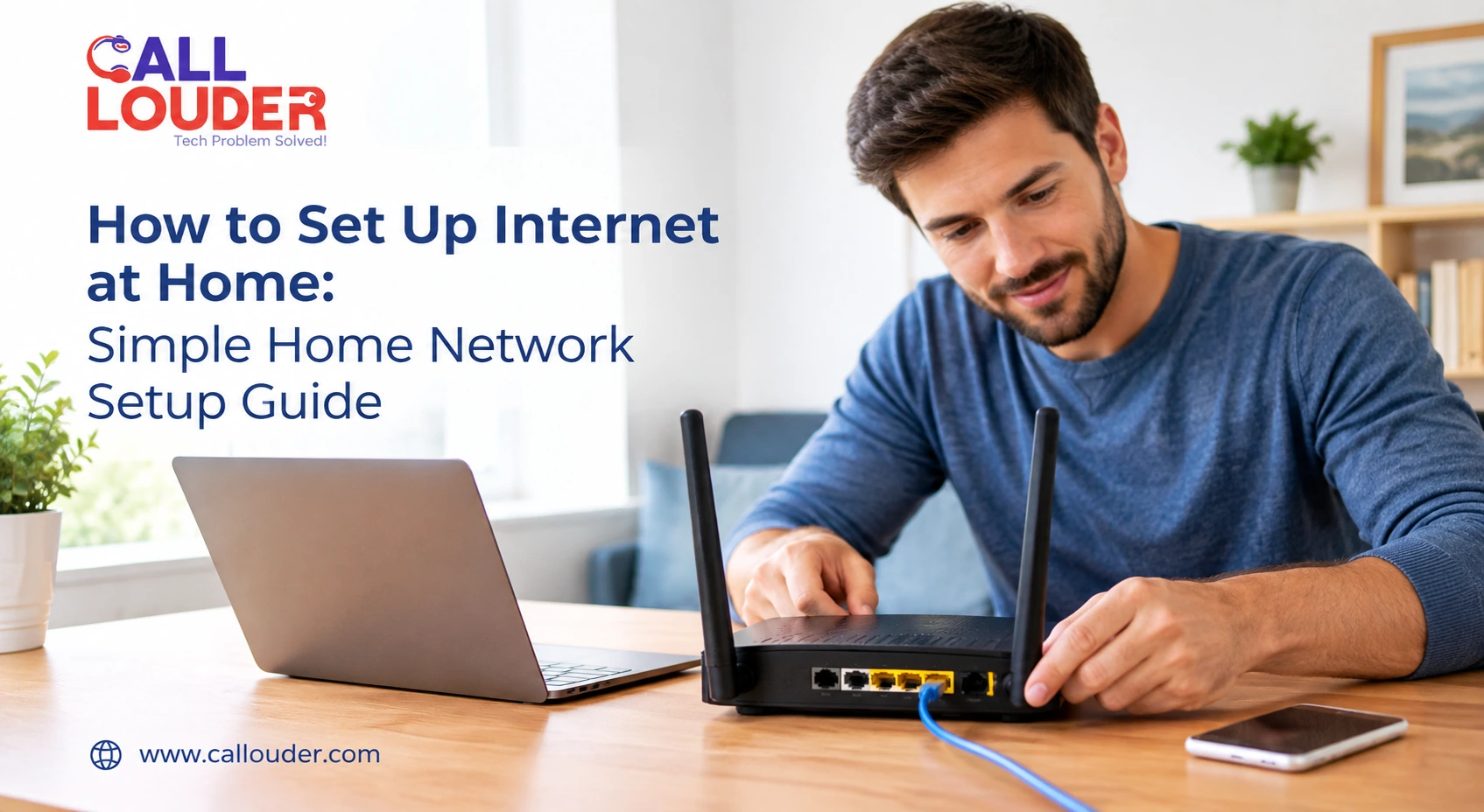
After you are done with setting up all the equipment, here are some basic process on how to setup home network:
- Plug in the modem/gateway – plug in the equipment to the internet provided by the ISP and turn it on
- Plug in the router – if your router and modem/gateway are two separate components, you should connect them together via the use of an Ethernet cable linking the modem to the router’s WAN port.
- Power on the equipment – leave them to start the connection for a while
- Access the router settings – use the manufacturer’s app or web interface to run the initial setup
- Create your Wi-Fi network – set your network name and its password
- Connect your devices – phones, computers, TV and other electronic equipment that need to be connected
- Check the internet connection – visit some websites
If something doesn’t work, first check cables and lights on the router.
What Equipment Do You Need for a Home Network?
It depends on your internet service and the size of the home. A simple setup typically includes:
- A modem, ONT, or gateway from your internet provider
- A separate wireless router
- Ethernet cables
- Wi-Fi-enabled devices
- Network switches if you need extra wired connections
- Mesh Wi-Fi units for larger homes or areas with weak coverage
You don’t need expensive equipment. It really just depends on how many devices you have, the size and layout of your home and what your internet connection can actually support.
Where Should You Place Your Router?
Placement affects how well Wi-Fi reaches different parts of the house – more than most people realize.
Put the router somewhere central and open rather than inside a cabinet or tucked behind furniture. Keep it away from thick walls, large appliances, and anything that generates interference.
If your home has multiple floors or spots where the signal is consistently poor, moving the router probably won’t fix it. A mesh Wi-Fi system or an additional access point will do a better job. For devices that stay in one place – desktop computers, smart TVs, gaming consoles – a wired Ethernet connection is almost always more stable than Wi-Fi anyway.
How Do You Secure a New Home Network?
Getting the internet working is step one. Securing the router before connecting all your devices is step two.
Start by changing the default administrator password. Pick a good Wi-Fi password and select a modern security standard that’s compatible with your router and devices.
In addition to these measures:
- Update your router firmware
- Disable any unused functions
- Set up a separate guest network
- Periodically check which devices are connected
- Don’t unnecessarily spread your Wi-Fi password around
This will gradually reduce the chances of your network being breached and help you keep control of it. If you are still facing issues, you may need professional IT support and services.
How Do You Fix Wi-Fi Connected but No Internet?
This is one of the more frustrating home network problems – your device shows a connection, but nothing loads.
If you’re dealing with Wi-Fi connected but no internet, first work out whether the problem is affecting one device or everything on the network.
Try these steps:
- Check another device on the same Wi-Fi
- Restart the modem and router
- Check whether the router shows an internet connection
- Make sure all cables are properly plugged in
- Disconnect and reconnect the affected device
- Check whether your ISP has reported an outage
If other devices are also offline, the issue is with the router, modem, connection, or provider – not the individual device.
What Should You Do If Your Internet Stopped Working?
Begin by taking care of the fundamentals before you change anything.
Make sure your modem and router are plugged in and powered on. Unplug them, take them out and plug them back in. Try using another device to see whether only one particular phone or computer is experiencing this issue.
If you are having issues with only one device, check the WiFi settings and network adapter of that device. If none of your devices can get to the Internet, make sure it’s not an ISP outage and that the hardware is okay.
Frequent issues may be due to a bad router, broken cable, lack of coverage, or other network-related problems.
When Do You Need Home Network Setup Help?
A basic network can often be set up without professional help. More complex setups are a different story – multiple access points, mesh systems, wired connections, smart-home devices, or persistent connectivity problems can all get complicated quickly.
Professional help is also useful when you genuinely can’t tell whether the problem is with the internet service, the router, a specific device, or the internal network.
Call Louder can be contacted for home network setup help, along with connectivity issues or related technology problems. Getting the underlying issue identified properly can save you from replacing equipment that wasn’t causing the problem in the first place.
How Can You Improve Your Home Network?
Once the network is working, a few small adjustments can make it more reliable.
Update your router and connected devices. Check the router’s settings and connected devices from time to time. If you always have a weak signal in certain areas, try moving the router.
And if you have a bigger home, consider if a mesh system or an extra access point would be a better fit for you than simply getting a more powerful router. For anything that requires consistent performance, wired Ethernet is worth using.
If problems keep coming back despite basic troubleshooting, searching for a wifi fixer near me can connect you with someone who’ll actually assess the network rather than just telling you to restart the router.
When Should You Call an IT Professional?
Some connection problems need a closer look at the whole network. Consider professional help if:
- Your internet keeps disconnecting without explanation
- Several devices have the same problem
- Wi-Fi coverage is poor even after repositioning the router
- The router repeatedly drops its connection
- You need a mesh or multi-access-point network set up
- Wired and wireless devices are behaving differently
- You can’t work out whether the problem is the device, network, or ISP
If basic troubleshooting isn’t getting anywhere, professional IT support and services can identify where the connection is actually failing and what needs to change.
FAQs
Can I set up home internet without a technician?
Yes, in general, all it takes is following the instructions from your provider or equipment maker to set up a modem and router. More complex networks may need professional help.
How long does a basic home network setup take?
A simple setup can be done fairly quickly once your service and equipment are ready. Mesh systems, additional devices, or wired connections add time.
Why does my Wi-Fi keep disconnecting?
It may be poor signal, problems with the router, interference, old hardware, or a poor Internet connection. Checking multiple devices will help to see if it is a problem with the computer or the entire system.
Does a better router increase internet speed?
It can make your WiFi speed, range and capability better but it can’t make your speed faster than your internet connection.
Should I use a router or mesh Wi-Fi system?
A standard router works fine for smaller homes with decent coverage. A mesh system makes more sense when you need consistent Wi-Fi across multiple rooms, floors, or larger spaces.