


🎉 Spring Season Tech Care Offer 31d : 0h : 0m : 0s | Get 20% Off ➡️
Call Louder Logo

calllouder

old computer fix

How to Keep an Old Computer Running Smoothly With Basic Support Routines

If you have an old computer at home, then you probably know how slow it can get after a few years. Maybe it takes forever to start. Maybe the apps freeze. Maybe the internet crawls. Or maybe everything just feels heavy and tired. So before you think about buying a new computer, you should be aware that there are many simple things you can do to make your old one work better again. With a few basic habits, you can speed up an old computer without spending a lot of money, honestly. Read on to know the everyday steps that anyone can do. You don’t have to be a “computer person.” You don’t need special tools. Just simple routines that help your machine stay clean, smooth, and stable.  Start With a Simple Cleanup One of the biggest reasons an old computer slows down is because it is full of old stuff. Over time, we download files, save photos, install apps, and then forget about them. All of these pile up and take space. Just like a messy room makes it hard to move around, an overloaded PC slows everything down. A quick cleanup can make a huge difference. You can delete: Most computers also have a built-in “disk cleanup” tool. You just click it, let it scan your computer, and remove junk files. It’s an easy way to fix an old computer without any stress. Remove Apps You Don’t Use Think about the apps on your computer. How many of them do you actually use? Maybe just a few. Many old programs sit quietly in the background, taking space and slowing things down. Some even start automatically each time you turn on the computer. It’s a good PC maintenance habit to uninstall programs you don’t need.  Restart Often Instead of Keeping It On All Week A lot of people never turn off their PC. They just close the laptop lid or leave the desktop running day and night. This makes an old system worn out and not very responsive. Restarting your computer clears memory, closes apps that are stuck, and resets tasks that get jammed. No matter how old your Computer may be, make it a habit to restart at least once every few days. This simple habit can really speed up an old computer. Don’t Ignore Software Updates Updates sometimes feel annoying, especially when they pop up while you’re busy. But updates are actually very very important. They fix bugs, improve performance, and keep your computer safe from viruses. When you skip updates for too long, the computer can get slower and start behaving strangely. Turn on automatic updates so your computer takes care of itself. This is one of the easiest forms of computer support you can give your machine. Keep Your Computer Safe From Viruses Old computers are much easier targets for viruses and malware. A small virus can make everything slow, glitchy, or unstable. That’s why having a good antivirus program is important. There is absolutely no need to choose some fancy or expensive software. Even a simple free antivirus can protect your computer if you run regular scans. Most viruses often hide quietly in the background and consume a lot of memory. When you remove the virus, you will experience a noticeable increase in speed. Free Up Space on Your Hard Drive When your hard drive is almost full, the computer has no room to breathe. It becomes slow and unresponsive. Try moving large files, like photos and videos, to: Once you free up space, you’ll notice better performance right away. It’s one of the key steps in everyday pc maintenance. Keep Your Desktop Clean Too A desktop full of random files is just like a messy desk. You may think it’s fine, but it actually makes everything harder. Too many files on the desktop make the system slower because the computer loads every single icon each time it turns on. Try making folders to organize your stuff, or move some items off the desktop. A clean screen feels good and helps your PC run smoothly. Give Your Computer a Quick Dust Cleaning Dust may not seem harmful, but it can cause big problems. When vents and fans are full of dust, your computer gets hot. A hot computer slows down to protect itself, and sometimes it even shuts down. You don’t need special tools. You can gently wipe the outside vents or use a small can of air to blow dust away. Keeping your computer cool is a simple way to speed up an old computer without opening anything or doing anything risky. Don’t Run Too Many Things at Once Older computers can’t handle too many tasks at the same time. When you open too many tabs, apps, or programs, everything becomes slow. Try to keep only what you really need open. Close apps when you’re done with them. You’ll notice immediate improvements. Make Support a Habit, Not a One-Time Fix These steps are not “quick fixes”. They’re simple routines you can do every week or every month. Similar to how you maintain your home or vehicle, your computer needs the same type of regular attention in order to stay healthy and operating efficiently.  Need Extra Help? We’re Here. Sometimes you do everything right and your computer is still slow or acting strange. That’s totally normal with older machines. If you ever need clear and helpful support, you can take a look at the information available on the Call Louder computer service page. Our team is always happy to help with old computer fix solutions, pc maintenance, and anything else you need. We’ll make sure your computer gets the proper care so that it continues to perform at its maximum potential as long as it can. FAQs

How to Keep an Old Computer Running Smoothly With Basic Support Routines Read More »

computer virus removal

How Viruses Slow Down Your Computer and the Support Steps to Clean Your System

When your computer suddenly starts acting slow for absolutely no clear reason, it can feel quite confusing and stressful at the same time. Maybe apps take too long to open, your browser freezes, or the whole system feels heavy. Many people don’t realize that a slow system virus is one of the most common causes of these problems. And though it may seem like your computer is just getting old, the truth is that even a new computer can slow down if a virus or malware is inside it. Viruses and malware work quietly in the background. They don’t always show clear signs at first. But also, because they keep using your system’s power for their own tasks, your computer becomes slow, unresponsive, and frustrating to use. That’s why computer virus removal is such an important part of keeping your system healthy. A virus doesn’t need to be big or complicated to cause trouble. Even a small piece of harmful software can change how your computer behaves. Since viruses run without your permission, they consume memory, slow down programs, and sometimes even cause crashes. Thus, knowing how they affect your system and how to remove them safely can save you a lot of worry. How Viruses Make Your Computer Slow Viruses slow down your computer for several simple reasons: 1. They run background tasks you don’t seeMany malware programs run quietly in the background. They collect data, display ads, or connect to outside servers. All of this uses your computer’s power, thereby slowing everything else down. 2. They use up your internetSome malware sends or receives data constantly. Because of this, your internet becomes slow even if your connection is normally strong. 3. They change system settingsViruses can alter files and settings that control how your computer works. Since these settings get damaged, the system struggles to work smoothly. 4. They cause apps to freezeA virus may affect certain programs directly, making them crash or freeze often. 5. They overload the processorSome malware takes up so much processing power that even simple tasks feel difficult for your computer. Though these problems are annoying, the good news is that most of them can be fixed with the right malware fix and support steps. Common Signs You Might Have a Virus If your computer is acting strangely, here are signs that may point to a virus: Since these are common symptoms, it’s better not to ignore them. Early action helps protect your files and makes the cleanup process easier. Support Steps to Clean Your System Safely Cleaning a computer doesn’t have to be complicated. You just need to follow simple steps and avoid anything risky. Here are simple, safe things you can do: 1. Restart Your Computer While this might seem easy, but honestly, restarting clears many temporary processes and there are some small malware programs that stop running after a reboot. However, rebooting does not remove large threats, but it’s a good first step. 2. Update Your Antivirus Because new viruses appear every day, updates are very important; thus, keeping your antivirus software up-to-date is critical as well! Update your antivirus first, then run a full scan. A full scan looks deeper than a quick scan and finds more hidden issues. 3. Disconnect From the Internet Many viruses use the internet to spread or download more harmful files. Disconnecting your computer stops these activities, thereby keeping the problem from getting worse. 4. Remove Suspicious Programs Go through your list of installed programs. If you see apps you don’t remember installing, uninstall them. Some viruses come bundled with apps disguised as helpful tools. Removing these programs often cleans half the trouble. 5. Use Malware Removal Tools If you use antivirus software and it doesn’t find anything but your computer is still running slow, try using another trusted malware removal tool. Many times, some tools catch what others miss. The reason for this is that different tools scan in different ways, using more than one increases your chances of a successful malware fix. 6. Clear Your Browser Viruses may be hiding in your browser by adding unwanted extensions or changing search settings. You can resolve many problems associated with browser viruses by deleting unknown extensions, cleaning out your browser’s cookies, and resetting your browser. 7. Check Startup Programs Some malware starts running automatically the moment you turn on your computer. Open your startup settings and disable anything that looks suspicious. This helps your computer start faster and stops harmful programs from running right away. 8. Update Your System Operating system updates help close security holes. Many viruses enter through outdated systems. Since updates patch these weaknesses, keeping your system current protects you from future problems caused by viruses. 9. Back Up Important Files If your computer is working well enough, save your important files to a safe place. This step helps protect your data in case the system becomes unstable later on. 10. Ask for Expert Help When Things Get Worse Sometimes a virus is too strong or too hidden for home tools so if your computer still experiences performance issues even after cleaning and/ or if the virus keeps coming back, it’s better to get professional computer support. Technicians have access to specialised software designed to safely remove threats without harming your files. Final Thoughts If your computer seems slow, cluttered, or unstable, then chances are there are likely some virus problems on your computer. Fortunately, this doesn’t mean you have to live with it; most issues can be resolved with the right steps. Understanding what is going on with your system makes it much easier to clean things up without any difficulty.  If you ever need extra help or want trusted support, you can learn more about the available services by visiting the CallLouder service page FAQs

How Viruses Slow Down Your Computer and the Support Steps to Clean Your System Read More »

missing emails Gmail

6 Common Causes of Missing Emails in Gmail or Outlook and How to Fix Them

Have you ever had the annoying experience of waiting for an email that was very important, only to see that it hadn’t arrived? You probably checked your inbox, got frustrated looking through your spam folder, and then were all over the place when you finally looked in your trash for the missing email. Then imagine how frustrating this would be if that email was from somebody you wanted to hear from regarding a job status update, an order placed with a retailer or a message from a friend. But before you start stressing, you should know that there are some ways to fix them! Missing emails are a lot more common than you might think. There are a bunch of reasons they could’ve gone missing, and most of them are easy to fix. Whether you use Gmail or Outlook, here’s a list of 6 reasons why your emails might be missing and how to get them back. 1. Your Email Got Filtered Into a Different Folder Sometimes, your email might not show up in the main inbox because it was automatically sent to a different folder. Both Gmail and Outlook have tabs and categories that organize your messages for you. This is great for sorting out newsletters, promotions, and social media notifications, but it can also hide emails you’re waiting for. How to Fix It: 2. It’s in Your Spam or Junk Folder Spam filters are usually quite good at catching junk mail, but sometimes they can be a little too overzealous. You might find that an important email gets flagged as spam by accident. It’s annoying, but not the end of the world definitely. How to Fix It: 3. Your Inbox Is Full Yes, your inbox can actually fill up! Both Gmail and Outlook have storage limits, and once you hit that limit, new emails won’t show up until you clear out some space. This is a pretty common reason for missing emails. How to Fix It: 4. You Accidentally Deleted It It happens to the best of us when you hit delete by accident or selected the wrong email to trash. If you didn’t mean to delete it, don’t worry. Most of the time, emails don’t disappear forever right away. They just end up in your trash folder. How to Fix It: 5. You’re Looking at the Wrong Account If you have more than one Gmail or Outlook account, it’s easy to accidentally check the wrong one. Maybe the email is waiting for you in a different account, and you didn’t even realize it. How to Fix It: 6. There’s a Glitch with the Email Server Sometimes, the problem isn’t on your end. Occasionally, both Gmail and Outlook experience temporary server issues that can cause emails to not show up in your inbox. How to Fix It: What If You Still Can’t Find the Email? If you’ve tried all the steps above and still can’t find your email, it might be time to get some expert help. Services like CallLouder Email Recovery specialize in recovering lost or missing emails, especially when there are account-related issues or more complex technical problems. Final Thoughts Before you panic, remember that most of the time, missing emails are a simple fix. Whether it’s a folder mix-up, a spam filter, or an inbox full of old emails, there’s usually a way to find that message you’re looking for. And if all else fails, there are experts who can help you recover it. So next time you’re hunting for that missing email, stay calm. With a little patience, you’ll have it back in no time!  FAQs 

6 Common Causes of Missing Emails in Gmail or Outlook and How to Fix Them Read More »

dual-band vs tri-band

Dual-Band vs Tri-Band Router: Which One Do You Really Need?

These days, our homes have more WiFi devices than ever. Streaming movies, playing online games, and using smart home gadgets all need a good internet connection. Many people get confused when choosing between a dual-band vs tri-band router. Read on to know the differences between them, how they affect WiFi speed, and which one is the best WiFi router for your home. Dual-Band vs Tri-Band Router For small homes, townhouses, or apartments, a dual-band router will suffice. A dual-band router consists of two WiFi bands – 2.4 GHz for longer range and 5 GHz for faster speeds. This setup works well for regular browsing, streaming movies, or light gaming without slowing down your connection. In contrast, a tri-band router has an additional 5 GHz band, which can be an additional benefit if you have many devices connected at the same time. So if you do a lot of streaming, online gaming, or have multiple devices connected at the same time and need a fast internet connection, investing in a tri-band router will give you a smoother experience due to less traffic on your WiFi. What Does Dual-Band Mean? A dual-band router uses two WiFi frequencies: 2.4 GHz and 5 GHz. This gives you flexibility for everyday tasks like browsing the web, streaming videos, or checking emails. It’s simple but works well for most homes. How Dual-Band Works Best For What Is a Tri-Band Router Used For? A tri-band router adds an extra 5 GHz or 6 GHz band to handle more devices at once and reduce slowdowns. This makes it great for busy homes, online gaming, as well as high-speed internet needs. How Tri-Band Works Best For Is Tri-Band Faster Than Dual-Band? Tri-band routers can provide faster, more reliable connections because they split traffic across three bands. As a result, there is less congestion, and your connection will be faster and more stable when using many devices at the same time. Is Tri-Band Good for Gaming? Yes. A tri-band router gives the gaming devices their own, significantly less congested band which will reduce lag and provide more consistent/stable connection. Gaming Benefits Which Router Is Better for Smart Home Devices? When your home contains numerous smart devices, a tri-band router is typically the best option. A tri-band router has three WiFi bands, allowing you to connect many devices simultaneously without impacting your internet speed or slowing down your internet. Smart lights, cameras, speakers, thermostats, and smart plugs all need constant connections, and a tri-band router keeps traffic smooth across all devices and which means fewer interruptions for video calls, streaming, or online gaming, even when everyone in the house is using the internet at once. For busy smart homes, a tri-band router keeps everything fast and reliable. When You Should Choose a Dual-Band Router A dual-band router is perfect for smaller homes or apartments where you don’t have too many devices. It has two WiFi bands – 2.4 GHz for longer range and 5 GHz for faster speeds nearby. This setup is enough if you mainly use the internet for browsing, streaming videos, or light gaming. It can easily handle 5–10 connected devices at the same time. Dual-band routers are also more budget-friendly, making them a good choice if you don’t need the extra speed or extra band of a tri-band router. For everyday use, it’s simple and reliable. When You Should Choose a Tri-Band Router A tri-band router is best for large homes or multi-floor houses where WiFi needs to reach every corner. If your household has many users and devices connected at the same time, a tri-band router can handle the traffic without slowing down. It’s also great if you stream multiple 4K or 8K videos, play online games, or run smart home devices all at once. Heavy data tasks, like large downloads or video calls, also work better on tri-band. Basically, if your internet is always busy, a tri-band router keeps everything fast and smooth. How Can I Improve My WiFi Speed? If your WiFi feels slow, there are simple ways to make it faster. Where you place your router matters a lot. Here are a few tips to improve your WiFi speed: Tips Conclusion A dual-band router is efficient, low-cost, and sufficient for everyday internet use. A tri-band router provides faster speeds and handles more devices which is ideal for busy homes with heavy streaming or gaming. The best choice totally depends on how many devices you have and how you use the internet so choose the one that fits your home and daily needs and/or requirements. If you face any issues regarding your router, you can connect with Wi-Fi & Internet Support for assistance. FAQs

Dual-Band vs Tri-Band Router: Which One Do You Really Need? Read More »

mac data recoverys

Water-Damaged MacBook? Here’s How to Recover Your Data Before It’s Lost

Water damage is one of the leading causes of unexpected MacBook failures. Even a small spill, like a drop of water or coffee, can damage your device. It doesn’t just affect the keyboard or screen; liquid can damage very important components like the SSD, logic board, connectors, and power circuits. Once this happens, users usually panic because they can’t access their important files. But here’s the bigger problem: corrosion starts quickly and gets even worse over time. So, the longer you wait to address the issue, the more likely it is that your data will be permanently lost. However, there’s still hope, only if you act fast and handle the situation correctly, expert Mac data recovery and MacBook repair services may still be able to recover your files. Time is critical, but there’s still a good chance of saving your data with the right help. Step 1 — Turn Off Your MacBook Immediately to Prevent Further Damage To minimize damage to your Mac, the moment water touches your MacBook, turn your MacBook off immediately. This helps prevent short circuits that can destroy the internal parts. Once you turn your MacBook off, do not press any keys, shake or move your MacBook, and definitely do not plug it in again. Since water spreads fast, keeping the Mac completely powered off gives you a much better chance at successful water damaged MacBook data recovery. By acting quickly, you can save your Mac as well as your data. Step 2 — Disconnect Peripherals, Remove Case, and Let the MacBook Dry Properly Next, unplug everything: chargers, USB devices, earphones, and remove any protective cases. These can trap moisture and can make the problem worse to fix. Let the MacBook dry naturally on its own in open air. Avoid rice, hairdryers, or leaving it in direct sunlight because these can cause more harm than good. Drying the laptop only stops extra damage; it doesn’t actually fix anything inside or restore data. That’s where proper MacBook repair comes in later. Step 3 — Don’t Try to Turn It Back On: Here’s Why It’s definitely tempting to check if your MacBook still works, but turning it on too soon can fry tiny circuits inside. Once corrosion starts, even a single attempt to power up can damage the SSD, making data recovery much harder. Many DIY tricks end up doing more harm than good. For safety and for better mac data recovery results, you should reach out to professionals who know how to handle a MacBook that won’t turn on. Step 4 — Professional Mac Data Recovery: What Experts Actually Do When experts step in, they run careful tests to see which parts are damaged. Even if your MacBook doesn’t power on at all, technicians can recover your files by using board-level repairs, SSD extractions, and micro-soldering tools. Since corrosion develops over time, starting water damaged MacBook data recovery early will provide a better chance for successful recovery of your data than if you wait. Signs Your Data Is Still Recoverable (Even If the MacBook Looks Dead) Even if your MacBook seems completely gone, there are a few signs that your data might still be safe. For example, if the charging light turns on, that’s a good sign. Sometimes you may even see a faint glow on the screen or feel a small vibration when you press the power button. And also in some cases, the MacBook turns on but the screen stays black, or it may start to boot and then shut down suddenly. All these signs usually mean the SSD might still be okay, which gives you a good chance at mac data recovery. These signs show that the storage pathways may still be intact, making internal SSD recovery more likely to succeed. When Water Damage Makes DIY Data Recovery Impossible Sometimes the damage inside a water-hit MacBook is just too serious for any DIY fix. If there’s heavy corrosion on the logic board, the Mac won’t behave normally no matter what you try or how many times you try. In some cases, the SSD chips can get shorted, or the trackpad’s power system may be damaged. Water can also sneak into the keyboard or side ports and quietly ruin the tiny circuits underneath. This is why online DIY tricks almost never work. In fact, they often make things worse and can kill any chance of water damaged MacBook data recovery. When the Mac can’t boot at all or the hardware is badly affected, only proper hardware-level repair done by experts can bring the data back. Can Apple Recover Data from a Water-Damaged MacBook? Many people think Apple can pull the data out of a water-damaged MacBook, but Apple actually does not offer data recovery. They focus on replacing the damaged parts, not saving the files. So if your logic board or SSD is dead, Apple will not try to extract the data from it. For any real mac data recovery, you need a third-party specialist who is well trained to work on the internal chips and storage. Also, keep in mind that water damage is not covered under Apple’s warranty, so the Apple Store will usually offer a paid repair or a full replacement but no Mac data retrieval. If your goal is to save your files, it’s better to go straight to a professional recovery service instead of relying on Apple for this part. How Call Louder Helps You Recover Data from a Water-Damaged MacBook At Call Louder, we keep things very simple and straightforward. We start with a quick diagnosis to check the damage. Then we move on to mac data recovery, and after that, we offer MacBook repair options if you want the device fixed too. You can get remote help first, and if needed, we bring your Mac into our lab for deeper work. We also handle your data safely and keep everything private. Our team uses expert tools and has a high success rate with water-damaged Macs. Since this

Water-Damaged MacBook? Here’s How to Recover Your Data Before It’s Lost Read More »

ssd data recovery

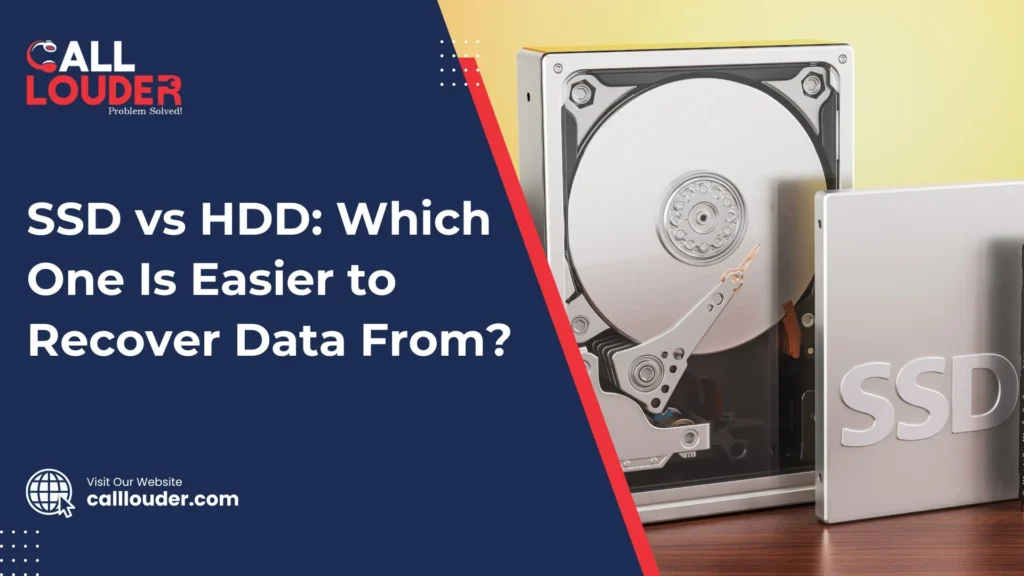
SSD vs HDD: Which One Is Easier to Recover Data From?

Have you ever questioned why it’s easier to recover files from an old hard drive than a new SSD? The difference lies in how the drives are built. The way that the data is stored affects how easy or difficult it will be to retrieve lost files. HDDs, or hard drives, use spinning discs for storage. Because of this mechanical setup, deleted files tend to stick around until they are overwritten, which makes recovering files easier. SSDs use flash memory without any moving parts. Generally, SSDs are faster and more reliable, but their storage system, plus features like TRIM, can make recovering deleted data much harder. What Is the Difference Between SSD and HDD? HDDs (hard disk drives) utilize spinning disks and magnetic heads to store data. HDDs are mechanical as opposed to SSDs, and are slower, although recovering lost files from them is usually easier. SSDs use flash memory chips and are much faster and more durable than HDDs, however, the way they store data makes recovery more challenging, especially with features like TRIM. Quick Comparison Table Feature HDD (Hard Disk Drive) SSD (Solid State Drive) Storage Type Magnetic platters NAND flash chips Speed Slower Much faster Moving Parts Yes No Data Recovery Easier More difficult Durability Less shock-resistant Highly durable Data Overwrite Behavior Gradual Instant (TRIM-enabled) How HDD Data Recovery Works How is data recovered from an HDD? HDD recovery works by reading the leftover magnetic traces on the spinning disks. Even if the files are deleted, or the drive is otherwise damaged, there are often magnetic traces left behind, making it possible to recover your data. Common HDD Recovery Scenarios HDD Recovery Techniques When you “delete” data, it is still on the HDD until it is overwritten, so recovery is typically possible. How SSD Data Recovery Works How is data recovered from an SSD?  Recovering data from an SSD is harder than from an HDD. SSDs use flash memory, and features like TRIM automatically erase deleted files, so the data is often gone for good. Common SSD Data Loss Causes SSD Recovery Methods Note: The TRIM command permanently removes deleted data, which makes restoring files very difficult once it’s active. Why Is SSD Data Recovery So Difficult? Why is SSD recovery harder than HDD recovery? SSDs have features like TRIM, encryption, and wear-leveling to make them faster and more efficient. But these same features also erase deleted files quickly, making normal software tools almost useless for recovery. Key Technical Reasons Note: SSDs are faster, but their self-erasing features make getting back files that once deleted extremely difficult. Professional Data Recovery Solutions Can professionals recover data from an SSD or HDD? Yes! Expert labs have advanced tools and chip-level methods and/or techniques to recover data from damaged or erased drives. When to Call Professionals If critical files have been lost, you can count on CallLouder’s professionals to recover them. Check out data recovery fixes for expert support. How to Protect Data on SSDs and HDDs How can I prevent data loss from SSDs or HDDs? The easiest way to avoid losing files is to back up your data regularly and keep an eye on your drive’s health. This works for both SSDs and HDDs. Prevention Tips Conclusion: Choose Performance, But Backup Always Choosing between an SSD and an HDD depends on what matters most to you. HDDs are easier and more affordable for data recovery because deleted files usually stay on the disk until they are overwritten. SSDs offer faster speed and better durability, but once files are deleted, especially with TRIM active, data recovery becomes much more difficult. No matter which drive you use, the most reliable way to protect your files is simple: create regular backups and take quick action when data loss happens. When the situation is urgent, professional help can greatly increase your chances of recovering important files. Need help recovering files from a damaged drive? Get fast, reliable recovery with CallLouder’s Data Recovery Experts. FAQs

SSD vs HDD: Which One Is Easier to Recover Data From? Read More »

data recovery mac

Is It Possible to Recover Data from a Mac After a Factory Reset?

Doing a factory reset on a Mac can be scary because it wipes almost everything, such as your system data, apps, and personal files. So when your Mac starts up looking fresh and empty, it’s quite normal to panic a little. Many people reset their Mac by accident or do it without backing up their data first. And once the reset is done, the big question that often comes up is Can you still recover your data? The honest answer is maybe. It depends on a few things such as your macOS version, whether your Mac uses an SSD, if the drive was encrypted, and how quickly you try to recover your files. Acting fast helps because the Mac may overwrite old data if you keep using it. Can You Recover Data from a Mac After a Factory Reset? So, can you recover data after factory resetting your Mac? In many cases, yes but not always. If the old files haven’t been overwritten yet, there’s still a chance to get them back. But modern Macs use SSDs, and SSDs work in a way that can erase data more quickly, which makes recovery harder. If FileVault was turned on, the chances are that data may be fully encrypted, which also reduces the chances. Still, recovery is not impossible. Some professional tools and data recovery specialists can pull back deleted Mac files in certain situations. So before you panic, know that a Mac reset recovery might work especially if you stop using the Mac right away and try the best data recovery options for Mac as soon as possible. Why a Factory Reset Doesn’t Always Permanently Erase Data A factory reset sounds final, but it doesn’t always erase everything forever. This comes down to how macOS handles deleted files. When you reset a Mac, the system usually removes the “pointers” to your files, but parts of the data can still stay on the drive until something new replaces it. On Macs with SSDs, your deleted data may still sit in tiny fragments for a short time. Since SSDs save and clear information differently than old hard drives, some pieces stay there until the system overwrites them. That’s why quick SSD data recovery on Mac is sometimes possible. Now, there’s something called TRIM, a feature that helps SSDs stay fast. In other words, TRIM clears out old data in the background so the drive works better. But this also means your deleted files might be cleaned up sooner, making recovery harder. Then there’s FileVault. If FileVault encryption was turned on, your data gets scrambled to protect it. This is very great for security, but it also means that once the reset happens, the encrypted data becomes almost impossible to recover. If FileVault was off, your chances are usually higher. The big takeaway is this that when a reset happens, time matters. The less you use the Mac afterward, the better your chances of successful Mac data recovery. Stopping all activity right away can prevent the drive from overwriting whatever is left. When Data Recovery Is Possible After a Reset Data recovery after a reset is possible, but only under the right conditions. Here are the situations where you have a good chance: • FileVault was OFF before the reset.If your Mac wasn’t using FileVault encryption, the old data is easier to scan and recover. • You didn’t install new apps or download big files after the reset.New files can overwrite the old ones, so the less you use the Mac, the better. • The Mac hasn’t been used much after the reset.Even simple things like browsing, updates, or opening apps can replace the leftover data. Staying off the device helps a lot. • The reset didn’t fully complete or got interrupted.Sometimes a partial reset leaves behind more recoverable data. If your situation matches these points, your chances of a successful Mac reset recovery are much higher. Even then, acting fast is key to getting the best data recovery results on Mac. Best Methods to Attempt Data Recovery After a Factory Reset 1. Stop Using the Mac Immediately This is the most important step to be noted. Any new activity can overwrite old data. The sooner you stop using the Mac, the better your chances of recovery. 2. Try Your Time Machine Backup (If You Have One) If you used Time Machine before the reset, this is the easiest way to restore everything. You can bring back apps, settings, and files in just a few clicks. 3. Use Professional Mac Data Recovery Software Good recovery tools can scan the empty or “unallocated” areas of your SSD to find leftover files. They work only when FileVault wasn’t turned on. These tools can help recover a wiped Mac, but they’re not perfect and won’t fix cases where the data is fully overwritten. 4. Contact a Professional Mac Data Recovery Service If the data is very important, go to the experts because they have the special tools and techniques required that regular users don’t have. This gives you the best chance in tough Mac reset recovery situations. What Professional Mac Data Recovery Specialists Actually Do When regular tools can’t recover your files, professionals use deeper methods to get data back. They often start with board-level diagnostics, checking the Mac’s hardware to see if any part of the logic board is preventing the drive from being read. If necessary, they’ll proceed to SSD chip-level scanning, working directly on the memory chips. This goes far beyond what normal software can do. Additionally, they create a bit-by-bit image of the drive by copying every little piece of data, allowing them to locate previously deleted files that have not been overwritten. Recovery of complete files may not be achievable; however specialists can extract leftover fragments and try to rebuild whatever is recoverable. Specialists can successfully handle tricky situations like FileVault encryption or failed logic boards, where consumer tools usually fail. Success rates depend on how the reset was done, whether the SSD has been heavily used,

Is It Possible to Recover Data from a Mac After a Factory Reset? Read More »

computer support service

Professional Computer Support Services: Fast, Reliable & Affordable

When your computer isn’t working right, it can feel like everything is falling apart. Whether it’s slow performance, your laptop freezing at the worst time, or it not starting at all… it can totally mess up your day. You get stuck, can’t get anything done, and it feels like you’re falling behind. Frustrating enough, right? We get it and trust me, we’ve all been there. So now what do you do when your tech is in a complete failure? You need professional computer support that’s fast, reliable, and not too expensive. You don’t have time for long waits or complicated solutions, just something that actually works. But there are so many companies claiming to help, it can be hard to know who to trust.  Here’s what you should definitely look for when choosing a computer support service that actually gets the job done. 1. Fast Response Times: No One Wants to Wait No one has the time to wait forever for their computer to get fixed. When your tech isn’t working, you need it back up and running. When choosing a computer support service, make sure they offer fast response times. If you’re dealing with a system crash or a frozen screen, the last thing you want is to wait around for days. Look for teams that can solve the issue quickly, ideally within minutes or hours, not days. After all, you’ve got work to do, emails to send, so who has time to sit around waiting for tech support? 2. Comprehensive Services: One Stop for All Your Tech Needs Not all tech problems are the same; some are super easy to fix, like a slow computer, while others can be more complex, like those frustrating error messages that show up at the worst times. This is why you need a computer support team that can handle all kinds of issues no matter big or small. Look for a service that offers a range of support, from fixing slow computers to virus removal and even new computer setups. Whether you need help with software glitches or hardware issues, they should have the skills to tackle it all. And at Call Louder, we offer all of these.  3. Affordable and Transparent Pricing: No Hidden Fees Tech support can be costly, and no one enjoys surprise fees. Good support doesn’t have to be too expensive. You should look for good service at affordable prices. A affordebal computer repiar service team should be transparent about their costs from the beginning with no hidden fees, no last-minute charges, just straight-up pricing you can trust. Whether it’s remote support or an on-site visit, you should know exactly what you’re paying for, and it should make sense for the level of service you’re getting. Fair pricing should be a no-brainer when it comes to tech help. 4. Remote and On-Site Support: Whatever You Need, Whenever You Need It Honestly, not every tech problem calls for a technician to actually show up at your doorstep.  Sometimes, it’s something simple, like a software update or fixing your Wi-Fi connection, and that can be handled remotely. Of course, more complex issues such as replacing a hard drive or a system failure do require someone to simply show up and perform a hands-on repair. That’s why you need a service that offers both remote and on-site support. Remote support is quick, easy, and efficient, but when you need something more, on-site support should be just a phone call away. Whether you’re working from home or running a business, you’ll be covered no matter what kind of fix you need. CallLouder: Where Fast, Reliable, and Affordable Tech Support Comes to Life Now that you know what to look for, here’s the good news. Call Louder is exactly what you need when things go wrong with your computer. Slow laptop? Software glitches? Whatever the problem is, CallLouder is here to provide you with the fast, dependable, and affordable tech support that you actually want. Here’s a sneak peek into what we do: What We Offer We have been in the business of technical support for many years, providing help to many people like you to get their systems back up and running as quickly as possible. Our support team is comprised of tech professionals who are skilled in handling a wide range of tasks, from virus removal to new computer setups.  Why CallLouder? Okay, so why should you pick CallLouder? Well, it’s pretty simple: Our Services And that’s just the tip of the iceberg! Our team handles it all and gets your tech working like new – fast, friendly, and affordable. Ready to Fix Your Tech Problems? So, the next time you’re searching for “computer repair near me” or “remote computer repair USA”, don’t waste your time looking through multiple companies. You can reach us directly, and we’ll be happy to assist you! Let us restore your computer to its optimal performance, so you can get back to what matters – whether that’s work, play, or anything in between. Frequently Asked Questions (FAQs)

Professional Computer Support Services: Fast, Reliable & Affordable Read More »

best data recovery software for mac

What is the best data recovery software for Mac?

Data loss..yep, it happens to the best of us. It could be a random computer crash, a system update gone wrong. Whatever the cause, when you lose important files, whether it’s a work project, a vacation photo, or a crucial document, it’s a big deal. And honestly, it can feel like the world is falling apart for a minute. However, feel secure because data recovery software is often the solution! The only drawback is that many choices may be too much to consider to find the best data recovery software for your needs. We are familiar with the experience. That’s why we’ve done the testing and research for you!  So without further ado, let’s go through the best data recovery software for Mac available, starting with the most user-friendly ones first and then moving to the more advanced options.  Best 6 data recovery software for Mac Here 6 best Mac data recovery software tools, along with a brief description of what they do well, what they are best for, and any major drawbacks. 1. Disk Drill for Mac Best for: Simple, fast recovery for beginners and pros alike. If you want something that’s easy to use but still powerful enough to do the job right, Disk Drill is an excellent choice. Seriously, it’s one of the best out there. You don’t need to be a tech whiz to use it, just open the app, select your drive, and let it do its thing. The software is perfect for anyone who needs to recover files fast, without any complicated steps. Features:Disk Drill uses multiple scanning methods to give you the best chance of recovering your lost files. It runs three scans at once: Quick Scan, Deep Scan, and Signature Scan. These three types of scans look for lost files in different ways, making it more likely that you’ll get everything back. It also comes with an “Advanced Camera Recovery” feature, which is pretty cool. This special tool focuses on recovering video files that may be damaged or corrupted. Most other recovery tools can’t handle this, but Disk Drill does a great job. Supported Devices: It works with a range of devices including SSDs, HDDs, iPhones, iPads, Android devices, USB drives, and even networked drives. 2. R-Studio for Mac Best for: Advanced users and complex data recovery (like RAID systems). If you’re a bit more tech-savvy or you need to recover data from a really tricky situation like a corrupted RAID setup, then R-Studio could be your perfect choice. While it’s not the easiest app for beginners, it’s a serious powerhouse when it comes to recovering data from complex systems. Features:R-Studio offers support for a wide range of file systems. Whether you’re dealing with APFS (Mac), NTFS (Windows), or even Linux file systems. It’s great for data recovery on heavily damaged or corrupted systems. R-Studio’s main advantage over other recovery software is its advanced features. You get a hex editor, network recovery capabilities, and the ability to work with custom recovery parameters. If you’re dealing with a professional-grade RAID system, it even has a RAID reconstructor to help you rebuild your array. That said, R-Studio isn’t the easiest tool to use for beginners. It’s a bit more complicated, and it doesn’t always have the best preview functionality, but if you’re comfortable with tech, it’s one of the most powerful tools around. 3. Recoverit Data Recovery for Mac Best for: Video-heavy users and easy recovery. If you work with a lot of video files and need something simple to recover your lost footage, Recoverit is the best option. It’s especially great for those who need to recover large video files from Macs, which often have specific file types. Features:Recoverit is really easy to use. You can recover lost files in just three simple steps. Additionally, it comes with a video repair tool (premium license only) that helps fix damaged video files. While it’s not perfect (it won’t work 100% of the time), it can definitely help recover video files that other tools might miss. The tool does a great job at recovering file types like AVI, MOV, and WMV, though it can struggle with MP4 files. So, if you work a lot with videos, it might be worth checking out. 4. UFS Explorer Professional Recovery Best for: Businesses and high-end recovery needs. If you’re running a business or managing a large data set, UFS Explorer is the kind of software you’ll want to have in your toolkit. It’s powerful but comes at a price. It’s made for commercial and enterprise-level users, so it might not be the best choice for casual home use, but it’s a fantastic option if you need something more robust. Features:UFS Explorer shines when it comes to complex data recovery. It has a built-in RAID tool, so it’s perfect for companies that rely on RAID systems to keep their data safe. It also supports advanced recovery for multiple file systems and can recover data from nearly any device. While the interface is a little less user-friendly compared to simpler tools like Disk Drill, the power it packs makes it well worth it for anyone handling larger-scale data recovery. 5. EaseUS Data Recovery Wizard for Mac Best for: Free recovery of up to 2GB of lost data. If you don’t want to spend a lot of money but need to recover some files, EaseUS Data Recovery Wizard is a good option. It lets you recover up to 2GB of data for free, which can be enough to get back some important documents or a few photos. To note, it’s super easy to use with just a few clicks and you’re done. Features:EaseUS supports a wide range of file types and works with both HFS+ and APFS file systems. It also supports Time Machine backups, so if you’ve lost something from a backup, this tool can help recover that as well. It’s a great option for recovering photos, videos, documents, emails, and more. If you need more than 2GB of data recovery, you can always upgrade to the paid version

What is the best data recovery software for Mac? Read More »

mac repair near me

Mac Repair Services Near me: Fast, Reliable & Affordable

If you have been looking for “Mac repair near me” or for a Mac expert you can trust, Callouder specializes in fast, reliable, and affordable Mac repair services. Whether your Mac is slow, unresponsive, or you have lost important files, we are here with expert support. We are dedicated to restoring your Mac experience as quickly and easily as possible. Common Mac Issues We Help With Your Mac is designed to perform at its best, but sometimes things can go wrong. Whether it’s a software issue or hardware malfunction, we can help get it back to peak performance. Here are some common issues we fix: 1. Slow Mac Performance If your Mac is slow or takes a long time to load, it may be cluttered with unnecessary files, and/or it may be running old apps. A Mac expert can clean up your system, remove excess files, and optimize performance, giving your Mac the speed you have been looking for. 2. Data Recovery Losing important files can be nothing short of a nightmare, whether your Mac crashed or you accidentally deleted something important and need it back, our professional Mac repair team can help recover lost files and data. We have the expertise and tools necessary for recovering data from corrupted and damaged hard drives. 3. Screen Issues Mac repair experts are capable of resolving any type of screen issue, including cracked screens, flickering displays, or an unresponsive display. Regardless of whether it’s an easy fix or a complete replacement, we can have your Mac display looking brand new. 4. Battery Problems A Mac with battery issues can be a major inconvenience. If your battery drains too quickly or refuses to charge, our Mac repair team can replace your old battery with a new one, restoring your Mac’s power for longer use. 5. Software Issues A software problem could be the reason your Mac is freezing or crashing, or has difficulty running apps. It could be a macOS problem or even an app conflict; we will troubleshoot your software so it can work effectively again. 6. Hardware Repairs From faulty keyboards to malfunctioning ports, hardware problems can be tricky. Our Mac expert technicians are skilled in diagnosing and repairing just about any hardware problem, from replacing damaged parts to restoring full functionality. Why Choose Call Louder for Mac Repair? When you need Mac repair, you should look for a team that is both professional and reliable. Here is why customers choose us for Mac repair: Experienced Mac Experts Our team is comprised of highly-trained Mac professionals who can solve even the most difficult issues. No matter if it is a software error or a hardware failure, we have the expert team to get your Mac fixed right the first time. Fast Service We understand how important your Mac can be from day to day, which is why our services are both fast and efficient. Your repairs are our priority, and we strive to minimize turnaround time so you can get back to using your device as soon as possible. Affordable and Transparent Pricing At call louder, we value straightforward, up-front pricing. You will get an honest quote before we do any work without any hidden costs and/or surprises. We want you to be sure about what you’re paying for! Customer-Focused Approach Your satisfaction is our top priority. Our experienced staff is here to answer any questions you may have, explain the repair process, and keep you informed every step of the way. Our goal is to make your Mac repair simple and easy. How Our Mac Repair Process Works We make getting your Mac repaired simple and stress-free. Here’s how the process works: 1. Talk to a Mac Expert Reach out to us and explain what is happening with your Mac. A Mac expert will guide you through the next steps and help you understand the situation.  2. Initial Check After we receive your Mac, we will perform a full diagnostic evaluation to find the problem. We will provide you with a detailed report and let you know exactly what needs to be repaired. 3. Clear Quote Before we begin any work, we’ll give you an honest and transparent quote. You’ll know exactly what the repair will cost, so you can decide whether to move forward. 4. Fast Repairs Once you approve the quote, we will start the repair process. Our technicians will get your Mac fixed and back to you as fast as possible while ensuring a quality repair.   5. Pickup or Delivery When the repair is done, you are welcome to pick up your Mac at your convenience or we can arrange delivery to your home or office. We make it easy to get your Mac back in your hands. Types of Mac Repair Services We Offer We handle all kinds of Mac repair needs, from minor fixes to major repairs. Here are some of the services we offer: Why Quick Action Matters When your Mac isn’t functioning properly, it’s better to get it fixed as soon as possible. The longer you wait, the more likely the problem is to get worse, resulting in more expensive repairs or data loss. If you’re looking for a “Mac repair near me,” it’s time to take action. One of our Mac experts can troubleshoot and repair your Mac in no time.  Get Your Mac Repaired Today! Don’t let Mac issues slow you down. Whether it’s a slow MacBook, a malfunctioning iMac, or any other problem, Call Louder is your trusted Mac expert for all your Mac repair needs. We are here to provide you with fast, affordable, and professional service so you can get your device back to its optimal performance. Frequently Asked Questions (FAQs)

Mac Repair Services Near me: Fast, Reliable & Affordable Read More »

1000+

Happy Clients

4.9+

Average Rating

12Hr

Support

100%

Success Rate

Fill the Form & Unlock Your Benefits!

Buttons Popup

Fill the Form & Unlock Your Benefits!

Buttons Popup