
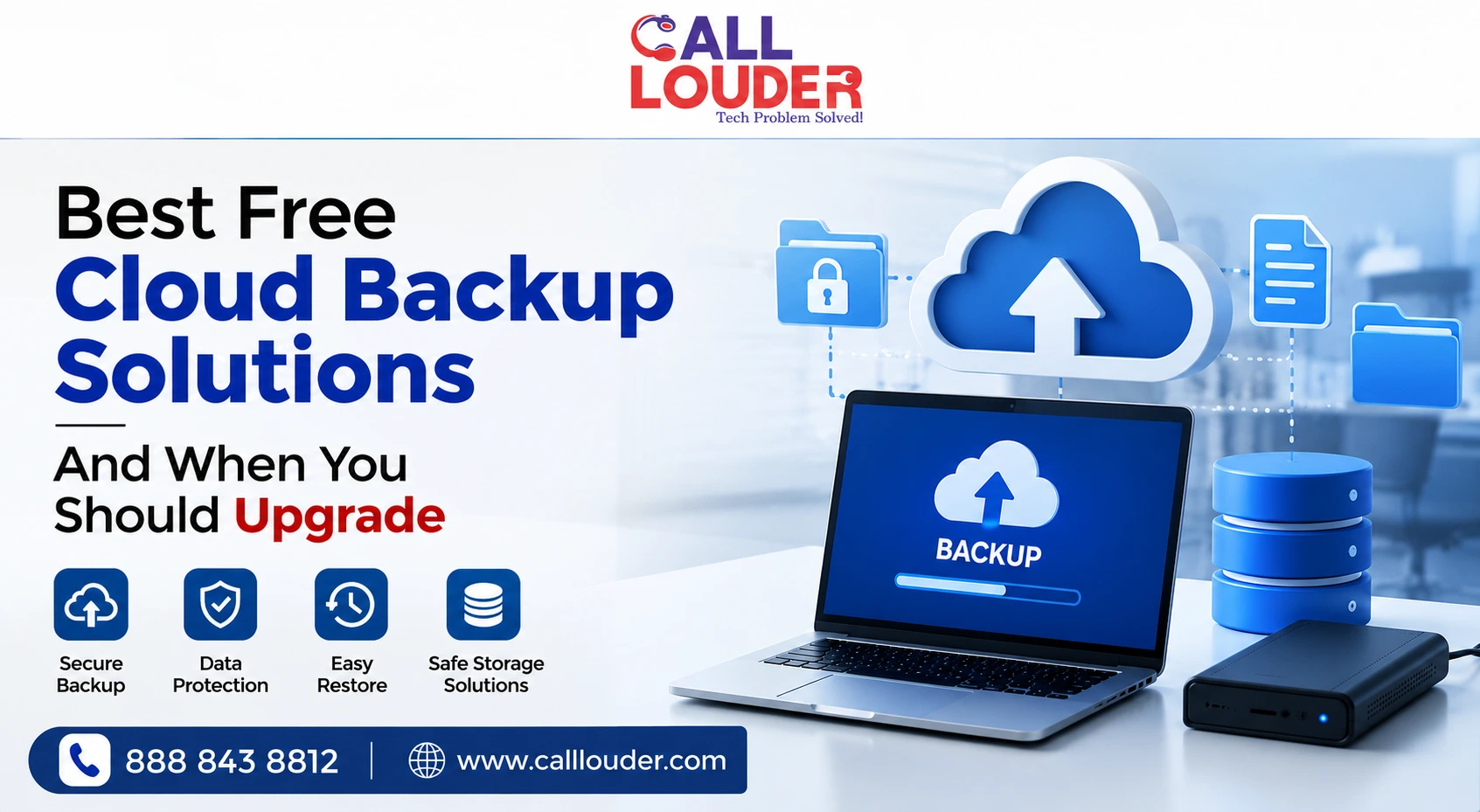
Losing a file is frustrating. Losing an entire collection of important files because your computer fails is a much bigger problem. Cloud backup can reduce that risk, and you don’t necessarily need a paid plan to start.
There are a number of free options to protect basic files, but not all of them are for the same purpose. The best online cloud backup solutions depend on what you’re backing up, how much data you have, and how easily you need to recover it later.
What Makes a Free Cloud Backup Solution Worth Using?
Storage space shouldn’t be the only thing you compare. Think about how you’ll actually use the service day-to-day.
Consider the following things before settling on one:
- The amount of free storage space offered
- Whether it offers automatic backups
- Which devices it can support
- How easy it is to restore your files
- Whether you get previous versions of your files
- The security measures it has
- Whether the storage space limit is applicable to many other services as well
You should also have knowledge of the difference between cloud storage and cloud backup. Just storing some files in the cloud does not guarantee that your whole computer is backed up.
What Are the Best Free Cloud Backup Solutions?
Several well-known platforms offer free storage that works for basic backup needs.
| Free Option | Best For |
| Google Drive | Documents and everyday files |
| OneDrive | Windows and Microsoft users |
| Dropbox | Simple file syncing |
| iCloud | Apple devices and users |
| Free backup tools | Specific backup requirements |
Google offers 15 GB of storage through a personal account, which is distributed between Drive, Gmail, and Google Photos. The iCloud storage provided by Apple is 5 GB and will be helpful to Apple device users who need to back up a small amount of information. Dropbox storage allows automatic backups of chosen files and folders.
However, this may be a good start, but it really depends on your own needs.
Are Free Cloud Storage Services the Same as Cloud Backup?
Not exactly, and the difference matters more than people realize.
Cloud storage lets you access and share files across devices. Backup is specifically about creating copies you can restore if something goes wrong. If you delete a synced file, that change often ripples across every connected device. A proper backup solution keeps a separate recoverable copy with version history.
Think of it this way:
- Cloud storage: “I want my files available online.”
- Cloud backup: “I want another copy in case something happens to the original.”
A service can be excellent for file storage and still not give you everything you need for proper recovery.
What Are the Limitations of Free Cloud Backup?
Free plans cost nothing, but the restrictions are real.
Storage is the obvious one. A few gigabytes covers documents and selected files, but photos, videos, and larger folders fill that space quickly. Beyond storage, there are often limits around:
- Number of devices supported
- Automatic backup features
- File version history
- Recovery options
- Customer support
- Advanced security controls
Google storage is shared across multiple services, so hitting the limit affects Drive, Gmail, and photo backups simultaneously. OneDrive works the same way; available space can disappear faster than expected when multiple services are drawing from the same pool.
When Should You Upgrade From Free Cloud Backup?
You don’t need to upgrade just because a paid plan exists. Upgrade when the free option genuinely stops being enough.
Consider it when:
- Free storage is nearly full
- You need to cover several devices
- Your files are growing quickly
- You want automatic backups without thinking about it
- You need longer file history
- You’re managing important work files
- Losing your data would cause a serious problem
For someone with a small collection of documents, free is often fine. For someone storing years of photos, large video files, or business records, paying for proper backup features makes considerably more sense.
How Much Cloud Backup Storage Do You Actually Need?
Start with what you have now, not an arbitrary number from a pricing page.
Check the size of documents, photos, videos, work files, project folders, and device backups. Then think about how quickly that data grows.
If you’re currently at 10 GB and adding several gigabytes monthly, a plan that gives you marginally more won’t solve anything for long.
Also worth doing before upgrading: clean up unnecessary files and duplicates. It reduces storage requirements and makes the next plan last longer.
What Should You Look for in Paid Cloud Backup?
More space is the obvious advantage, but do not judge the plans by their capacity.
Consider the following features:
- Backup scheduling
- Version history and file restore capabilities
- Data encryption
- Multiple device support
- Ransomware protection
- Reliable uptime
- No surprises regarding the price
- Responsive customer service
It’s not only about the additional space. The idea is to have a reliable backup system that would help in case something goes wrong. In addition, make sure the service performs file, folder, or even PC image backups.
When Should You Consider Professional Backup Help?
Free cloud storage is manageable when you’re protecting a handful of personal files. It gets complicated fast when multiple computers, large datasets, or business-critical information are involved.
Professional help makes sense when:
- You manage backups across several devices
- Important business files need consistent protection
- You’re not sure whether backups are actually running
- Your data is spread across multiple services
- You need a clear recovery plan
- You’ve already experienced data loss
If you’re searching for data backup services near me, look for a provider that handles both setup and recovery planning, not just one or the other.
Call Louder can help with broader technical support needs and remote computer repair, including situations where backup configuration and computer troubleshooting overlap. Cloud storage backup solutions designed around your specific devices and data tend to hold up better than a basic free account when things actually go wrong.
How Can You Make Sure Your Cloud Backup Actually Works?
Setting it up isn’t the finish line. A backup nobody has tested isn’t something worth relying on.
Build a few simple habits:
- Check backup status regularly
- Confirm important folders are included
- Review available storage before it fills up
- Test restoring a few files occasionally
- Keep backup software updated
- Remove unnecessary files when space gets tight
If a restored file opens correctly with the content you expected, you have genuine confidence the backup works. For particularly important data, keeping more than one copy is sensible- a single cloud account shouldn’t be your only line of defense.
FAQs
Are free cloud backup services safe?
Established providers offer solid security measures, but no service eliminates every risk. Use strong passwords, enable multi-factor authentication, and keep account recovery information current.
How much free cloud storage is enough?
Depends entirely on what you're protecting. A few gigabytes works for selected documents- photos, videos, and large files need considerably more.
Can cloud backup replace an external hard drive?
It’s a good backup option, but having a local copy, in addition to the cloud storage, provides an alternative path for recovery in the event your internet connection or account is unavailable.
What happens when I run out of free cloud storage?
You need to delete files, move data somewhere else, or get an upgrade. Google, for example, recommends either clearing space or purchasing additional storage when an account reaches its limit.
Should businesses rely on free cloud backup?
Free plans can cover limited needs, but businesses generally need more storage, automation, and recovery options. Call Louder can help assess backup requirements and set up something that actually fits the business.