

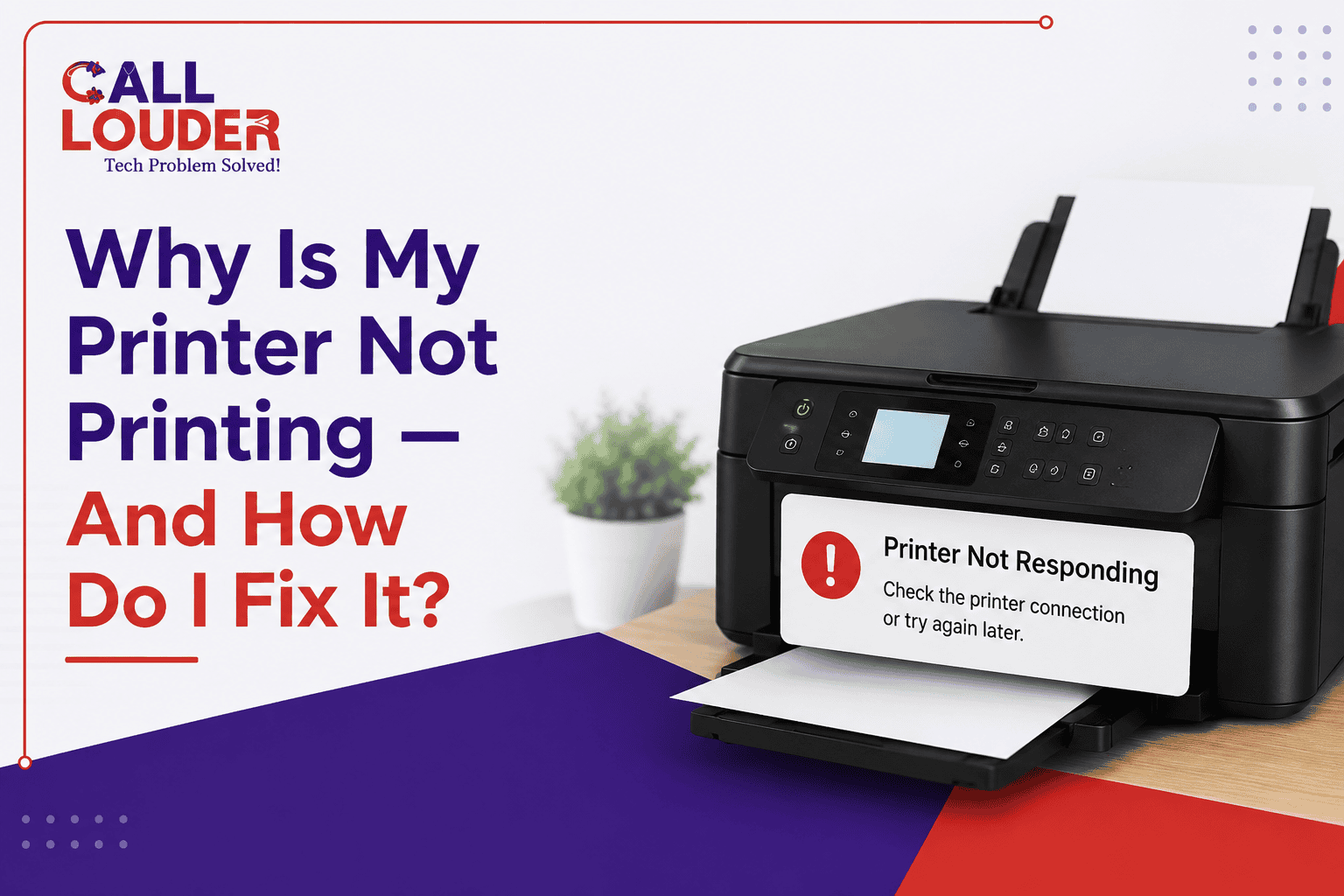
If your printer isn’t printing, don’t jump to conclusions. In many cases, the issue is something simple and can be fixed by checking a few basic things.
Printers always seem to stop working at the worst possible time. You send a file, expect it to print, and nothing happens even though everything looks fine on your screen. That’s usually when people start searching for why is my printer not printing.
The problem often isn’t the printer itself. This might be because of poor connectivity, an outdated software version, wrong configuration settings, or as simple as a jammed paper. By knowing where the issue actually is, you will be able to troubleshoot it more effectively and avoid causing additional trouble.
Why does the printer not print?
Here are the top causes of printer malfunction:
The very first thing you will want to check if the printer is turned on and properly wired. A print command passes through several steps, and a problem at any one of them can stop the whole thing.
Some of the most common causes:
- Poor WiFi connection or a network interruption
- Printer showing as offline
- Stuck print jobs sitting in the queue
- Outdated or damaged printer drivers
- Wrong printer selected on your device
- Paper or ink-related issues
Before assuming something is seriously wrong, it’s worth checking these first. Many printer won’t print problems can be fixed without replacing the printer or calling for repairs.
Start with these basic checks before troubleshooting further
A few quick inspections can save a lot of time.
When using a wireless connection, the two devices need to be on the same network. If you are using a cable connection, check that the USB cable is securely connected at both ends.
Also check:
- Is the printer showing as online?
- Is there enough paper loaded?
- Are there any indicator lights flashing or error messages showing on the printer?
- Is the right printer actually selected before you hit print?
A lot of people run into a situation where the device looks connected but still won’t respond.
This is a pretty common version of the printer connected but not printing problem- the connection exists, but something in the communication between devices has broken down.
In many cases, simply restarting the printer and your computer fixes it.
Why is my printer connected but not printing?
One of the more frustrating situations is when the printer shows as connected but the document just never comes out. In case the problem is why is my printer connected but not printing, it means there is a software issue that causes it.
Here’s a quick breakdown:
| Problem | What you notice | Possible cause |
| Connected but no printing | Printer appears ready but no output | Driver or print queue issue |
| Printer appears offline | Device cannot communicate | Network problem |
| Print job disappears | Nothing reaches printer | Spooler or software error |
The problem may be due to the print spooler, which is responsible for managing all the print jobs. If it freezes up, you could end up with stuck documents.
Could software issues stop a printer from working?
Yes, quite often. A lot of printing problems have nothing to do with the printer hardware and everything to do with software running in the background.
Printer drivers are what allow your computer to talk to the printer. It becomes impossible for the printer to function at all if it gets old or corrupted.
The other software-related problems are:
- Updates of the system altering the settings of the printer abruptly
- Conflicts among multiple printers attached to one device
- Incorrect default printer chosen
- Corrupted print spooler files
All these reasons may cause the impression that the printer does not work, although the device is functioning perfectly.
Changing the drivers or reinstalling the printer software may solve the problem easily.
How do paper jams affect printing?
Problems like a stuck paper in printer can be ignored easily. It seems that the printer is working perfectly, although even the smallest piece of paper inside the roller mechanism is enough to stop everything.
Reasons for a printer jam can be:
- Excessive amount of papers placed in trays
- Inappropriate size of paper used
- Folded or damaged sheets
- Torn paper left in the device due to the previous jamming
If there is any feeding problem detected, open the printer and inspect it thoroughly. Don’t yank paper out hard- small pieces can tear off and stay stuck inside.
Even a tiny printer stuck paper in the printer can hold up all new print jobs until it’s fully cleared.
Quick fixes that usually solve printing problems
Before calling anyone for help, try these steps:
- Restart the printer and computer
- Cancel all pending print jobs
- Check printer connection settings
- Update or reinstall printer drivers
- Set the correct printer as default
- Run the built-in printer troubleshooting tool
A simple restart fixes a surprising number of temporary software glitches. Clearing the print queue removes blocked documents that might be holding everything else up.
When should you contact an IT support provider?
If basic troubleshooting isn’t cutting it, the problem probably needs someone to take a proper look.
Printer failure may indicate other more significant problems with the networking setup or incompatible drivers causing constant technical problems. Within a corporate environment, even minor incidents translate into considerable losses.
Recent studies confirm that unplanned downtime costs Global 2000 companies about $600 billion each year, demonstrating the extent of potential financial loss resulting from ongoing technological problems.
An experienced IT support services company can identify the real reason behind all the troubles rather than trying to guess through hit-and-miss trials and errors.
Call Louder, as an IT support services provider, offers remote IT support for households and businesses that includes computer repairs, Wi-Fi troubleshooting, software support, and data recovery.
Getting your printer working again doesn’t have to be complicated
Most printer issues come from small things that are easy to miss. A connection error, a stuck queue, an outdated driver, a piece of paper in the wrong place- any of these can stop printing even when the device looks completely normal.
If you’re still asking why is my printer not printing, start with the basics and work through each possible cause. Simple troubleshooting handles most of it without any need for new equipment.
For anything that keeps coming back, support from a reliable team like Call Louder can help pin down the problem faster and keep things running the way they should.
FAQs
1. Why is my printer showing online but not printing?
This one’s pretty common. The printer looks ready, but nothing comes out. Typically, it will be something like a jammed print job, an issue with the driver, or even the way that the two devices talk to each other. Check the queue first, reset the printer, and make sure the correct printer is selected.
2. How do I fix a printer that won’t respond?
First thing: restart both the printer and your computer. That alone fixes it more often than it should. If not, check the connection, clear out any jobs sitting in the queue, and try updating or reinstalling the drivers. Contact Call Louder for further help.
3. Why does my printer keep going offline?
Usually comes down to an unstable network, outdated drivers, or some setting that keeps cutting off communication. Reconnecting to WiFi or updating the software sorts it out most of the time. If it keeps happening, the driver probably needs a proper reinstall.
4. Can a paper jam stop a printer from working completely?
It can; even a tiny scrap left inside from a previous jam is enough to hold everything up. Open the printer, check the tray, the rollers, anywhere paper travels through, and make sure nothing’s left in there before trying to print again.