
Nothing ruins a virtual meeting faster than bad Zoom audio. One minute you’re presenting ideas, but suddenly nobody can hear you, the sound starts lagging, or your mic just cuts out completely. Since remote meetings have become part of daily work, these glitches can quickly turn frustrating and stressful.
If you’re dealing with zoom audio not working, or even a Zoom microphone not working issue, then this guide is for you. These problems can lead to missed conversations, confusion, and lower productivity. Continue reading to learn simple remote solutions and practical expert tips to fix Zoom sound issues smoothly as well as to keep your meetings running without interruptions.
Why Is Zoom Audio Glitching in 2026? Common Causes You Should Know
Outdated Zoom App or Audio Drivers:
Sometimes Zoom audio problems happen because the app or your audio drivers are outdated. Although Zoom regularly releases updates, many users ignore them which leads to sound glitches, delays, or connection issues during meetings.
Incorrect Audio Settings:
Wrong audio settings are one of the biggest reasons behind audio not working on Zoom. Your speaker or microphone may not be selected correctly, or Zoom could be using a different device than the one you want.
Microphone Permissions Disabled:
If your system blocks microphone access, it can lead to Zoom microphone not working during calls. One reason this happens is after system updates because privacy settings can reset automatically.
Weak Internet Connection:
A bad internet connection can seriously impact the Zoom audio quality. You may hear robotic voices, delays, or broken sound, all because Zoom requires stable internet connection in order to work well.
Conflicts With Other Apps:
In some cases, you may need to shut down other applications (like Teams, Skype, or Discord) that are trying to access your microphone or speaker. If any of these apps are running at the same time, they could cause problems.
Hardware Issues:
The majority of audio-related issues attributed to Zoom are usually caused by the software. However, damaged headphones, faulty microphones, or loose cables can also create audio problems. That is why it is essential that you always check your hardware when troubleshooting an audio problem.
Key Insight: The majority of Zoom audio issues stem from incorrect settings rather than the hardware itself.
Quick Remote Fixes to Solve Zoom Audio Issues Instantly (Step-by-Step Guide)
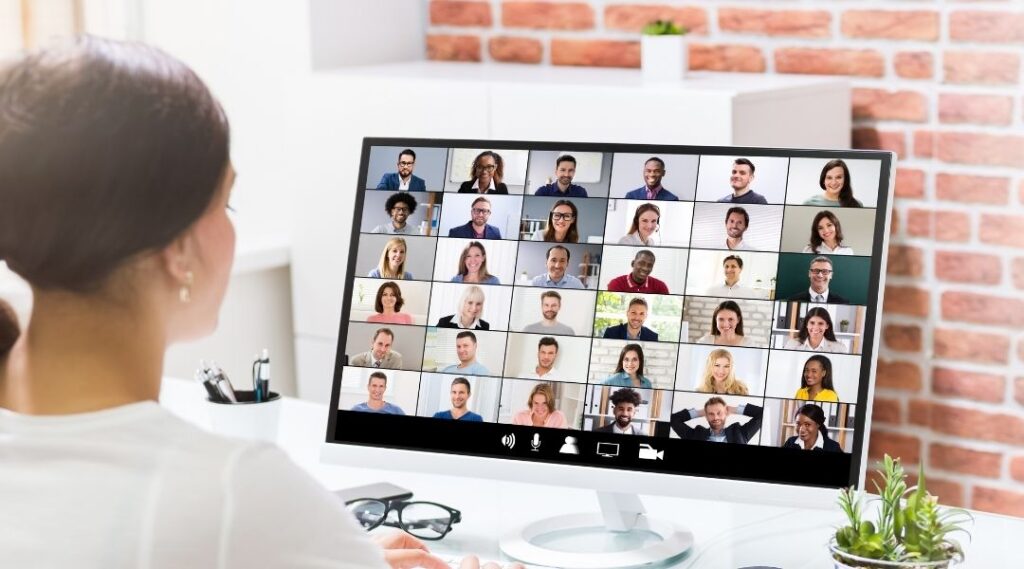
Step 1: Check Zoom Audio Settings:
Many zoom audio not working issues happen because Zoom selects the wrong microphone or speaker automatically. Therefore, open the audio settings and choose the correct devices before starting your meeting.
Step 2: Restart Zoom & Device:
Sometimes small system glitches can affect Zoom audio performance. Restarting Zoom or your device often fixes these temporary problems quickly as well as efficiently.
Step 3: Check Microphone Permissions:
If you notice your Zoom microphone not working, your computer may be blocking microphone access. Thus, check your Windows or Mac privacy settings and allow Zoom to use the microphone.
Step 4: Update Zoom App & Drivers:
Since updates fix bugs regularly, keeping Zoom and audio drivers updated solves many common friction points. If your system refuses to update correctly, our dedicated team handles Software Upgrade & Fixes remotely to restore your machine’s peak performance.
Step 5: Check Internet Connection:
A weak internet connection can make voices sound delayed and/or unclear. Therefore, use a stable Wi-Fi connection to ensure that you have stable/consistent Zoom audio because it depends heavily on internet quality.
Step 6: Close Conflicting Apps:
Applications, such as Teams or Skype, may already be using your microphone in the background without your knowledge. These applications can interfere with Zoom and create sound issues.
Quick Fix: Use Zoom’s “Test Speaker & Microphone” feature before every meeting because it helps detect audio problems early.
If the issue persists, the problem likely lies within corrupted sound profiles or broken system files. Instead of guessing the fix, you can explore our remote IT services to have a certified technician instantly clean up your system drivers behind the scenes.
How to Fix “Zoom Audio Not Working” on Different Devices
On Windows PC:
First, check the sound settings and ensure that the correct microphone and speaker are selected if your Zoom audio not working issue occurs on Windows. Also, it is better to update/reinstall audio drivers as old drivers can cause audio issues.
For Mac users, make sure to check the microphone permissions in System Settings, as Zoom requires access to audio devices. While the microphone might be functioning in other apps, Zoom must ask for permission separately.
On Mac:
For Mac users, make sure to check the microphone permissions in System Settings, as Zoom requires proper access to audio devices. While the microphone might be functioning in other apps, Zoom must ask for permission separately.
On Mobile (iPhone & Android):
If you face audio not working on Zoom on your phone, go to the app permissions and enable microphone access. Another good solution is to reinstall the Zoom app, as it fixes many of the Zoom audio issues quickly, and removes temporary bugs.
Fix Zoom Microphone Not Working Issues
Check Mute Settings:
Sometimes the microphone is simply muted during the meeting. Therefore, check both Zoom and your device settings to make sure the mic is unmuted properly.
Choose the Correct Microphone:
Zoom may connect to the wrong audio device automatically. If your Zoom microphone not working issue continues, select the correct microphone manually from Zoom Audio Settings.
Test an External Microphone:
If the built-in microphone is unclear, try using an external mic or headset. This can help improve Zoom audio quality and reduce sound interruptions.
Adjust Input Volume:
Low input volume can make your voice hard to hear. Increase the microphone input level in your device settings so others can hear you clearly during meetings.
Pro Tips to Improve Zoom Audio Quality for Smooth Virtual Meetings
Use an External Microphone or Headset:
External microphones usually provide clearer sound than built-in laptop microphones. Thus, they help reduce echo and improve overall Zoom audio quality.
Sit in a Quiet Place:
Background noise can make conversations unclear and distracting. Therefore, joining meetings from a quiet room helps create smoother communication.
Use a Wired Internet Connection:
Wi-Fi signals may become unstable during important meetings. Since stable internet improves audio quality, a wired connection often works better.
Turn On “Original Sound” in Zoom:
Zoom’s “Original Sound” feature keeps your voice more natural and clear. Although noise cancellation is useful, this setting can improve audio quality for professional calls.
Close Background Apps:
Apps running in the background can slow down your system and affect Zoom audio performance. Closing unnecessary apps helps meetings run more smoothly.
Common Mistakes That Cause Zoom Audio Issues
- People often forget their microphone is muted during meetings, which can cause confusion and communication delays, so make sure to check that.
- Zoom may connect to the wrong speaker/microphone which then leads to audio issues during calls. That is why it is always important to check first.
- Using outdated Zoom versions and/or old audio drivers can create bugs and impact sound quality.
- A weak/unstable internet connection can cause voice delays, lag, and audio dropouts in meetings.
Closing Thoughts
Most zoom audio issues happen due to simple settings, permissions, or internet problems, but they can still disrupt communication if they are not handled on time.
By following the above troubleshooting steps as well as doing a quick check before meetings, you can avoid most audio not working on Zoom situations. For ongoing or complex issues, it is wise to get expert help or setting up your system properly in advance can save time and prevent future problems as well.
Contact Calllouder for more support and solutions to keep your Zoom meetings running without interruptions.
Frequently Asked Questions
Why is my Zoom audio not working sometimes?
Your Zoom audio may stop working because of wrong settings, muted mic, or weak internet. It can also happen if the app and/or drivers are outdated.
How can I fix my Zoom microphone not working issue?
If your Zoom microphone not working, check if Zoom has mic permission and select the correct device. A quick restart of Zoom or your device can also help.
Why can’t I hear anyone on Zoom?
This usually happens when the wrong speaker is selected or the volume is too low. Sometimes audio not working on Zoom is also caused by a poor internet connection.
How do I check if my Zoom audio is working?
You can use the “Test Speaker & Microphone” option in Zoom settings. It instantly tells you if your sound input output are working properly.
Can slow internet mess up Zoom audio?
Yes, slow internet can make Zoom audio break, lag, or sound unclear. A stable connection is important for smooth and clear meetings.