

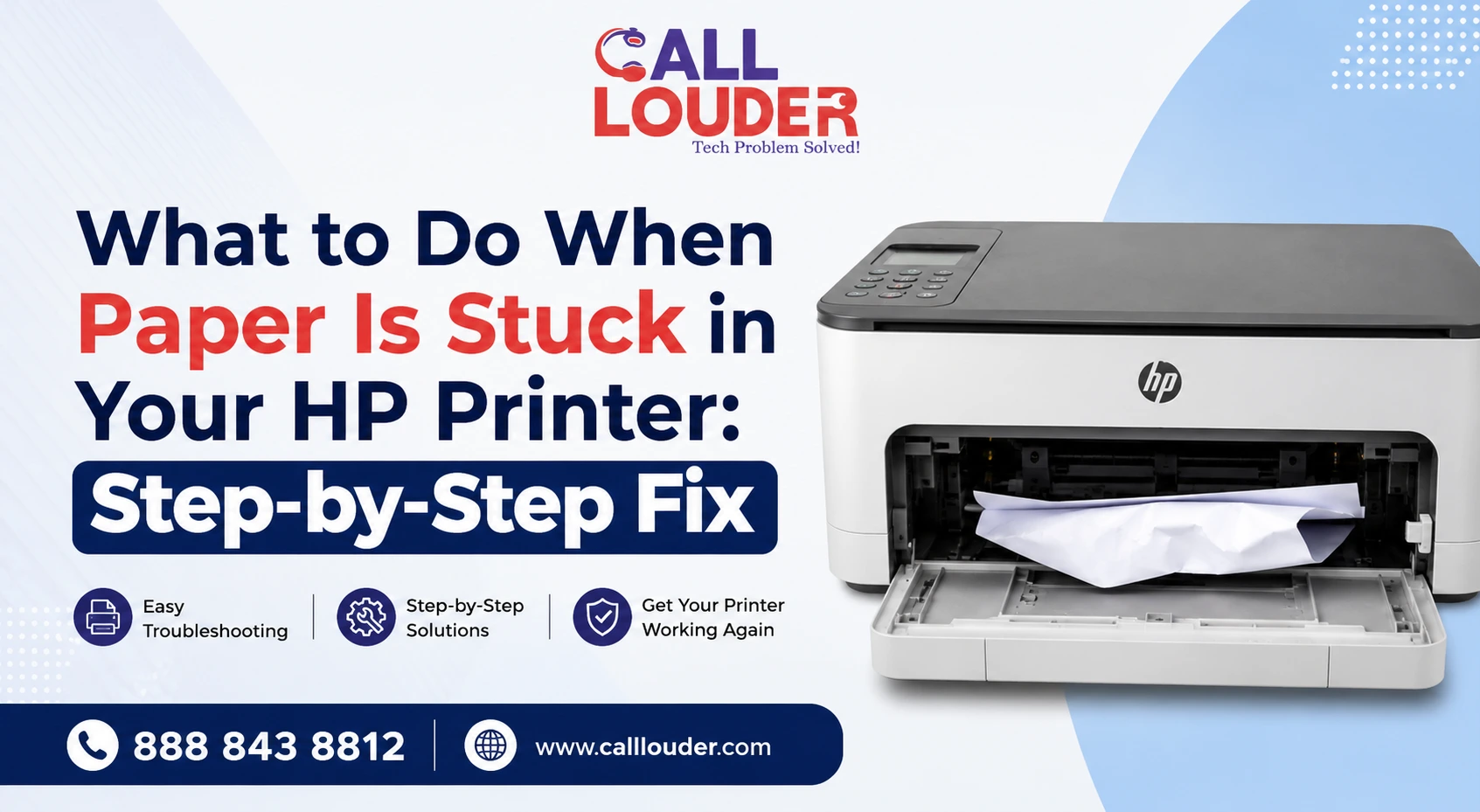
A paper jam doesn’t always mean there’s a full sheet sitting inside the printer. Sometimes it’s a torn corner, a crumpled edge, or a small scrap caught around a roller. That’s why pulling out the obvious paper doesn’t always clear the error.
If you’re searching for what to do when paper is stuck in printer HP, the fix is to work through the paper path carefully and check the spots where hidden pieces are most likely to be hiding.
Why Does Paper Get Stuck in an HP Printer?
The cause isn’t always obvious. Paper jams can come from a surprising number of places.
Reasons why jams occur may include:
- The paper is inserted improperly
- Overloading of the paper tray
- Damaged, curled, or wet paper
- Wrong size or wrong type of paper
- Dirty rollers or their wear and tear
- Junk from a previous paper jam
- Foreign objects inside the paper path
If your printer keeps on jamming, even when using perfect paper, the problem lies with the printer – not with the paper.
What Should You Do First When Paper Is Stuck in an HP Printer?
Don’t grab the visible sheet and pull. Start by stopping the printer properly.
- Stop the existing printing job
- Shut down the printer
- Unplug it from the power source
- Take out loose papers from the feed tray
- Look at the screen to check if there is any message about the jam location
- Allow time for all moving parts of the printer to come to rest
This should be done especially when the printer has been operating for some time because the machine needs time to cool off, particularly in cases where paper is jammed in printer’s hidden parts.
How Do You Remove Jammed Paper From an HP Printer?
Access points vary between HP models, but the general process is the same across most of them.
Check the Paper Input Tray
Start where paper enters the printer. Remove the remaining sheets and look for a page that only partially fed through.
Pull any visible paper slowly in the direction it would normally travel. Don’t yank it sideways or force it if it’s not moving.
Open the Cartridge Access Area
If your model gives access to the cartridge area, open it and look carefully inside. Check around the carriage and paper path for a trapped sheet or torn scraps. Don’t force the cartridge carriage if it’s not moving freely.
Check the Rear Access Door
Some HP printers have a rear panel specifically for reaching the paper path. If yours has one, open it and check for paper caught around the rollers. Remove it gently rather than pulling hard from the front.
Check the Output Area
Finally, look at where printed pages normally come out. A small piece of paper can sit near the output rollers even after the main sheet is gone. A flashlight helps if the area is hard to see clearly.
What Should You Do If the Paper Tears Inside the Printer?
This is where a straightforward jam gets more complicated.
If the sheet tears, don’t assume removing the biggest piece has sorted the problem. Even a small scrap left behind can jam rollers or cause another jam warning.
Go carefully over the entire available paper path and pick up any loose bits. Do not stick scissors, screwdrivers, tweezers, or anything sharp deep into the printer, as you could damage rollers, sensors, or other internal components.
Do not force anything; stop if you cannot get the remaining paper out. No further damage is worth the risk.
What If the HP Printer Still Says There’s a Paper Jam?
Sometimes the physical jam is gone, but the warning stays. Don’t make any assumptions before going through these simple processes first:
- Check the input and output areas once again
- Search for tiny pieces of paper
- Ensure that the paper guides are set right
- Load paper in the tray without overfilling it
- Close all access doors completely
- Switch off the printer and turn it on again
The printer is most likely to sense some sort of presence in its mechanism through a sensor, or it might have a mechanical problem beneath it all. Printer stuck paper problems should not be overlooked, particularly when there is no paper in the machine anymore.
How Can You Prevent Paper Jams in an HP Printer?
Once the jam is cleared, a few straightforward habits go a long way.
- Do not feed your tray with an excess amount of paper
- Ensure that the paper is appropriate for your printer model
- Feed straight and dry paper into the printer tray
- Ensure that the paper guides fit the paper stack without applying too much pressure to it
- Remove all curled or torn pieces of paper from the stack
- Do not mix types of paper in the printer tray
- Clean the rollers if they are dirty
If stuck paper in printer problems happen repeatedly with fresh, correctly loaded paper, the rollers or another internal component may need attention.
When Should You Call a Printer Professional?
A one-time jam isn’t usually a reason to call anyone. Repeated jams are a different story.
When to seek professional help:
- Frequent printer jams with no apparent cause
- Paper keeps tearing up inside
- Rollers not feeding paper correctly
- You hear grinding or clicking that you did not hear previously
- Jam warning remains after paper path is clear
- Internal parts appear damaged
- Apart from jams, the printer has other recurring faults
If you too are encountering any installation or configuration issues, then searching for a printer setup service near me can help you find local help instead of running into the same problem again and again.
For more complex printer and computer issues, professional IT support services from Call Louder can help determine if the issue is hardware, software, drivers, or a network connection problem.
FAQs
Can a paper jam damage my HP printer?
A normal jam cleared carefully won't cause serious damage. Forcing paper out or using sharp objects inside the printer is where real damage tends to happen.
Why does my HP printer jam with thicker or specialty paper?
Most printers are only compatible with some weights and types of paper. Using paper outside of those specifications will cause feeding problems and frequent jams.
How often should HP printer rollers be cleaned?
There's no set schedule. Clean them if you notice feeding problems, recurring jams, or paper slippage during printing. Refer to the maintenance guide for your specific model.
Is it cheaper to repair an HP printer or replace it?
Depends on the printer's age, the repair cost, and what's actually wrong. A minor roller issue is often worth fixing. Repeated mechanical faults on an older printer usually make replacement the more practical call.
Is it possible to use a vacuum cleaner to clean up paper scraps from an HP printer?
Do not use a household vacuum on the printer because it can cause damage due to static electricity and suction. It is recommended to manually collect visible paper scraps.