

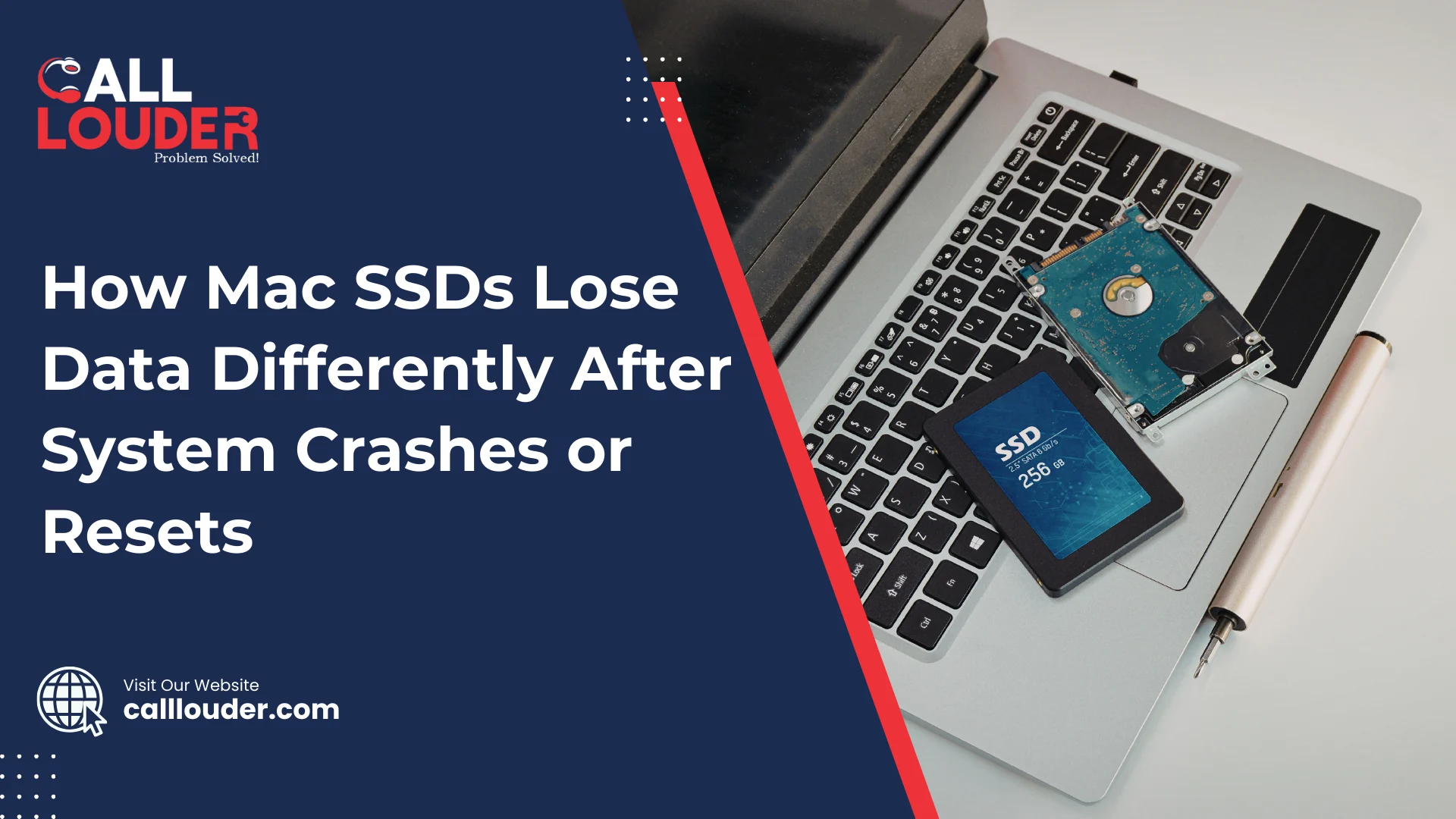
When a Mac crashes or suddenly restarts, most people worry about the same thing: Did I lose my data? Sometimes everything looks fine after rebooting, but other times files are missing, apps won’t open, or documents are damaged. This happens because Macs use SSDs, and SSDs handle data loss very differently compared to older hard drives.
To understand what really happens, we need to look at how SSDs work and why crashes or resets can cause problems, even though everything feels fast and modern.
SSDs Are Not Like Old Hard Drives
Older computers used hard drives with spinning disks inside so when something went wrong, data often stayed on the disk even if the system crashed. Most recovery tools could recover most data because the data was still physically there.
Macs today use SSDs, which stand for solid-state drives. SSDs have no moving parts. They store data using memory chips instead of spinning disks. This makes them faster, quieter, and more reliable in daily use. But it also means they behave very differently when things go wrong.
Because SSDs are designed for speed and efficiency, they clean up data very quickly. This is good for performance, but bad for recovering lost files.
What Happens During a System Crash
A system crash usually happens when macOS is busy doing something in the background. It could be saving a file, updating apps, syncing data, or writing system information.
If the crash happens in the middle of this process, the file may not finish saving properly. This can cause problems like:
- Files that exist but won’t open
- Documents that are empty or broken
- Apps that lose their saved data
On an SSD, unfinished data does not just sit there. The system may later decide that the broken data is useless and remove it completely.
So although the file name might still appear, the real content may already be gone.
Why Forced Resets Are Risky
A forced reset occurs when you hold down the power button or restart the Mac suddenly because it is frozen, causing your Mac to shut off instantly, without giving the system time to finish what it was doing.
When power is cut abruptly, all of the information stored temporarily can be lost.
This can lead to:
- Corrupted files
- Missing folders
- Damaged system data
The TRIM Feature Makes Data Loss Permanent
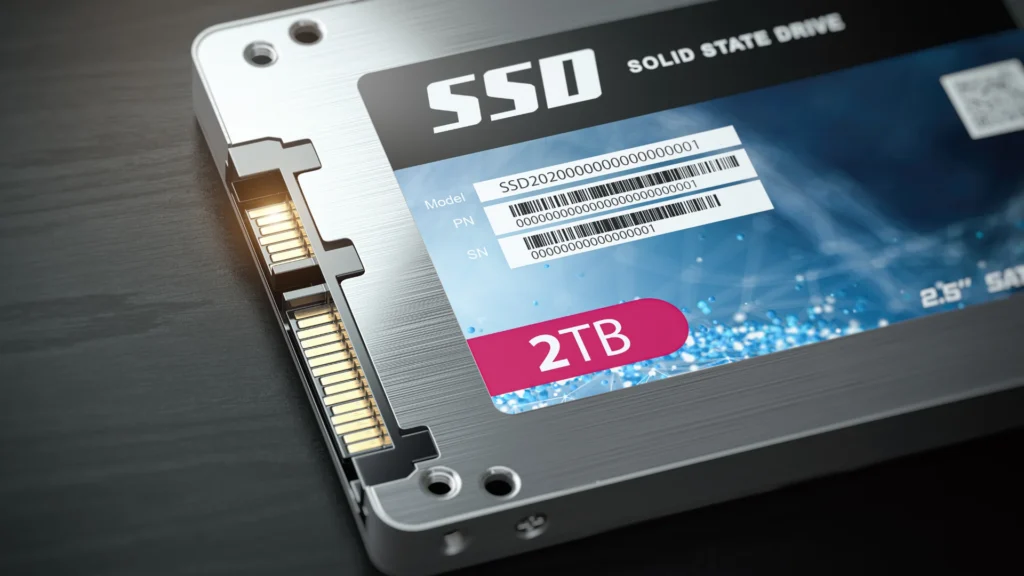
One big reason SSD data loss is different is something called TRIM.
TRIM is a command macOS sends to the SSD to tell it which data is no longer needed. This helps the SSD stay fast and healthy. When TRIM runs, the SSD erases unused data completely.
Though this is good for speed, but once data is erased by TRIM, it cannot be recovered.
If macOS detects a fault or damaged file after the system has crashed or been restarted, it may mark the file as unused. In addition, TRIM may then erase them quickly. This means files that might have been recoverable on old hard drives are completely gone on SSDs.
macOS Tries to Fix Things Automatically
macOS is designed to protect the system first. If there is a problem with the Mac, it may try to repair the disk, fix any errors that are present, and delete anything that it considers a security risk.
Although this helps keep the Mac stable, it can also remove personal files that look damaged. The system chooses safety over saving broken data.
Therefore, even though the Mac boots up and works again, it is possible that some files may be lost unexpectedly.
Why Data Loss Is Not Always Immediate
One confusing thing about SSD data loss is that it doesn’t always show up right away.
You might restart your Mac and everything seems normal. Days later, you realize a document is missing or won’t open. This happens because the file reference still exists, but the actual data was erased earlier.
SSDs don’t slowly fail. When data is gone, it’s usually gone completely.
Why SSD Data Is Hard to Recover
With old hard drives, recovery software could scan unused space and rebuild files. SSDs don’t work like that.
Because of how SSDs manage memory:
- Data moves around constantly
- Old data is erased quickly
- There is no fixed location to scan
This makes recovery very difficult. Once the SSD deletes something, there is often nothing left to recover.
That’s why experts say you should stop using the drive immediately after data loss. Using the Mac more gives the SSD more chances to erase old data.
How to Protect Your Data
Since crashes and resets can happen to anyone, it is important to have a backup in place. The following are some easy-to-follow steps that help a lot:
– Use Time Machine as often as possible
– Store backups on external drives or cloud storage
– Avoid forced shutdowns unless absolutely necessary
– Let updates or installations complete
– Ensure you have available storage on your SSD.
Backups make crashes much less scary because even if data is lost, you can restore it easily.
Final Thoughts
While Mac SSDs have been proven to be fast and reliable, they do have certain restrictions when it comes to data errors. After crashing or resetting a system, both the SSD and the system work together to clean up quickly. This improves performance, but it also means lost data is often gone forever.
Although this sounds a bit scary, understanding how SSDs work helps you prepare. With regular backups and careful use, crashes become less stressful.
FAQs
Yes, it can. Because SSDs erase broken data quickly, some files may be lost forever after a crash.
Sometimes, but not always. SSDs clean unused data fast, so recovery is harder than old hard drives.
After a restart, macOS may remove damaged files to protect the system, which can make files vanish.
Yes. Forced shutdowns can stop files from saving properly and cause data corruption.