

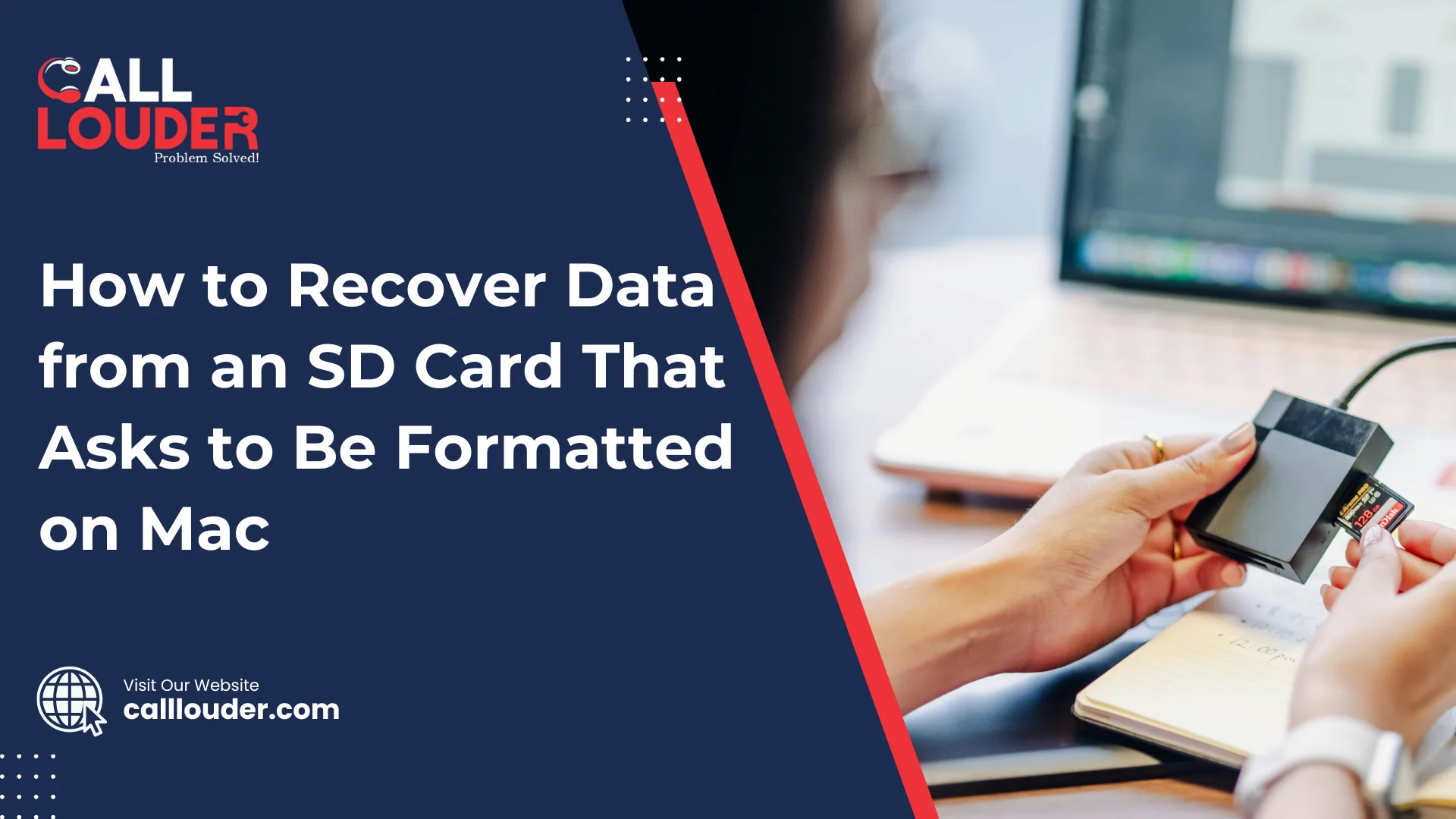
When you receive or see the message “You need to format the disk before you can use it” when inserting an SD card into your Mac, it can be concerning. This error is very common and is usually associated with file system issues rather than data loss.
This message can appear suddenly because the SD card was removed improperly, used on different devices, or became slightly corrupted. Although your Mac can’t read it properly, the data is often still there. That’s why sd card data recovery mac solutions can help before you format anything.
There is no need to rush to format the card. Many times, files can be retrieved first, and then the SD card can be fixed. Following the right steps early gives you the best chance to get your data back.
What Does It Mean When an SD Card Asks to Be Formatted on Mac?
When your Mac asks to format an SD card, it means macOS can’t read the card properly. This usually happens because the file system is damaged or was created on another device. Although the card looks unusable, the data may still be there.
In most cases, this is a logical error and not physical damage. Logical issues happen due to sudden removal, power cuts, or software glitches, while physical damage involves cracks or internal failure. Logical problems are much easier to fix with sd card data recovery mac methods.
You should avoid formatting the SD card right away because formatting can erase your files. Since recovery is often possible before formatting, it’s safer to try data recovery first.
Quick answer:
This message means your Mac can’t read the SD card, but your data is often recoverable. Do not format it until recovery is attempted.
Common Reasons an SD Card Becomes Unreadable on Mac
- Improper ejection of the SD card:
If you remove the SD card without safely ejecting it, there is a chance you may lose data because it can interrupt data writing and cause errors. This problem frequently leads to read issues on macOS. - File system corruption:
The file system can get damaged due to sudden shutdowns or software issues. When this happens, your Mac may not be able to read or recognize the SD card at all. - SD card used on multiple devices:
Using the same SD card on cameras, phones, Windows PCs, and Macs can create compatibility problems. Different systems handle files differently, which may confuse macOS. - Power failure during data transfer:
If power is lost while files are being copied, the SD card may not complete the process properly. This can leave the card unreadable. - Virus or malware from other systems:
Although Macs are safer, SD cards used on infected systems can carry harmful files. These can damage the file structure and cause access issues.
What to Do First When Your SD Card Asks to Be Formatted

If your SD card suddenly asks to be formatted, the first thing is to stop using it immediately. Writing new files can overwrite your data and make recovery very difficult.
Do not click “Format” even if the Mac suggests it. f you do, all your files could be gone for the moment.
Next, safely remove and reinsert the SD card into your Mac. There are times when reconnecting it the right way makes it readable.
If it still doesn’t work, try a different SD card reader or port. A faulty reader can also cause the card to appear unreadable.
Check SD Card Visibility in Disk Utility on Mac
Open Disk Utility from Applications > Utilities to see if your SD card is detected. If it shows up, it means your Mac can see the card but may not read it correctly.
After checking your file system status, if it is showing “Unreadable” or “Corrupted,” it simply means your SD card has logical errors that can often be fixed with recovery tools.
Disk Utility may also show error messages like “The disk you inserted was not readable by this computer.” Such messages tell you whether the problem is with the file system or with the hardware.
How to Recover Data from an SD Card on Mac Without Formatting
Before doing anything else, try read-only access methods. This means you access the SD card without writing or changing any files, so your data stays safe.
It’s important to do data recovery before attempting any repairs. Fixing the card or formatting it first can overwrite your files and make them more difficult or impossible to retrieve.
Also keep in mind that macOS built-in tools like Disk Utility can sometimes repair a card, but they usually don’t recover lost files. They are more for fixing minor errors and not full data recovery.
Using Data Recovery Software for SD Card Data Recovery on Mac
Data recovery software works best when the SD card is logically damaged although the files are still there. It scans the card and can restore photos, videos, documents, and other file types.
Avoid saving the recovered files back to the same SD card so you do not accidentally overwrite data.
For the best results, follow recovery best practices: stop using the SD card, use a trusted recovery tool, and save recovered files to a different drive. This is the safest way to do sd card data recovery mac and get your files back.
Recovering Data Using Terminal (Advanced Users)
Sometimes, Terminal commands on Mac can help access an SD card that cannot be read otherwise. It can let you copy files manually when other tools fail.
However, there are risks as well. One wrong command can erase your data permanently or make recovery harder.
Because of this, Terminal recovery is not recommended for beginners. It’s best only for users who are comfortable with command-line tools.
What If the SD Card Has Physical Damage?
When the SD card is cracked, bent, or the internal memory fails, it can cause physical damage. Signs include the card not being detected at all or making unusual noises in card readers.
Fixing physical damage yourself usually fails and may create further issues.
In these cases, it’s important to seek professional data recovery support. Experts have the tools to safely retrieve data without further damage.
Can You Format the SD Card After Data Recovery?
After you have successfully recovered your files, it is safe to format the SD card. Formatting your SD card resolves any errors and lets you use it again.
Make sure to choose the correct file system for Mac, usually Mac OS Extended (HFS+) or exFAT if you plan to use it with more than one device.
After formatting, you can reuse the SD card, but if it had severe damage before, replacing it may be a safer option to avoid future problems.
How Professional SD Card Data Recovery on Mac Helps
Professional services use advanced recovery tools that access files even when the SD card seems completely unreadable. These tools are much more effective than any typical DIY methods.
They use safe, non-destructive methods, which means your original data is safe during the recovery process. Thus, this greatly minimizes the risk of permanent loss.
With professionals, you get higher recovery success rates because they know how to handle tricky issues like logical corruption or partially damaged files.
They also ensure secure handling of sensitive data, keeping your personal or business files safe throughout the process. For reliable support, contact CallLouder’s data recovery services to see how experts can help recover your SD card data on Mac safely.
How to Prevent SD Card Data Loss on Mac in the Future
- Make sure to always eject the SD card properly before removing it from your Mac. Pulling it out without ejecting can corrupt files and make the card unreadable.
- Make regular backups of important files. This way, even if the SD card fails, your data is safe.
- Avoid using cheap or damaged SD cards as low-quality cards tend to fail, resulting in loss of your data.
- Use file systems that are compatible with Mac, like Mac OS Extended (HFS+) or exFAT for cross-device use. This reduces errors and keeps your SD card reliable.
FAQs
Formatting should only be done after you have tried every other method available because formatting can erase all your files, and recovery might be possible first.
Not always. Recovery works best for logical errors, but physically damaged cards may require professional assitance.
The duration of recovery depends on usually two things i.e. the card size and damage. While smaller cards may take just a few minutes, on the other hand, larger or heavily corrupted ones can take hours.