

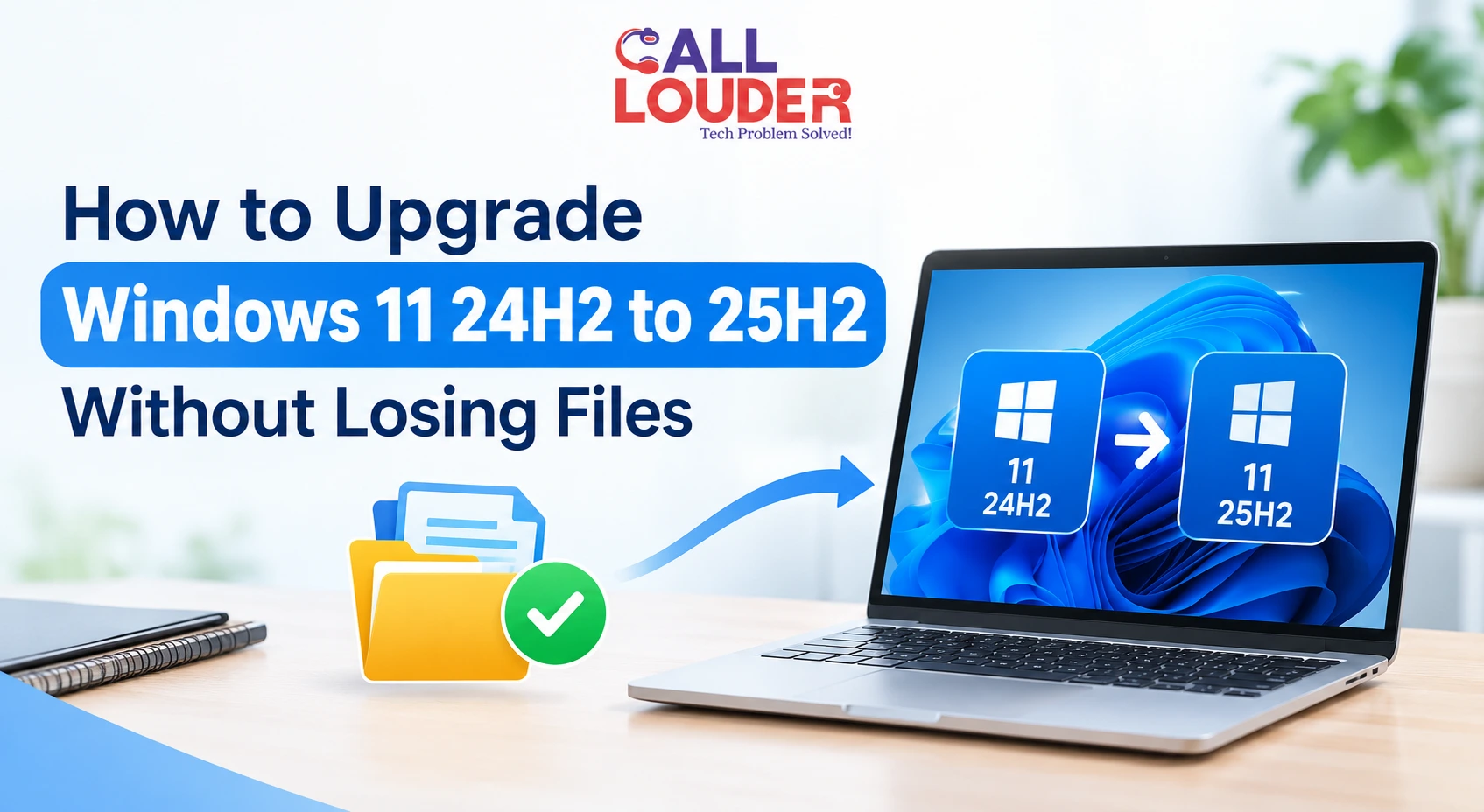
Updating Windows and reinstalling Windows are different processes, and choosing the wrong one can affect your files and applications. If you are looking to upgrade Windows 11 24H2 to 25H2, then wait for Microsoft to push the update to your device, back up any important files, and proceed. You should then confirm that the upgrade was successful.
Can You Upgrade Windows 11 24H2 to 25H2 Without Losing Files?
Yes. A standard feature update is built to keep your personal files, installed apps and most settings. Eligible devices can go from 24H2 to 25H2 through an enablement package, which switches on features that are already in the system. That usually makes it quicker than a full feature upgrade.
Things can still go wrong, though. A failed install, a power cut or an existing system problem can cause trouble. Before you upgrade Windows 11 24h2 to 25h2, back up your important data.
Windows 11 26H2 is out too, so your PC might offer that instead. Go to Windows Update and see what release is available for your device and is right for you.
What to Check Before Installing the Windows 11 25H2 Update
Run through these first:
- Confirm your version: Press Windows + R, type winver, and press Enter.
- Install pending updates: Open Settings > Windows Update and install whatever’s waiting.
- Check storage: Make sure the system drive has enough free space.
- Connect to power: Keep your laptop plugged in while it installs.
- Check compatibility: Look at Microsoft’s release health information if Windows reports a problem.
Before changing any update settings, please ask your IT administrator on a work-managed computer.
How to Back Up Your Files Before Upgrading Windows
A Windows 11 update without losing files is meant to keep your data. A separate backup is still your safety net if something goes wrong.
Start with documents, photos, work files, desktop folders, Downloads, and any important app information. Copy them to an external drive, or use OneDrive or another cloud service you trust. Open a few of the backed-up files to check they work.
If you’ve got a lot of data, remote data backup services can help you get ready before installing. Keep the backup away from the Windows installation drive if you can.
How to Upgrade Windows 11 24H2 to 25H2 Using Windows Update
Windows Update is the best place to start for eligible personal computers.
- Open Settings > Windows Update.
- Select Check for updates.
- Look for the Windows 11 25H2 update, or another supported release offered to your PC.
- Select Download and install if 25H2 shows up.
- Wait for it to finish and restart when prompted.
- Check Windows Update again for anything left.
Last, press Windows + R, enter winver, and confirm the installed version.
Microsoft uses an enablement package for eligible devices moving from 24H2 to 25H2. Whether you get it depends on compatibility and Microsoft’s rollout, so it may not reach every PC at the same time. See Microsoft’s feature update information.
What to Do When Windows 11 25H2 Is Not Showing
If Windows 11 25H2 not showing is your problem, restart the PC, install pending updates, and check Windows Update again.
Microsoft sometimes holds an update back when a known driver, app or hardware issue could affect the install. That’s called a compatibility safeguard. Don’t force the upgrade, and don’t download installation files from unofficial sites.
Check Microsoft’s Windows 11 release-health page for known issues. Since 26H2 is out as well, your computer might offer that one instead. Look at its compatibility and support details before you decide which release to install.
How to Fix a Windows Update Stuck During Download or Installation
Windows update stuck at one percent does not always indicate that it has failed. Some stages just take a while, especially on slower storage.
Try these:
- Check your internet connection if the download has stopped moving.
- Make sure the system drive has enough free space.
- Note any error code on screen.
- Restart only when it’s safe, then check Windows Update again.
- Follow Microsoft’s troubleshooting guidance if it keeps happening.
Don’t keep forcing installs without figuring out what’s wrong. If errors continue, software optimization services can look into storage limits, damaged system files, or other performance problems getting in the way.
What to Check After Upgrading to Windows 11 25H2
Run winver to confirm the version, then open Windows Update and install anything remaining.
Scan your critical folders and start the apps you normally use. Test connected devices like printers or external drives if you need to use them for work.
If files appear to be missing, check the Recycle Bin, check OneDrive sync status, and check the original folders. If you think files are lost, don’t save new data to the affected drive. File recovery services can help when you can’t restore important files from a backup.
When to Get Help With a Windows Upgrade
Some update problems mean digging into drivers, system files, storage health, or installation logs. If you can’t work out the cause, remote computer support can diagnose it without trial and error.
Call Louder provides technical support for people dealing with Windows upgrades and computer problems. After installation, keep automatic updates on and keep backing up. If your computer still runs slowly or is unstable, Call Louder’s technical support and system optimization services can help.
Frequently Asked Questions
Will upgrading from Windows 11 24H2 to 25H2 delete my files?
The standard feature update is designed to retain your personal files and apps, but it’s still a good practice to back up important data first.
How long does the Windows 11 25H2 update take?
The enablement package can install fairly quickly on eligible devices. Downloading, restarting, and pending updates all add to the total time.
Why is Windows 11 25H2 unavailable on my computer?
It could be waiting for a rollout, device or incompatibility safeguard.
What do I do if Windows Update is frozen?
Check your storage and connection, note the error code if provided, and try the Microsoft troubleshooting suggestions before attempting the install again.
Is Windows 11 25H2 upgrade possible without Windows reinstallation?
Yes. If your device is supported, you’ll get the update through Windows Update, so you can keep your apps and files.